How to Use Bluehost AI Website Builder: Step-by-Step
You type a website idea into a search bar, land on a hosting signup page, and freeze — themes, plugins, page builders, and suddenly building a site feels like a part-time job you didn’t sign up for.
That’s the exact gap Bluehost built its newest tool to close, and once you see how to use Bluehost AI Website Builder, the whole process shrinks from a weekend project into something you can finish over a coffee break.
Instead of clicking through templates one by one, you describe your business in a sentence or two and let the AI do the heavy lifting.
In this guide, you’ll walk through the exact steps — from writing your first prompt to publishing your finished site — plus what you need on hand before you start (just a business description and a few minutes) and roughly how long the whole build takes.
We’ll also cover the customization moves and prompt examples that separate a generic-looking AI site from one that actually looks like yours.
How to Use Bluehost AI Website Builder Step by Step
Building a site with Bluehost’s tool comes down to five moves: describe your business, answer a handful of AI questions, pick a design, sign in or create an account, and let the AI generate your site. Here’s what each step actually looks like on screen.
Start Your Website With a Prompt
- Log in to your Bluehost account, or go to bluehost.com/ai-website-builder if you’re starting fresh.
- Click AI & Developers in the top menu, then select AI Website Builder.
- On the AI Website Builder page, type a short description of your business — what it does, who it’s for, and anything that makes it distinct. You can also upload your logo here.
- If you’d rather not write from scratch, scroll down to the prompt gallery and pick one of the pre-built prompts, then click Use this prompt. To tweak one instead, click Edit prompt, make your changes, and select Use edited prompt.
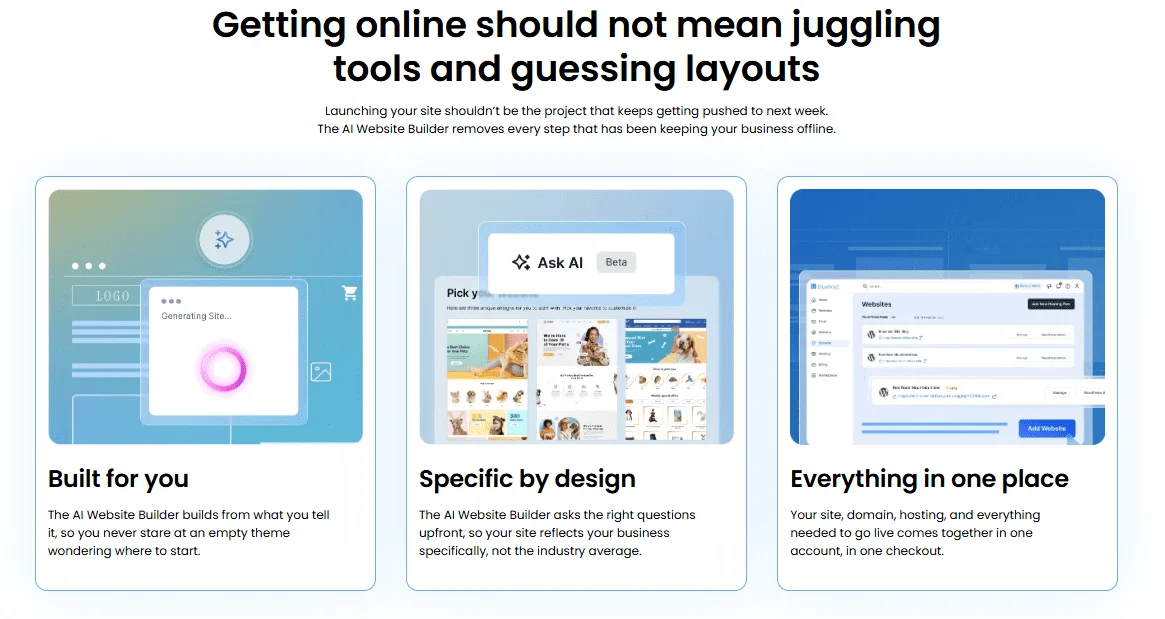
A vague prompt produces a generic layout; a specific one (business type, audience, tone) produces a first draft that already looks like yours. More on that in the prompts section below.
Answer the AI’s Follow-Up Questions
Before it builds anything, Bluehost’s AI agent asks up to five guided questions covering things like your brand name, color preferences, and the style or mood you want.
Each question comes with tappable suggested answers, so you’re not stuck typing out every response — though you can type your own if none of the suggestions fit.
Common snag: if you skip through these questions too quickly with generic chip answers, your first draft will read more like a template than a business-specific site. Slow down here — it’s the input the AI uses to avoid producing a generic result.
Choose a Website Design
Based on your prompt and answers, the AI generates three distinct design options — each with its own color palette, layout, and starter content — rather than handing you a single result.
Compare them side by side and pick whichever fits best; you can still change colors, fonts, and content afterward, so don’t overthink this choice.
Sign In or Create Your Bluehost Account
- Once you’ve chosen a design, you’ll be prompted to sign in or create a free account.
- Sign up with an email address, or connect an existing Google, Apple, or GitHub account for a faster setup.
- If you already have a Bluehost account, enter your existing credentials instead.
- Confirm your website details (name and description) to finish setup.
Let AI Generate Your Website
Once you’re signed in, the AI agent builds your site in real time — you watch each section appear instead of staring at a blank loading screen. The build itself typically takes about five minutes once you’ve answered the setup questions and picked a design (Bluehost, “Introducing the Bluehost AI Website Builder”).
How to Customize Your AI-Generated Website
You don’t need to touch code to change anything on your AI-generated site. You can edit through the visual drag-and-drop editor, or simply tell the AI what to change in plain language. Here’s how each option works.
Edit Text, Images, and Layouts
- Click directly on any text block to edit the copy inline.
- Click an image to replace it — upload your own photo, or have the AI generate a new one from a text description. No stock photo subscription needed.
- Use the drag-and-drop editor to move sections, swap layouts, or adjust spacing manually.
Add or Remove Pages and Sections
- Open the pages panel in your Website Builder dashboard.
- Click Add Page to create a new page — a blog, services, or contact page, for example — or open an existing page’s menu to delete it.
- Within any page, add, reorder, or remove individual sections the same way.
Common snag: removing a page doesn’t automatically clean up menu links pointing to it. After deleting a page, check your navigation menu and fix any links that now go nowhere.
Make Changes With AI Prompts
Because the builder is agentic, the AI stays involved after your site is built — you can ask it to update content, add a page, swap an image, or restyle a section, and it makes the change instantly rather than leaving you with a static template.
For example, try: “Add a testimonials section under my services page” or “Make my color scheme warmer.”
Manual edits through the drag-and-drop editor don’t use any AI credits, so it’s worth saving your AI edits for changes that would otherwise take longer to do by hand.
How to Choose a Domain and Publish Your Website
Your site stays in trial mode, on a temporary domain, until you upgrade to a paid plan — publishing means picking a domain and completing checkout.
- From your Bluehost dashboard, find the trial banner showing your remaining time, then click Upgrade Now.
- Choose the Get Online plan.
- Select a domain name — your first year is typically included free on this plan — or connect a domain you already own.
- Complete checkout to activate hosting, SSL, and your permanent domain together in one purchase.
- Once upgraded, your site publishes automatically and becomes reachable at your new domain.
The free trial runs for three days. After it ends, your site stays live for four more days before it’s permanently removed, so upgrade within that window if you want to keep your work (Bluehost Help Center, “From Free Trial to Published Website”).
Best AI Prompts for Bluehost Website Builder
The more specific your prompt, the closer your first draft lands to something usable.
A vague prompt produces a generic layout; a detailed one produces something that already resembles your actual business. Try prompts like these as a starting point:
- “A cozy neighborhood bakery specializing in custom birthday cakes, warm color palette, with an online ordering page”
- “A freelance graphic design portfolio, minimalist black-and-white style, with a contact form and downloadable resume”
- “A local plumbing company serving [your city], with a service-area list, emergency contact number, and customer testimonials”
- “A yoga studio offering in-person and virtual classes, calming earth tones, with a class-booking page”
- “A wedding photography portfolio with a gallery, pricing packages, and an inquiry form”
For best results, include your business type, your products or services, your target customer, and the style or tone you’re going for — that combination is what separates a specific draft from a template with your name dropped in.
Bluehost AI Website Builder Pre-Publish Checklist
Before you upgrade and go live, run through these three checks — most of what trips people up shows up in one of these categories.
Check Content, Links, and Contact Details
- Read every page for typos or leftover AI-generated placeholder text
- Click every navigation link and button to confirm it goes where it should
- Confirm your phone number, email, and address are accurate — AI drafts sometimes leave placeholder contact info in place
Check Mobile Design and SEO
- Preview your site on a phone-sized screen, not just desktop
- Confirm Yoast SEO Premium (included on paid plans) is active, and fill in page titles and meta descriptions for your key pages
- Check that images are compressed so pages load quickly
Review Images, Branding, and Calls to Action
- Swap any stock-feeling AI-generated images for real photos of your business, team, or products where you can
- Confirm your logo, colors, and fonts stay consistent across every page
- Make sure every page has a clear call to action — book now, contact us, shop now, and so on
Common Bluehost AI Website Builder Problems and Fixes
Problem | Fix |
Your site disappears after the trial | Trial sites are removed four days after the 3-day trial ends if you haven’t upgraded. Upgrade to the Get Online plan before then to keep your content. |
You’ve run out of AI edits | Trial accounts get 5 AI credits; paid plans include 20 AI edits per month plus 10 bonus edits in your first month. Use the drag-and-drop editor for manual tweaks — it doesn’t use AI credits. |
The design doesn’t match your brand | Go back and refine your original prompt with more specific details — industry, style keywords, color preferences — or use a follow-up prompt to ask the AI to adjust the palette or layout directly. |
The site fails to generate or a build error appears | [NEEDS: verified troubleshooting steps — confirm current guidance in Bluehost’s Knowledge Base or from a tester who has hit this error before publishing] |
You can’t find a specific setting | Check Bluehost’s Knowledge Base, or use 24/7 chat support — a live rep can walk you through dashboard-specific issues. |
Conclusion
Building a site with Bluehost AI Website Builder comes down to five steps: describe your business, answer the AI’s follow-up questions, pick one of three generated designs, create your account, and let the AI build the site — a process that takes about five minutes once you’ve answered the setup questions.
From there, customizing text, images, and pages takes no code at all, whether you use the drag-and-drop editor or just tell the AI what to change.
The only real deadline is the 3-day free trial: decide whether to upgrade to the Get Online plan within that window (plus a four-day grace period) if you want to keep and publish what you’ve built.
FAQs
How long does it take to build a website with Bluehost AI Website Builder?
About five minutes for the initial build, once you’ve answered the setup questions and chosen a design. Customizing it further can take anywhere from a few minutes to a few hours, depending on how much you change.
Is Bluehost AI Website Builder free?
You get a 3-day free trial with no credit card required. Publishing to a permanent domain requires upgrading to the Get Online plan.
Do I need coding experience to use it?
No. You describe your business in plain language, and the AI generates the layout, copy, and images. Edits happen through chat prompts or a drag-and-drop editor, with no code involved.
What happens to my site after the trial ends?
Your site stays live for four extra days after the 3-day trial before it’s removed, so you’ll need to upgrade within that window to keep it.
Can I still use plugins and other WordPress features after building with AI?
Yes. Your site runs on standard WordPress, so once you’re comfortable with the basics, you can add plugins, themes, and WooCommerce like any other WordPress site.

Alex Bryant is the founder of PvyEmpire.com and a WordPress specialist with over 4 years of hands-on experience in web hosting, performance optimization, and website management. He has extensively tested top hosting providers by setting up real websites and monitoring their speed, uptime, and reliability.
At PvyEmpire.com, Alex publishes honest, data-driven reviews, detailed guides, and verified coupons & deals. His goal is to help website owners choose the right hosting, improve performance, and grow their online presence with confidence—based on real testing, not promotions.