Bluehost Domain Transfer Tutorial: Move Your Domain Easily
Your website is on Bluehost, but your domain name is still on GoDaddy, Squarespace, or whatever registrar you signed up for years ago — and now it’s up to you to juggle two logins to make a simple DNS change.
That’s usually when people start looking at Bluehost Domain Transfer: pulling the domain registration into the same hosting account, keeping everything in one place.
Below, you can see the exact sequence that Bluehost currently uses within its Portal — what to set up on your old registrar first, how to submit the request, and where things usually end up.
Set aside about 15 minutes of active work; the transfer itself is moving backwards for a week. There’s one detail in the first step that will quietly stop the whole process for a lot of people, so it’s worth reading up on before you touch anything.

Transfer vs. Pointing: Which Option Do You Need?
Before you start the process, consider whether you actually need a full domain transfer.
Bluehost does not require you to move your domain registration to host your site with them; you can leave the domain where it is and simply point its nameservers to the Bluehost servers (ns1.bluehost.com and ns2.bluehost.com).
This is sufficient to get your website and email working via Bluehost hosting.
A full Bluehost domain transfer—moving the actual registration, not just where it points—makes sense if you want to manage both hosting and the domain in one place, track a single renewal date, or consolidate multiple domains under one account.
If you simply want your current domain to work with the new hosting setup and don’t mind where it is registered, pointing the nameservers is the faster, lower-risk option, and you can skip the rest of this guide.
Prepare Your Domain for Transfer to Bluehost
Most failed transfers go back to a step that was skipped in the old registrar, not anything on Bluehost’s end. Checking this list first can save you a support ticket later.
Check If Your Domain Is Eligible for Transfer
Not every domain can be transferred the moment you decide to move it. Confirm the following before you request an EPP code:
- The domain has been registered for more than 60 days. ICANN blocks transfers within 60 days of initial registration, no matter which registrar you use.
- It’s also been more than 60 days since your last transfer or any change to the registrant’s name, organization, or email address — any of those can trigger a fresh 60-day lock.
- The domain isn’t in a legal dispute, UDRP action, or subject to a court order.
- If the domain has already expired, it’s within 30 days of that expiration date. Domains expired longer than that enter a redemption period and have to be renewed and restored before they’re transferable at all.
Unlock the Domain at Your Current Registrar
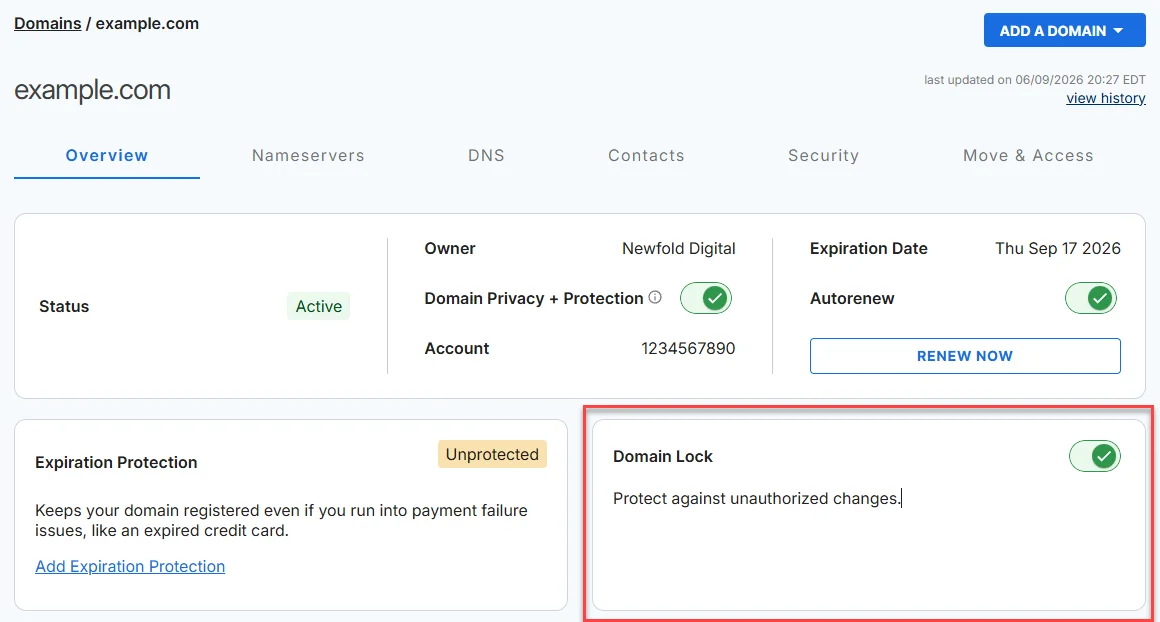
Registrars lock domains by default to prevent unauthorized transfers; this lock must therefore be removed before Bluehost can take over the domain. The exact menu varies depending on the registrar, but the pattern is the same everywhere:
- Log in to your current registrar’s control panel.
- Find your domain in the domain list and open its settings.
- Locate the lock or security section (often labeled Domain Lock, Transfer Lock, or similar).
- Toggle it to unlocked and confirm.
As a concrete example, GoDaddy’s version of this is: Domain Settings → Settings → Unlock Domain → Yes, I consent → Continue. GoDaddy notes the change can take 60–90 minutes to take effect, and Bluehost recommends waiting 24–48 hours after unlocking before you start the transfer, so the change has time to show up in the public registry lookup.
A common mistake is initiating the transfer immediately after unlocking the domain, before the change has had time to propagate through the system.
If Bluehost’s check still indicates that the domain is locked, wait a few hours and try again instead of repeating the unlocking process.
Disable Domain Privacy if Required
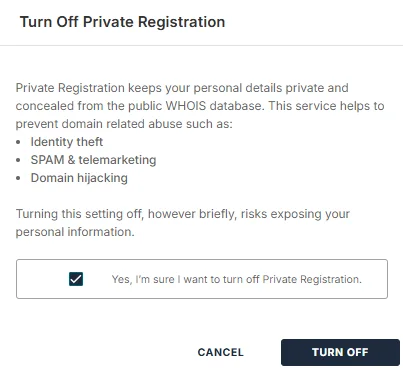
If your domain uses WHOIS/registrar privacy protection, some registrars will ask you to stop it before releasing an EPP code, and the transfer confirmation email goes to the registrar’s direct contact address.
Look for a Privacy or Domain Privacy tab in your registrar’s dashboard and park it there — you can usually turn it back on once the transfer is complete.
Get Your EPP/Authorization Code
The EPP code (also known as an authorization code or auth code) is a unique string of characters associated with your domain that serves as proof of your right to transfer it—Bluehost describes it as a code resembling 1e20459-438b211db# or N7HS-V24-T16-B81. You need to request it from your current registrar, not from Bluehost.
Using GoDaddy as the reference example again:
- Log in to the GoDaddy Domain Control Center and select your domain.
- Open Domain Settings and scroll to Additional Settings.
- Click Transfer domain away from GoDaddy, then Continue with transfer.
- Click Click here to see Authorization Code and copy it.
The code is also emailed to your domain’s administrative contact, so check that inbox (and spam folder) if you don’t see it on screen.
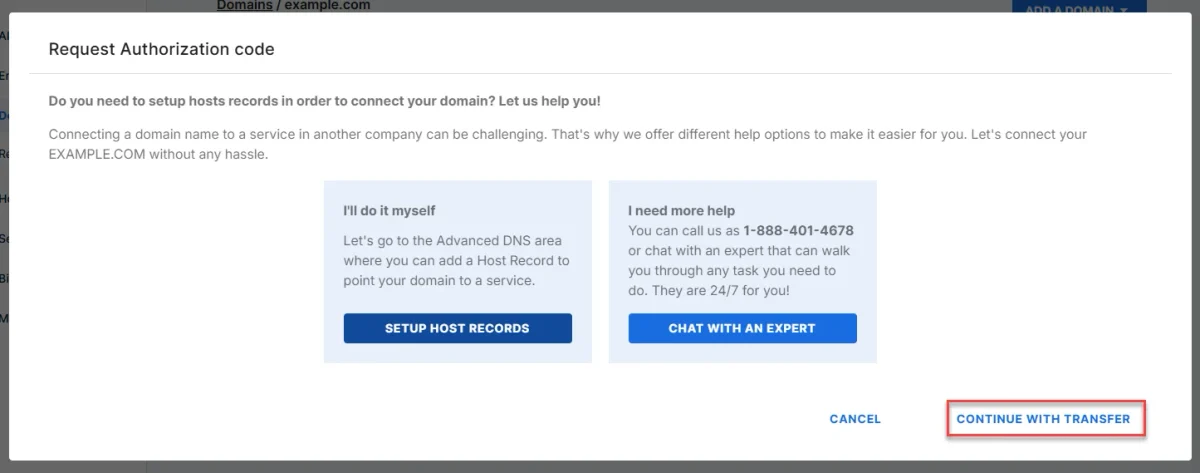
Common error: Copying the code with a trailing space or missing a character. A single typo in the EPP field is the single most common reason a transfer request gets rejected — copy it directly rather than retyping it by hand.
How to Transfer Your Domain to Bluehost
Once the domain is unlocked, privacy protection (if active) is temporarily disabled, and you have the EPP code, you can proceed with the actual domain transfer to Bluehost from your account. Bluehost offers two entry points, but once you reach the transfer form, both work the same way.
Start the Transfer in Your Bluehost Account
Option A — from the Bluehost website:
- Go to bluehost.com and open the For Developers menu in the top navigation.
- Select Domain Transfer, then click Transfer My Domain.
- Log in when prompted (or create an account if you don’t have one).
Option B — from inside the Bluehost Portal:
- Log in to your Bluehost Portal and click Domains in the left-hand menu.
- Click Add a Domain, then choose Transfer in a domain to Bluehost.com.
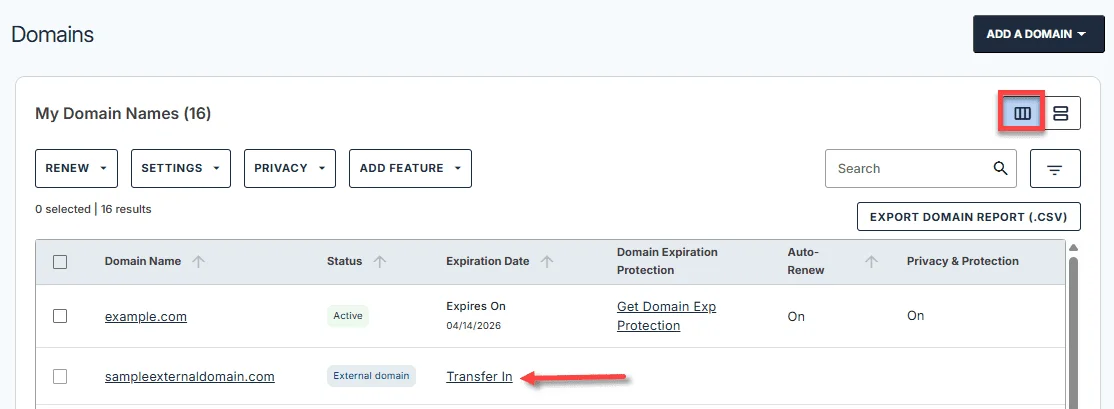
- Alternatively, if the domain is already listed as an “External Domain” in your Portal, click the Transfer In link or card next to it.
You can also start a transfer from the Marketplace tab by choosing “Transfer a domain you already own” under the Domains category.
[NEEDS: screenshot — Bluehost Portal, Domains tab → Add a Domain → “Transfer in a domain to Bluehost.com”]
Enter Your Domain and EPP Code
- On the Start Transfer In page, type your domain name without the “www” prefix.
- Click Submit.
- Bluehost checks the domain’s transfer eligibility automatically. If it passes, the domain is added to your shopping cart.
You don’t enter the EPP code on this screen — that comes after checkout, in the step below.
Confirm the Transfer Request
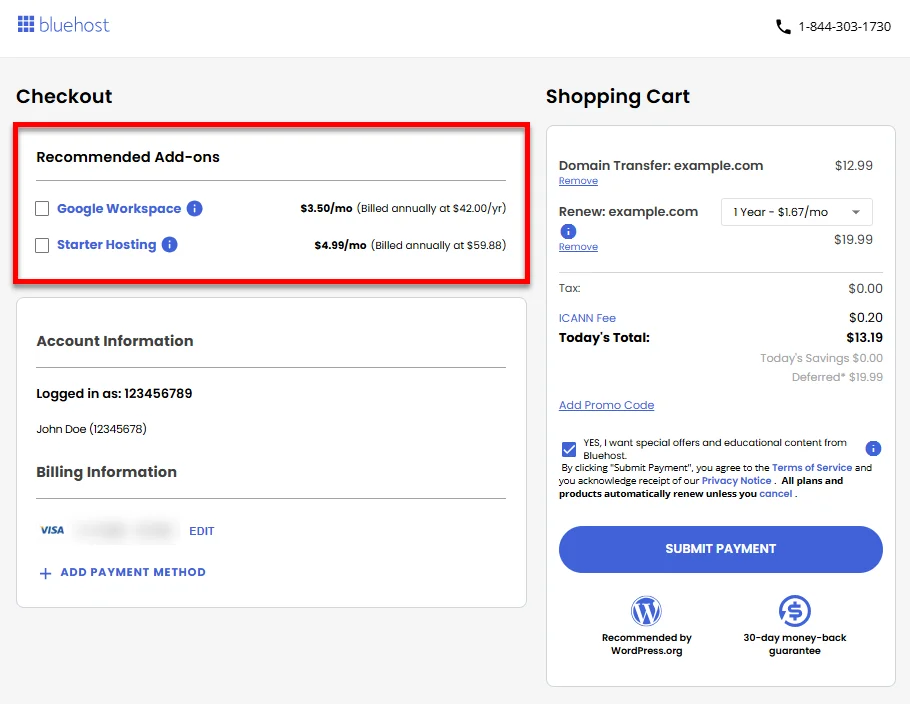
- On the checkout page, you can optionally add a hosting plan or Google Workspace alongside the transfer.
- Enter a promo code if you have one.
- Review the order total, then click Submit Payment.
Keep in mind that completing this purchase also renews the domain for one year — that’s an ICANN requirement for every registrar handling an incoming transfer, not a Bluehost-specific fee.
Approve the Transfer and Track Its Status
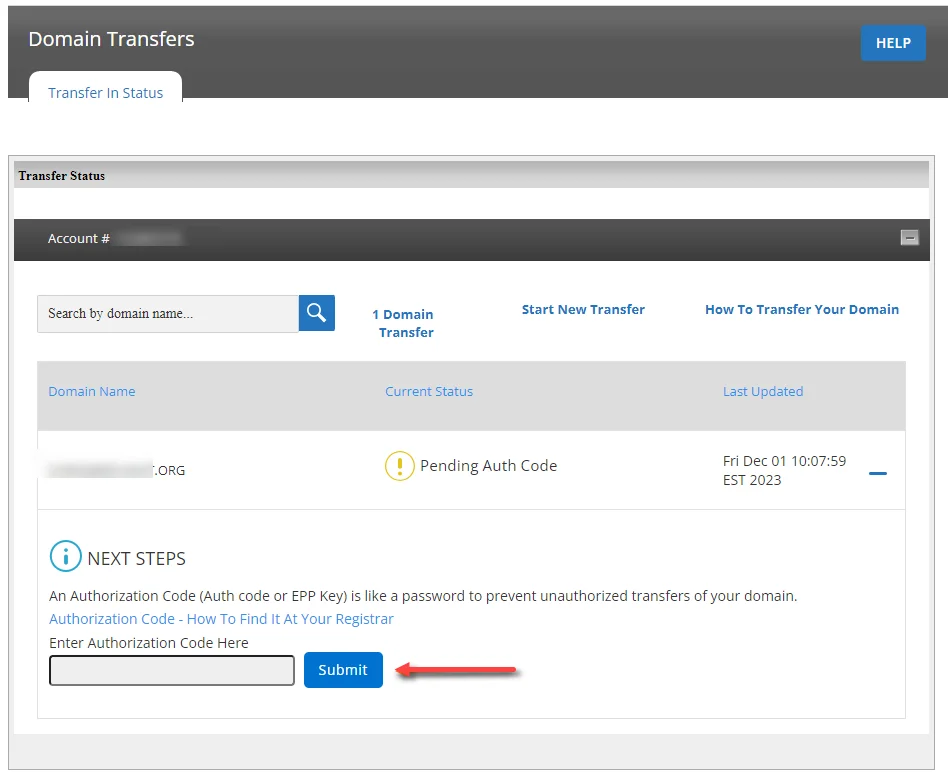
After payment, you still need to submit the EPP code before anything moves:
- In the Bluehost Portal, click Domains, then Transfer Status.
- Find the domain marked AUTH CODE NEEDED and click the + icon next to Pending Auth Code.
- Paste in your EPP code and click Submit.
Bluehost then verifies the code with the registry. Depending on your old registrar, you may also get an email from them asking you to approve the outgoing transfer — approving it there speeds things up considerably instead of waiting for the automatic default.
Common error: Assuming payment alone starts the transfer. The system won’t proceed until the EPP code is actually submitted on the Transfer Status page — it’s easy to pay and then forget this second half.
What Happens to Your Website, DNS, and Email During a Transfer?
What | What happens | What you should do |
|---|---|---|
Your website | Stays exactly as it is — a registration transfer moves ownership records, not where your site is hosted. | Nothing, as long as nameservers stay pointed correctly throughout. |
DNS records | Do not move automatically with the transfer. | Set your DNS records up again inside the Bluehost Portal, ideally before the transfer completes, so there’s no gap. |
Follows whatever your nameservers point to — unaffected by the transfer itself. | Confirm MX records are correct in Bluehost’s DNS manager once the transfer is done. | |
Making DNS changes | You can’t edit DNS settings while a transfer is actively in progress. | Make any nameserver or record changes before you submit the transfer request. |
How Long Does a Domain Transfer to Bluehost Take?
Bluehost notes that completing a domain transfer can take up to seven days, and ICANN’s transfer policy generally places most transfers within the five-to-seven-day range.
If you actively approve the transfer with your current registrar immediately upon receiving the confirmation email, the process usually concludes faster; if you let the transfer complete on its own (the default option of taking no action), it tends to take a full week.
Domain Transfer Costs and Renewal Fees
Bluehost does not publish a single, fixed, universal transfer price in its documentation; the one-off fee is displayed in your cart at the checkout stage and may vary depending on the domain name extension (.com, .net, .org, etc.) and current promotions.
What remains constant, in accordance with ICANN policy, is that one year is added to the domain name’s registration period upon completion of the transfer; this year is added to the time remaining on the registration.
Common Bluehost Domain Transfer Problems and How to Fix Them
Problem | Likely cause | Fix |
|---|---|---|
Transfer rejected immediately | Domain still locked, or unlock hasn’t propagated yet | Double-check the lock status at your old registrar; wait 24–48 hours after unlocking before retrying |
“Invalid EPP code” error | Typo, extra space, or an expired code | Copy the code directly rather than retyping it; request a fresh code if it’s more than a few days old |
Domain re-locks mid-transfer | Domain expired, entered redemption, or a registrant-change lock kicked in | Renew the domain if it expired, or wait out the 60-day lock before retrying |
Transfer stuck on “pending” | You (or your old registrar) haven’t approved the outgoing request | Check your old registrar’s email and transfers page for a pending approval action |
No EPP code email arrived | Contact info is outdated, or it landed in spam | Verify your registrant email with your old registrar, then check spam/junk folders |
Payment didn’t go through | Card declined or billing mismatch | Confirm your payment method and billing details in the Bluehost Portal before resubmitting |
Wrapping Up
A Bluehost Domain Transfer really comes down to two halves: getting the domain unlocked and the EPP code released at your old registrar, then submitting that code inside the Bluehost Portal and approving the request when it’s asked for.
Handle the prep checklist first — unlock, privacy, EPP code — and the actual transfer on Bluehost’s side is just a handful of clicks. Once it’s done, you’ll be managing your hosting and your domain from the same login, with one renewal date to keep track of instead of two.
Frequently Asked Questions
Can I Transfer My Domain to Bluehost If It Is Locked?
No — you’ll need to unlock it at your current registrar first. Bluehost’s eligibility check will reject a locked domain automatically.
Can I Transfer a Domain That Is Less Than 60 Days Old?
No. ICANN prohibits transfers within 60 days of initial registration, and this rule applies to every registrar, not just Bluehost.
Will My Website Go Offline During a Domain Transfer?
Generally no, as long as your nameservers stay pointed correctly throughout the process — a registration transfer changes who manages the domain, not where it’s hosted.
Do I Need to Change My Nameservers During the Transfer?
Not to complete the transfer itself, but if your site is already hosted on Bluehost, updating nameservers beforehand avoids any gap in DNS resolution once the transfer finishes.
Can I Transfer Multiple Domains to Bluehost?
Yes, but each domain goes through its own separate transfer request — there’s no bulk-transfer step, so you’ll repeat the process once per domain.

Alex Bryant is the founder of PvyEmpire.com and a WordPress specialist with over 4 years of hands-on experience in web hosting, performance optimization, and website management. He has extensively tested top hosting providers by setting up real websites and monitoring their speed, uptime, and reliability.
At PvyEmpire.com, Alex publishes honest, data-driven reviews, detailed guides, and verified coupons & deals. His goal is to help website owners choose the right hosting, improve performance, and grow their online presence with confidence—based on real testing, not promotions.