WordPress Speed Optimization: Complete Guide
You’ve probably hit refresh five times, watching your site crawl to life while you wonder if your visitors are already gone. Slow-loading pages are silent killers—costing you traffic, sales, and search rankings before you even realize what’s happening.
If you’re tired of watching your bounce rate climb while your patience runs out, you’re not alone.
That’s exactly why WordPress speed optimization matters more than ever, and this guide is here to walk you through it, step by step.
We’ll break down the real reasons your site is dragging and show you practical, no-fluff fixes you can start using today. No jargon, no guesswork—just clear answers to get your site running fast again.
What is WordPress Speed Optimization?
At its core, this process means making your WordPress site load faster for every visitor, on every device. It touches everything from your hosting server to the images on your homepage.
Think of it as a full tune-up rather than a single fix. When done right, WordPress Speed Optimization improves page load time, reduces server response time, and creates a smoother experience for real people browsing your site.
It’s not a one-time task either. Your site changes constantly—new plugins, new content, new traffic patterns—so speed needs ongoing attention. The good news is that most of the work follows a repeatable process, and once you understand the basics, you can apply them to any WordPress site you manage.
Why Website Speed Matters
Speed isn’t just a technical detail; it directly affects your bottom line. Studies consistently show that even a one-second delay in page load speed can shrink conversions and increase your bounce rate.
Beyond sales, a sluggish loading experience frustrates visitors and pushes them straight to a competitor’s site. Search engines notice too, which means slow sites often struggle to rank well no matter how good the content is.
Core Web Vitals Explained
Google uses a set of metrics called Core Web Vitals to judge how a real user experiences your page. These include Largest Contentful Paint (LCP), which measures how fast your main content loads, and Cumulative Layout Shift (CLS), which tracks visual stability while the page renders.
Interaction to Next Paint (INP) has now replaced First Input Delay as the responsiveness metric Google watches closely. Passing these three benchmarks tells Google—and your visitors—that your site delivers a genuinely fast experience.
How to Measure Your WordPress Site Speed
Before you fix anything, you need to know where you actually stand. Guessing wastes time and often leads you toward changes that don’t move the needle. A proper speed test gives you real numbers to work from, and it highlights the specific bottlenecks slowing your site down.
Run tests from multiple tools rather than relying on just one, since each tool measures slightly different things. Test your homepage and a few inner pages too, because performance can vary significantly across your site. Once you have baseline numbers, you can track improvement as you apply each fix in this guide.
Best Website Speed Testing Tools
Google PageSpeed Insights remains the most widely used free tool, and it pulls directly from real Chrome user data. GTmetrix offers a deeper breakdown with waterfall charts that show exactly which files slow you down.
Pingdom and WebPageTest round out the list nicely, letting you test from different global locations to see how international visitors experience your site.
Key Performance Metrics (LCP, INP, CLS, TTFB)
Four metrics matter most when you’re diagnosing speed issues. LCP tells you how long the biggest visible element takes to load, while CLS measures how much your layout jumps around during loading.
INP captures how quickly your site responds to clicks and taps. Time to First Byte (TTFB) measures how fast your server starts sending data in the first place—and it’s often the metric people overlook the most.
1. Choose High-Performance WordPress Hosting
Your hosting is the foundation everything else sits on, so no amount of caching or image compression can fully fix a weak server. Cheap shared hosting often struggles under real traffic, leading to slow TTFB and inconsistent load times.
This is where thoughtful WordPress Speed Optimization Services or a managed hosting upgrade tends to pay off fastest, since a strong server response time sets the baseline for everything you do afterward.
Switching hosts feels intimidating, but it’s often the single highest-impact change you can make. A good host handles server-level caching, uses modern hardware like NVMe SSDs, and keeps your PHP version current automatically.
Before you touch a single plugin, make sure your hosting foundation is solid.
Shared vs VPS vs Cloud vs Managed Hosting
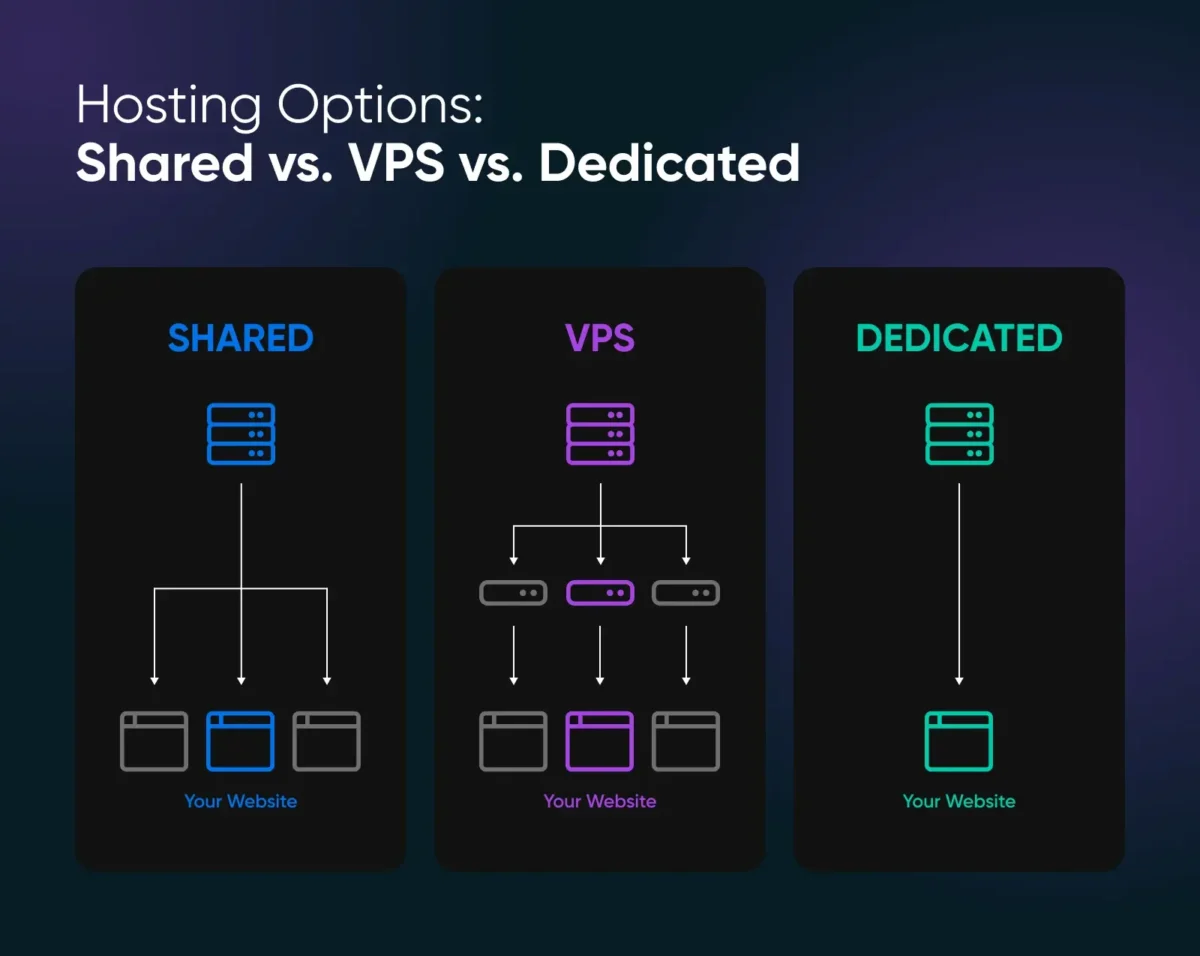
Shared hosting is the cheapest option, but you’re splitting server resources with hundreds of other sites, which hurts performance during traffic spikes.
VPS hosting gives you dedicated resources at a mid-range price, offering more consistency. Cloud hosting scales automatically as traffic grows, making it a smart choice for unpredictable spikes.
Managed WordPress hosting sits at the top tier, bundling server-level caching, automatic updates, and WordPress-specific tuning into one package.
What to Look for in a Fast Hosting Provider
Look for providers running NVMe SSD storage, HTTP/2 or HTTP/3, and a modern server stack like NGINX or LiteSpeed. Ask about their average server response time and whether they offer built-in caching.
Data center location matters too—choose one close to your primary audience. Finally, check if they support the latest PHP version, since older PHP builds slow everything down noticeably.
2. Enable WordPress Caching
Caching is one of the fastest wins available, and it works by storing a ready-made version of your page instead of rebuilding it from scratch on every visit.
Without caching, WordPress has to query the database and generate HTML every single time someone loads a page. That’s a lot of unnecessary work, especially for content that rarely changes.
Popular cache tools like WP Rocket and W3 Total Cache handle most of this automatically once installed. They create static HTML versions of your pages, serve them instantly, and refresh the cache only when content actually updates.
If you take away one lesson from this section, let it be this: caching alone can cut your load time dramatically with minimal effort.
Page Caching
Page caching saves a complete, ready-to-serve copy of each page so your server doesn’t rebuild it from the database every time.
It’s the single biggest speed lever most sites have available, and setting it up usually takes just a few clicks with a cache tool. Once active, repeat visitors and search engine crawlers both get a much faster response.
Browser Caching
Browser caching tells a visitor’s browser to store certain files—like your logo or stylesheet—locally instead of re-downloading them on every visit. This means returning visitors experience near-instant load times on subsequent pages.
You set this up through caching headers, either manually or through your caching plugin’s settings.
Object Caching
Object caching stores the results of expensive database queries in memory using tools like Redis or Memcached. This matters most for dynamic sites with lots of database activity, such as WooCommerce stores or membership sites.
It won’t help a simple blog much, but for complex sites, it can meaningfully reduce server load.
3. Use a Content Delivery Network (CDN)
A content delivery network stores copies of your site’s files across servers worldwide, so visitors load your content from a location near them instead of your original server.
This shrinks the physical distance data has to travel, which directly reduces load time. It’s especially valuable if your audience spans multiple countries or continents.
Setting one up is easier than most people expect. Providers like Cloudflare offer free tiers that take just minutes to configure, and the performance boost is often noticeable immediately. Beyond speed, most CDNs also add a layer of security against malicious traffic.
How a CDN Improves Website Speed
A CDN distributes your static assets—images, CSS, JavaScript—across a global network of servers called edge locations. When someone visits your site, they pull those files from the nearest point rather than your main server.
This cuts down latency significantly, particularly for visitors far from your original hosting location.
Best CDN Providers for WordPress
Cloudflare is the most popular choice thanks to its generous free plan and easy WordPress integration. BunnyCDN offers excellent pricing for high-traffic sites that need more control.
StackPath is another solid option, particularly for businesses that need advanced security features bundled in. Whichever you choose, make sure it plays well with your existing cache tool to avoid conflicts.
4. Optimize Images
Images are usually the heaviest files on any WordPress page, so this step often delivers the biggest visible improvement. Large, uncompressed photos can single-handedly drag your load time up by several seconds.
The fix isn’t complicated—it just requires a consistent habit of compressing and resizing before you upload.
Plugins like Smush, Imagify, and ShortPixel automate most of this work for you. They compress existing images in bulk and automatically optimize new uploads going forward.
Combined with modern formats and lazy loading, image optimization alone can transform a sluggish site into a genuinely fast one.
Compress Images Without Losing Quality
Lossy compression shrinks file size by removing data the human eye barely notices, while lossless compression preserves every pixel at a smaller size.
For most photos, lossy compression is the better trade-off since the visual difference is nearly invisible. Tools like TinyPNG or ShortPixel handle this automatically, often cutting file sizes by 60% or more without any visible quality drop.
Use Modern Image Formats (WebP & AVIF)
WebP and AVIF are newer image formats that compress far more efficiently than older JPEG or PNG files. Switching to WebP alone can reduce image weight by 25–35% on average, and AVIF pushes that even further in many cases.
Most modern optimization plugins now convert your images to these formats automatically, so you don’t need to manually re-save every file.
Enable Lazy Loading
Lazy loading delays offscreen images from loading until a visitor scrolls near them. This means your above-the-fold content loads first, giving visitors a faster first impression even if the rest of the page has dozens of images.
WordPress now includes basic lazy loading by default, though dedicated plugins often handle it more smoothly.
5. Optimize CSS, JavaScript, and HTML
Every stylesheet and script your site loads adds extra weight and extra HTTP requests. Multiply that across a typical theme with several plugins, and you end up with dozens of files slowing your page down before it even renders.
Cleaning this up won’t just improve raw speed—it directly helps your Core Web Vitals scores too.
This part of optimization can feel technical, but most caching plugins now include built-in tools to handle it without touching code directly. WP Rocket, for example, offers one-click options for minification and script deferral.
Start with the basics here before attempting anything more advanced.
Minify CSS and JavaScript
Minification strips out unnecessary spaces, line breaks, and comments from your code files, shrinking their size without changing how they function. It sounds minor, but across dozens of files, it adds up to real savings.
Most cache tools include a minification toggle, so you rarely need to do this manually.
Remove Unused CSS
Many WordPress themes load full stylesheets even when a page only uses a fraction of those styles. Removing unused CSS trims that excess weight, speeding up how quickly the browser can render your page.
Tools built into WP Rocket or Perfmatters can scan your pages and strip out the styles you don’t actually need.
Defer JavaScript Loading
Deferring JavaScript tells the browser to load your page’s visible content first and run scripts afterward. This prevents render-blocking resources from holding up the page while a script that doesn’t matter yet finishes loading.
It’s a small setting change that often produces a surprisingly large improvement in perceived performance.
6. Optimize Your WordPress Database
Over time, your WordPress database accumulates clutter—old revisions, spam comments, expired transients—that quietly bloats it.
A bloated database means slower queries, and slower queries mean a slower site overall. Regular cleanup keeps everything running lean.
This is one of the easier fixes to overlook since it happens behind the scenes, invisible unless you go looking. Plugins like WP-Optimize or WP-Sweep automate the cleanup process safely, without requiring you to touch raw SQL.
Set a routine schedule and this becomes a five-minute task instead of a recurring headache.
Remove Revisions and Spam Comments
WordPress saves a new revision every time you edit a post, and those revisions pile up fast on frequently updated content. Spam comments do the same thing, filling your database with junk that serves no purpose.
Clearing both regularly keeps your tables lean and your queries fast.
Clean Transients
Transients are temporary cached data that plugins store in your database, and they’re supposed to expire automatically—but many don’t.
Expired or orphaned transients sit there taking up space long after they’ve served their purpose. A quick database cleanup tool clears these out in seconds.
Schedule Automatic Database Optimization
Rather than remembering to clean your database manually, set your optimization plugin to run on a weekly or monthly schedule.
This keeps bloat from building back up between manual checks. It’s a small setting, but it saves you from ever facing a database cleanup emergency.
7. Keep WordPress Updated
Outdated software is one of the most common—and most avoidable—causes of a slow WordPress site. Developers regularly release updates that include performance improvements alongside security patches.
Skipping updates means you’re missing out on those gains while also exposing your site to unnecessary risk.
Set aside time each month to review updates rather than letting them pile up. Always back up your site first, since updates occasionally cause compatibility issues with older plugins.
A staging environment is worth setting up if you manage a business-critical site, letting you test changes safely before pushing them live.
Update WordPress Core
WordPress core updates often include under-the-hood performance improvements that aren’t obvious from the changelog alone.
Running an outdated core version means missing these gains entirely. Enable automatic updates for minor releases so you never fall too far behind.
Update Themes and Plugins
Just like WordPress core, themes and plugins receive regular updates that fix bugs and improve efficiency.
An outdated plugin can quietly slow your entire site or even conflict with your caching setup. Review your plugin list monthly and update anything with a pending release.
Use the Latest PHP Version
PHP powers WordPress behind the scenes, and newer versions process requests significantly faster than older ones.
Upgrading from PHP 7 to PHP 8.1 or 8.2 alone can cut server response time noticeably. Most hosts let you switch PHP versions from your dashboard in just a couple of clicks.
8. Choose Lightweight Themes and Plugins
Not every theme is built with performance in mind. Some ship with heavy frameworks, unnecessary animations, and bloated code that slows your site before you’ve even added content. A fast theme, by contrast, loads only what’s needed and leaves the rest up to you.
The same logic applies to plugins. Every plugin you install adds extra code, extra database calls, and sometimes extra scripts loading on every page. Being selective about what you install is just as important as optimizing what’s already there.
How to Select a Fast Theme
Look for themes specifically built for speed, such as Astra, GeneratePress, or Kadence. These themes ship with minimal code and load only the styles a given page actually needs.
Test any theme with a speed tool before committing, since marketing claims don’t always match real-world performance.
Remove Unused Plugins
Deactivated plugins can still slow your site down if their files remain installed, and forgotten plugins are a common source of hidden bloat. Do a periodic plugin audit and delete anything you’re no longer actively using.
Fewer plugins generally means fewer database calls and fewer conflicts to troubleshoot.
9. Reduce Server Response Time (TTFB)
TTFB measures how long your server takes to respond after a visitor requests your page, and it’s often the first thing that goes wrong on a slow site.
A high TTFB delays everything downstream, no matter how well you’ve optimized images or scripts. Fixing it usually comes down to server resources and how efficiently your site talks to the database.
This is another area where good hosting pays for itself. A server with enough CPU and memory headroom responds far faster under load than one running near capacity.
If you’ve optimized everything else and TTFB is still high, it’s usually a signal that your hosting plan needs an upgrade.
Optimize Server Resources
Make sure your hosting plan has enough CPU and RAM to handle your traffic without straining. Shared hosting plans often throttle resources during traffic spikes, which directly increases TTFB.
If you consistently see slow server response time, moving to a VPS or dedicated server usually solves it.
Enable GZIP or Brotli Compression
GZIP and Brotli compression shrink the size of files sent from your server to a visitor’s browser, often by 70% or more.
Brotli is the newer standard and generally compresses slightly better than GZIP. Most modern hosts enable one of these by default, but it’s worth confirming in your server settings.
10. Advanced WordPress Speed Optimization Tips
Once you’ve covered the fundamentals, a handful of advanced tweaks can squeeze out extra performance. These aren’t always necessary for every site, but for larger or more complex builds, they make a real difference.
Think of this section as the finishing touches rather than the starting point.
Most of these changes require a bit more technical comfort, so proceed carefully and always back up your site first. None of them are risky when done correctly, but small config errors can cause visible issues if you’re not paying attention.
Disable Unused WordPress Features
WordPress loads several features by default that many sites never actually use, such as emoji scripts or embed functionality.
Disabling these trims unnecessary requests from every page load. A small code snippet or a plugin like Perfmatters can toggle these off without touching core files directly.
Reduce External Scripts
Third-party scripts—analytics tools, chat widgets, ad networks—often load slower than anything hosted on your own server. Each one adds an external request your browser has to wait on. Audit what’s actually necessary and remove anything that isn’t earning its keep.
Optimize Fonts
Custom fonts loaded from external services like Google Fonts add extra requests and can delay text rendering.
Hosting fonts locally on your own server removes that dependency and speeds up text display. It’s a small change, but it noticeably improves perceived performance on text-heavy pages.
Common WordPress Speed Optimization Mistakes
A lot of well-intentioned effort gets wasted on mistakes that either don’t help or actively hurt performance. Installing multiple caching plugins at once is a common one—they conflict rather than compound.
Similarly, stacking several image optimization plugins together often causes duplicate processing and wasted server resources instead of extra savings.
Another frequent misstep is chasing a perfect PageSpeed score instead of focusing on real user experience. A 100/100 score means little if actual visitors still experience slow loading on their devices.
Prioritize the metrics that reflect genuine user experience—LCP, TTFB, and CLS—over vanity numbers that don’t always translate to reality.
WordPress Speed Optimization Checklist
Use this quick checklist to confirm you’ve covered the essentials before considering your site fully optimized:
- Choose a fast, reputable hosting provider
- Install a caching plugin and enable page caching
- Set up a CDN for global asset delivery
- Compress and convert images to WebP or AVIF
- Enable lazy loading for offscreen images
- Minify CSS and JavaScript files
- Remove unused CSS and defer non-critical scripts
- Clean your database regularly
- Keep WordPress core, themes, and plugins updated
- Run the latest supported PHP version
- Choose a lightweight theme and audit plugins periodically
- Enable GZIP or Brotli compression
- Host fonts locally where possible
Running through this checklist every few months keeps your site performing consistently, even as content and traffic grow.
Conclusion
Getting your WordPress site fast isn’t about one magic fix—it’s a combination of solid hosting, smart caching, lean code, and a bit of ongoing maintenance.
Work through the steps in this guide in order, starting with hosting and caching, since those two changes alone typically deliver the biggest improvement. From there, image optimization and database cleanup round out a site that feels genuinely fast to real visitors.
Speed isn’t a project you finish once and forget. Revisit your checklist every few months, keep everything updated, and your site will stay quick even as it grows.
A faster site means happier visitors, better rankings, and more conversions—and now you have everything you need to make that happen.
Frequently Asked Questions
What is a good PageSpeed score?
A score of 90 or above on Google PageSpeed Insights is generally considered excellent, while anything above 70 is solid for most sites. That said, real-world Core Web Vitals matter more than the numeric score itself.
How fast should a WordPress website load?
Aim for a load time under 2.5 seconds, with anything under 2 seconds considered genuinely fast. Beyond 3 seconds, you’ll typically start losing visitors and conversions.
Does hosting affect WordPress speed?
Yes, significantly. Hosting sets your baseline server response time, and no amount of plugin-level optimization can fully compensate for a weak or overloaded server.
Can too many plugins slow down WordPress?
It depends more on quality than quantity, but yes, poorly coded or redundant plugins add unnecessary database calls and scripts. Regular plugin audits help keep this in check.
How often should I optimize my website?
Treat it as ongoing maintenance rather than a one-time project. A quarterly review covering database cleanup, plugin audits, and updated speed tests is a reasonable rhythm for most sites.
Related Posts
- How to Speed Up WordPress Site Step by Step
- How to Reduce TTFB: 12 Proven Ways to Improve Server Response Time
- 14 Best WordPress Cache Plugins to Speed Up Your Website
- Cloudflare Setup Guide: How to Set Up Your Website Step by Step
- How to Set Up QUIC Cloud for WordPress (Step-by-Step Guide)
- How to Improve Core Web Vitals: Complete Guide
- WooCommerce Checkout Slow? Advanced Fixes That Work
- LiteSpeed Cache for WordPress (Complete Guide)
- How to Fix Hostinger Slow WordPress Sites?
- How to Fix Bluehost Slow WordPress Websites?

Alex Bryant is the founder of PvyEmpire.com and a WordPress specialist with over 4 years of hands-on experience in web hosting, performance optimization, and website management. He has extensively tested top hosting providers by setting up real websites and monitoring their speed, uptime, and reliability.
At PvyEmpire.com, Alex publishes honest, data-driven reviews, detailed guides, and verified coupons & deals. His goal is to help website owners choose the right hosting, improve performance, and grow their online presence with confidence—based on real testing, not promotions.