How to Fix Bluehost Slow WordPress Websites?
There’s nothing more frustrating than watching that little loading circle spin — and knowing it’s your website doing it.
If you’ve been searching for things like “Bluehost slow“ or “why is my Bluehost website so slow,” you’re not alone. Thousands of WordPress users run into the same wall every day, and it’s costing them traffic, rankings, and real money.
This guide breaks down exactly what’s causing your Bluehost slow website and — more importantly — how to fix it.
Whether you’re dealing with a sluggish admin dashboard, a slow WooCommerce store, or a site that just won’t load, you’ll find clear, actionable steps here to get things moving again.
TL;DR: Is Your WordPress Site Not Loading?
If your site feels like it’s running through mud, a few common culprits are usually to blame: shared hosting limits, bloated plugins, unoptimized images, or a lack of caching.
Bluehost’s shared hosting plans put you on servers with hundreds of other websites, and when those servers get overloaded, your page load time takes the hit.
This article walks you through everything — from diagnosing the root cause to fixing server response time, setting up caching, and even deciding whether it’s time to switch to a faster host. Bookmark this page; you’ll probably want to refer back to it.
Troubleshooting Checklist
Before you start tweaking settings and installing plugins, it pays to take a step back and run a quick diagnostic.
Jumping straight to “fixes” without knowing the actual problem often makes things worse. A structured checklist saves you hours of frustration.
Run through these checks first before diving deeper into any specific fix
- Test your site speed using GTmetrix, Pingdom, or Google PageSpeed Insights
- Check your TTFB (Time to First Byte) — anything over 600ms on Bluehost is a red flag
- Log in to your Bluehost dashboard and check for any server alerts or resource usage warnings
- Deactivate all plugins temporarily and reload your site to see if speed improves
- Check if the slow loading issue affects only the frontend, only the WordPress admin, or both
- Look at your hosting plan — are you on shared hosting or a managed plan?
- Clear your DNS cache and browser cache, then retest
- Check if a recently installed plugin or theme update triggered the slowdown
When Bluehost Won’t Cut It
Sometimes the problem isn’t your plugins, your images, or your caching setup. Sometimes it’s simply the host.
Bluehost’s shared hosting is built for small, low-traffic websites, and if your site has grown beyond that, you’ll keep running into a ceiling no matter how much you optimize.
Here are a few signs it might be time to move on: your site consistently scores poor Core Web Vitals even after optimization, you’re experiencing frequent downtime, your support tickets take days to resolve, or you’re running a WooCommerce store that handles more than a few dozen daily transactions.
In those cases, staying on Bluehost and trying to squeeze out more performance is a losing battle.
Quick Migration Path
Moving your WordPress site to a faster host doesn’t have to be complicated. Most managed WordPress hosts offer free migration services — you give them your Bluehost credentials, and they handle the rest.
If you’re in Canada and looking for alternatives, consider GoWiz or other managed WordPress hosting providers with Canadian data centers. The whole process typically takes a few hours, and the speed improvement is usually immediate and significant.
Common Issue 1: Internal Server Error
The 500 Internal Server Error is one of the most common and most alarming errors WordPress users face on Bluehost. Your site simply refuses to load and returns a generic error message with zero helpful detail. It looks broken, and to your visitors, it is.
This error usually happens on the server side, which means it’s not always something you caused — but it’s almost always something you can fix. The tricky part is that this error covers a wide range of causes, so you need to narrow it down before you start making changes.
What Causes an Internal Server Error?
The most common causes on Bluehost include a corrupted .htaccess file, a plugin or theme that’s throwing a PHP fatal error, file permission issues in your WordPress directory, or hitting the PHP memory limit on your hosting plan.
Bluehost’s shared hosting plans often have lower default PHP memory limits than other hosts, which makes this error more common here than elsewhere.
How to Fix the Issue?
Follow these steps in order until the error clears
- Rename your .htaccess file to .htaccess_old via Bluehost’s File Manager, then reload the site. If it works, go to Settings > Permalinks in WordPress and click Save to regenerate a clean .htaccess.
- Deactivate all plugins by renaming the /wp-content/plugins/ folder to /wp-content/plugins_old/ via FTP or File Manager. Reload the site. If it loads, rename the folder back and reactivate plugins one by one.
- Increase your PHP memory limit. Add define(‘WP_MEMORY_LIMIT’, ‘256M’); to your wp-config.php file.
- Check file permissions. WordPress folders should be 755, and files should be 644. Incorrect permissions are a common cause of this error on Bluehost.
- Enable WordPress debug mode by adding define(‘WP_DEBUG’, true); to wp-config.php to see the exact error message.
Common Issue 2: 403 Forbidden Error
A 403 Forbidden error means your server is actively blocking access to a page or resource. Unlike a 404 (where the page doesn’t exist), a 403 means the server knows what you’re looking for — it’s just refusing to show it.
Visitors see a blank or error page, and you scratch your head trying to figure out why.
On Bluehost specifically, this error often appears after installing a security plugin, after a WordPress update, or when your .htaccess file gets corrupted. It’s one of the more confusing errors because it can affect the whole site or just certain pages.
What Causes a 403 Forbidden Error?
The three most common causes are incorrect file permissions (the server literally doesn’t have permission to serve the file), overly aggressive rules in your htaccess file blocking legitimate requests, or a security plugin — like Wordfence or iThemes Security — that’s mis-flagging your IP or blocking specific URL patterns.
On Bluehost, server-level security rules can sometimes interact badly with certain WordPress security plugins and create false 403 blocks.
How to Fix the Issue?
Start with the simplest fix first: temporarily deactivate your security plugin and see if the error clears. If it does, reconfigure the plugin’s firewall rules more carefully.
If not, connect to your site via FTP and reset directory permissions to 755 and file permissions to 644. Also, try regenerating your .htaccess by going to WordPress Settings > Permalinks and clicking Save Changes.
If the error is affecting your DNS cache, clearing it on your local machine can also help in some cases.
Common Issue 3: WordPress White Screen of Death (WSOD)
The White Screen of Death is exactly what it sounds like — you load your website and get a completely blank white page. No error message, no clues, nothing.
It’s one of the most frustrating WordPress issues because it gives you almost nothing to work with. Your site is broken, but it won’t even tell you why.
This issue tends to show up more on shared hosting environments like Bluehost because the resource constraints are tighter.
When your site tries to do something that requires more memory than the server allows, PHP just silently fails — and you get the white screen.
It can hit the frontend, the admin panel, or both.
What Causes the White Screen of Death?
The most common triggers are PHP memory exhaustion (the server runs out of memory mid-process), a plugin or theme conflict after an update, a PHP fatal error caused by incompatible code, or corrupted core WordPress files.
Because Bluehost’s shared plans cap PHP memory at lower limits than managed hosting, even a fairly normal WordPress operation can push it over the edge if you have too many plugins running at once.
How to Fix the Issue?
First, increase the PHP memory limit — add define(‘WP_MEMORY_LIMIT’, ‘256M’); to your wp-config.php. Then enable WordPress debug mode to capture the actual error.
If the admin panel is still accessible, go to Appearance > Themes and switch to a default theme like Twenty Twenty-Four to rule out a theme conflict. If not, rename your active theme folder via FTP.
Also, try deactivating all plugins via FTP (rename the plugins folder) and reactivating one at a time. If your site is in WordPress maintenance mode from a failed update, delete the .maintenance file from your root directory.
Common Issue 4: WordPress Is Slow
A Bluehost slow website is one of the most common complaints among WordPress users on shared hosting — and for good reason.
Slow page load time directly hurts your SEO rankings, increases your bounce rate, and drives visitors away before they even see your content.
Google has made it clear that site speed is a ranking factor, and a sluggish site is quietly killing your traffic every single day.
On Bluehost’s shared hosting plans, you’re competing for server resources with potentially hundreds of other websites on the same machine.
When that shared server gets busy, your site slows down — and there’s not much you can do about it from the outside unless you optimize everything within your control.
What Causes a Slow WordPress Website?
Several things stack up to create a Bluehost slow server response time: unoptimized images that haven’t been compressed or converted to WebP, too many plugins running unnecessary scripts on every page, no WordPress caching in place, a bloated database full of old post revisions and spam comments, and zero CDN integration to serve assets from a location closer to your visitors.
Lazy loading images helps, but it’s only one piece of the puzzle. Database optimization and reducing server-side processing are just as important.
How to Fix the Issue?
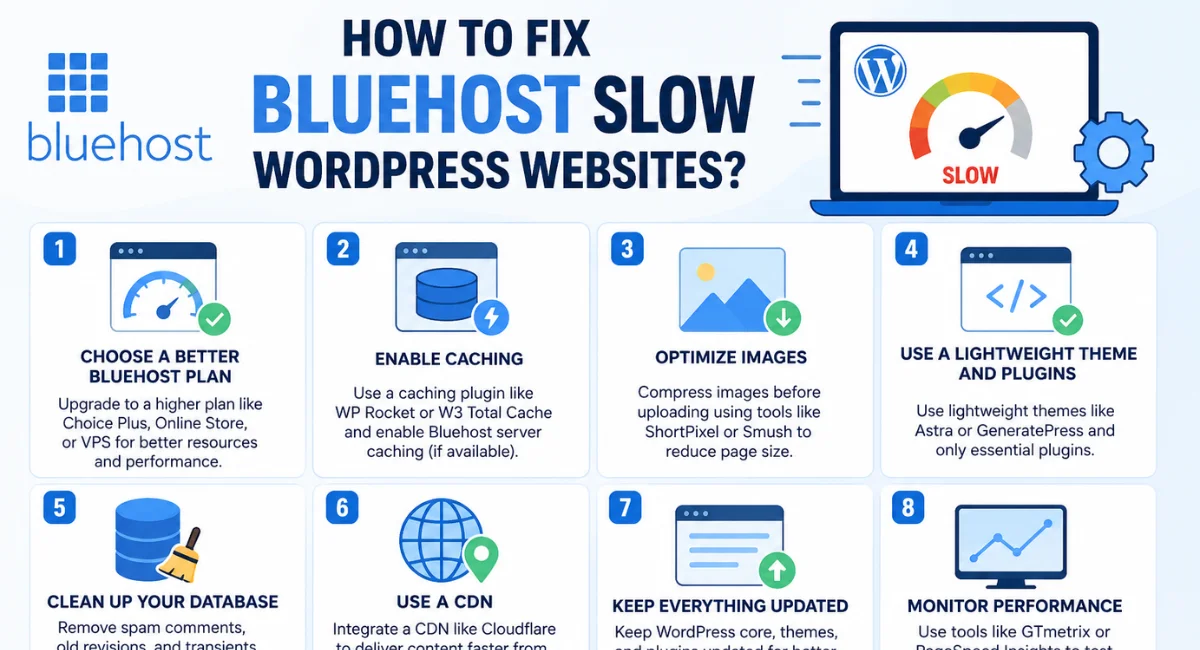
The sections below cover each fix in detail, but here’s the short version: enable server-side caching through Bluehost, install a premium caching plugin like WP Rocket, compress and lazy load your images, and remove slow or unnecessary plugins.
Minify your CSS and JS files, delay non-critical JavaScript, use Perfmatters to disable unused features, and consider integrating Cloudflare CDN to reduce the physical distance between your server and your visitors.
Each of these improvements stacks on top of the others — do them all and you’ll see a dramatic drop in load time.
Check If Bluehost Is Overloading Your Server
Before you start optimizing your WordPress site, it’s worth checking whether the bottleneck is actually on Bluehost’s end.
CPU throttling on shared hosting is real — when too many sites on the same server spike at once, Bluehost can limit your available resources, and your TTFB shoots through the roof. This isn’t a WordPress problem; it’s a hosting performance problem.
Run your site through GTmetrix or Pingdom and look at the waterfall chart. If the very first request (your HTML document) takes more than 500–600ms before anything else loads, that’s your server response time dragging everything down.
You can also check your Bluehost cPanel resource usage stats to see if your site is regularly hitting CPU or memory limits.
If it is, no amount of plugin optimization will fully fix the slow admin panel or frontend load — you’ll need to either upgrade your plan or consider moving to a host with better performance guarantees.
Enable Bluehost Server Side Caching
Server-side caching is one of the most effective ways to reduce page load time on Bluehost. Without it, every single visitor request forces WordPress to run PHP, query the database, and build the page from scratch — every time.
With caching enabled, Bluehost stores a pre-built version of your page and serves it instantly, cutting server load dramatically.
To enable it, log into your Bluehost dashboard, go to the Caching section, and turn on the built-in caching option.
Bluehost’s higher-tier plans also support a Cloudflare CDN integration directly from the dashboard — enabling this moves static assets like images, CSS, and JavaScript to Cloudflare’s global network, which means faster load times for visitors regardless of where they are in the world.
WordPress CDN integration is a quick win that makes a noticeable difference, especially for international visitors.
Use a Premium Caching Plugin
Bluehost’s built-in caching is a good starting point, but it’s fairly basic. If you want great improvement in your WordPress site’s performance, a premium WordPress caching plugin like WP Rocket is worth every penny.
WP Rocket doesn’t just cache pages — it handles file minification, lazy loading, database cleanup, and CDN integration all from a single, beginner-friendly dashboard.
WP Rocket is widely considered the best caching plugin for Bluehost WordPress setups because it works well with shared hosting and doesn’t require technical configuration. Once installed, it immediately improves Core Web Vitals scores and reduces TTFB.
Other solid options include W3 Total Cache (free but more complex) and LiteSpeed Cache if you’re on a Bluehost plan that uses LiteSpeed servers. For most users, though, WP Rocket is the fastest path to a measurably faster website.
Remove Unwanted & Slow Load Plugins
Every plugin you activate adds PHP code that runs on your server every time a page loads. Some plugins are lean and efficient. Others are bloated, poorly coded, and silently dragging your site’s performance into the ground.
On Bluehost’s shared hosting, where server resources are already limited, a handful of heavy plugins can be the entire reason your site is slow.
Use a plugin like Query Monitor or the free version of Plugin Performance Profiler (P3) to identify which plugins are consuming the most load time. Once you know the offenders, ask yourself whether you actually need each one.
Duplicate functionality, abandoned plugins, and page builder add-ons that run on every page (even where they’re not used) are common culprits. Fewer, better-coded plugins always mean a faster website on Bluehost.
- Audit plugins with Query Monitor or Plugin Performance Profiler
- Deactivate and delete plugins you no longer actively use
- Replace multi-purpose heavy plugins with lighter single-purpose alternatives
- Avoid loading plugins globally when they’re only needed on specific pages
Remove Unused CSS & JS
Every theme and plugin you install loads CSS and JavaScript files — even on pages where those files do absolutely nothing.
This unused code forces browsers to download, parse, and process files they don’t need, which adds unnecessary weight to every page load. On a Bluehost site that’s already resource-constrained, this bloat adds up fast.
The solution is to minify CSS and JS (remove whitespace and comments to reduce file size) and remove scripts and styles that aren’t needed on specific pages. WP Rocket handles minification automatically.
Perfmatters, covered below, goes a step further by letting you disable specific scripts on specific pages. Google’s PageSpeed Insights will flag unused CSS and JS under its “Opportunities” section — use that as your starting checklist to reduce loading time across your site.
Delay JavaScript Execution
JavaScript is often the biggest performance bottleneck on WordPress sites. By default, when a browser hits a script tag, it stops everything, downloads the script, and runs it before continuing to render the page.
This is called render-blocking JavaScript, and it’s one of the main reasons pages feel slow even when images and content are well-optimized.
Delaying JavaScript execution means telling the browser to load non-critical scripts only after the visible page content has already been rendered. WP Rocket has a “Delay JS Execution” option that does this automatically.
You can also use the async and defer attributes on specific scripts if you’re comfortable editing code. The result is that users see your page almost instantly, even if some background scripts are still loading.
This has a direct positive impact on Core Web Vitals scores, specifically on Interaction to Next Paint (INP) and Largest Contentful Paint (LCP).
Use PerfMatters to Speed Up Bluehost
Perfmatters is a lightweight performance plugin built specifically to do one thing: remove unnecessary code from your WordPress site.
Unlike page caching plugins that optimize delivery, Perfmatters works at the source — disabling features WordPress loads by default that most sites don’t actually need.
On Bluehost shared hosting, cutting unnecessary server-side processing like this has a direct effect on response time.
With Perfmatters, you can disable the WordPress REST API for logged-out users, remove emoji scripts, disable XML-RPC (which is a common attack vector anyway), remove query strings from static files, and most usefully — turn off specific CSS and JavaScript files on a per-page basis.
Combined with WP Rocket for caching and Cloudflare CDN for asset delivery, Perfmatters rounds out a highly effective performance stack for Bluehost users.
Bonus: Use NitroPack to Improve Site Speed Automatically
If you’d rather not manage multiple plugins and configuration settings, NitroPack is worth a serious look.
It’s an all-in-one site optimization service that handles caching, image optimization, code minification, CDN delivery, and Core Web Vitals improvements from a single interface.
It connects to your WordPress site via a plugin but does the heavy processing on its own cloud infrastructure — so it’s not adding load to your Bluehost server.
NitroPack is particularly useful for non-technical site owners who want to improve website performance without needing to understand the difference between TTFB optimization and JavaScript deferral.
The results are often dramatic — many users report going from failing Core Web Vitals to passing all three within minutes of setup.
It’s a paid service, but for a WooCommerce store or a high-traffic content site running on Bluehost, the boost in SEO performance and improved user experience can easily justify the cost.
Conclusion
Dealing with a slow Bluehost website is frustrating, but it’s almost always fixable. The key is to approach it systematically: start by diagnosing the real cause, fix the low-hanging fruit first (caching, image optimization, plugin cleanup), and then layer in more advanced solutions like Perfmatters, NitroPack, or a CDN.
Every optimization you make compounds with the others — and the cumulative result is a genuinely faster, better-performing website.
That said, there’s a ceiling to what optimization alone can achieve on shared hosting. If you’ve worked through this entire guide and your site is still underperforming, the honest answer might be that your site has outgrown Bluehost.
A move to managed WordPress hosting will deliver the kind of speed improvement that no plugin can match. Either way, a fast website is one of the best investments you can make — for your users, for your SEO, and for your bottom line.
FAQs
Why is my Bluehost website so slow?
The most common reasons are shared hosting resource limits, too many plugins, no caching, and unoptimized images. Bluehost’s shared servers host hundreds of sites at once, and when resources run thin, your site feels it first.
Does Bluehost slow down on shared hosting plans?
Yes, shared hosting is inherently slower than VPS or managed WordPress hosting. You share CPU, RAM, and bandwidth with other sites. When those sites spike in traffic, your performance takes a hit too.
What is a good TTFB for Bluehost?
Aim for a TTFB under 400ms. On Bluehost shared hosting, 400–800ms is common without optimization. Anything above 800ms suggests a server-side issue that caching alone won’t fully fix.
Which caching plugin works best with Bluehost?
WP Rocket is the top recommendation for most Bluehost users — it’s easy to configure, improves performance immediately, and plays well with shared hosting. LiteSpeed Cache is also worth trying if your Bluehost plan uses LiteSpeed servers.
Can Cloudflare fix Bluehost’s slow performance?
Cloudflare CDN helps significantly by serving cached static assets from servers closest to your visitors — but it doesn’t fix a slow origin server response time. Use Cloudflare alongside server-side caching, not instead of it.
Should I switch from Bluehost if my site is too slow?
If you’ve applied all the optimizations in this guide and your site is still underperforming, yes — it may be time to migrate to a managed WordPress host. This is especially true for WooCommerce stores or sites getting consistent traffic above a few thousand daily visitors.
Does Bluehost throttle CPU on shared plans?
Yes. Bluehost, like most shared hosts, applies CPU throttling when a site consistently uses more than its fair share of resources. This is a major reason sites on shared Bluehost plans experience sudden slowdowns during traffic spikes.
Related
- Hostinger vs Bluehost
- Best WordPress Hosting for Agencies
- Cloudways Increase PHP Memory Limit Easily
- WEB HOSTING
- What Are the 36 Different Types of Web Hosting?
- How to Fix Hostinger Slow WordPress Sites?
- Free Web Hosting Services for Beginners – Full Guide

Alex Bryant is the founder of PvyEmpire.com and a WordPress specialist with over 4 years of hands-on experience in web hosting, performance optimization, and website management. He has extensively tested top hosting providers by setting up real websites and monitoring their speed, uptime, and reliability.
At PvyEmpire.com, Alex publishes honest, data-driven reviews, detailed guides, and verified coupons & deals. His goal is to help website owners choose the right hosting, improve performance, and grow their online presence with confidence—based on real testing, not promotions.