How to Speed Up WordPress Site Step by Step
If your WordPress site takes too long to load, you’re losing visitors, rankings, and potential conversions. The good news is that you don’t need to be a developer to fix it.
In this guide, you’ll learn how to speed up WordPress site step by step using proven techniques—from choosing better hosting and enabling caching to optimizing images, reducing unnecessary plugins, and improving Core Web Vitals.
By the end, you’ll have a faster website that delivers a better user experience, performs better in search results, and is easier for visitors to use.
Key Takeaways
- A one-second delay in load time can cost you up to 17% in conversions, and slow sites push bounce rates from 9% up to 38%.
- Google has treated page speed as a mobile ranking factor since 2018, and Core Web Vitals became official ranking signals in 2021.
- WordPress doesn’t cache pages by default, so it regenerates every page dynamically unless you tell it otherwise.
- The fastest wins come from good hosting, a caching plugin, compressed images, and a lightweight theme.
- Testing your site before and after changes with tools like GTmetrix or PageSpeed Insights tells you what’s actually working.
Most of these fixes take under 30 minutes each. You don’t need to be a developer to make real progress here, and we’ll show you exactly where to start.
Why WordPress Site Speed Matters
Speed isn’t just a technical nice-to-have. It directly affects your revenue, and the data backs this up clearly. Research shows that a one-second improvement in load time can boost conversions by around 17%, while more than half of mobile visitors abandon a page that takes longer than three seconds to load.
That’s a lot of potential customers walking out the door before they even see what you’re selling.
Google also cares, and it has for years. Page speed became an official mobile ranking factor back in 2018, and since 2021, Core Web Vitals — metrics like Largest Contentful Paint and Cumulative Layout Shift — have been baked directly into how Google ranks pages.
If you’re trying to grow organic traffic, a slow site actively works against you. And because WordPress now powers over 40% of all websites on the internet, competition for those top rankings is fierce, which makes every second count.
What Slows Down a WordPress Site?
Here’s something a lot of beginners don’t realize: WordPress builds every single page from scratch, every time someone visits, unless caching is set up. It pulls data from your database, runs it through PHP, and assembles the page live. That’s flexible, but it’s also slow by default, especially as your site grows.
On top of that architectural quirk, a handful of common culprits usually share the blame. Heavy, unoptimized images often account for 40% to 67% of a page’s total weight. Bloated themes stuffed with unused features add unnecessary code.
Too many plugins — or poorly coded ones — pile on extra database queries and server requests. And cheap, overcrowded shared hosting simply can’t respond fast enough when traffic picks up. It’s rarely just one thing; it’s usually a combination of these factors quietly stacking up over time.
How to Test Your WordPress Site Speed
Before you change anything, you need a baseline. Testing first means you’ll actually know whether your fixes are working, instead of guessing. Free tools make this simple, and each one gives you a slightly different angle on performance.
Run your homepage and a couple of inner pages through at least two of these tools. Compare metrics like Time to First Byte, Largest Contentful Paint, and your overall PageSpeed score. Write the numbers down somewhere, because you’ll want to check them again after every major change you make.
Google PageSpeed Insights
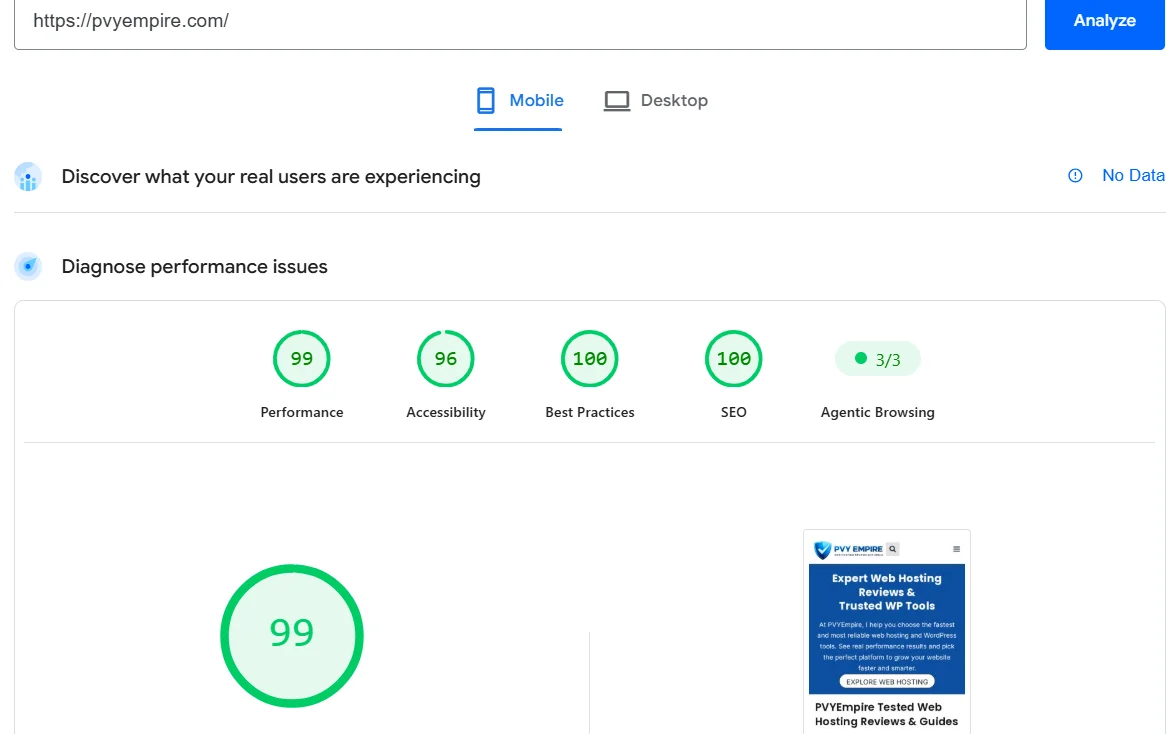
This is Google’s own tool, and it’s the most relevant one for SEO since it reports directly on Core Web Vitals.
It gives you a score out of 100 for both mobile and desktop, plus specific suggestions like reducing unused CSS or improving server response time. It’s a great first stop because it shows you exactly what Google itself is measuring on your site.
GTmetrix
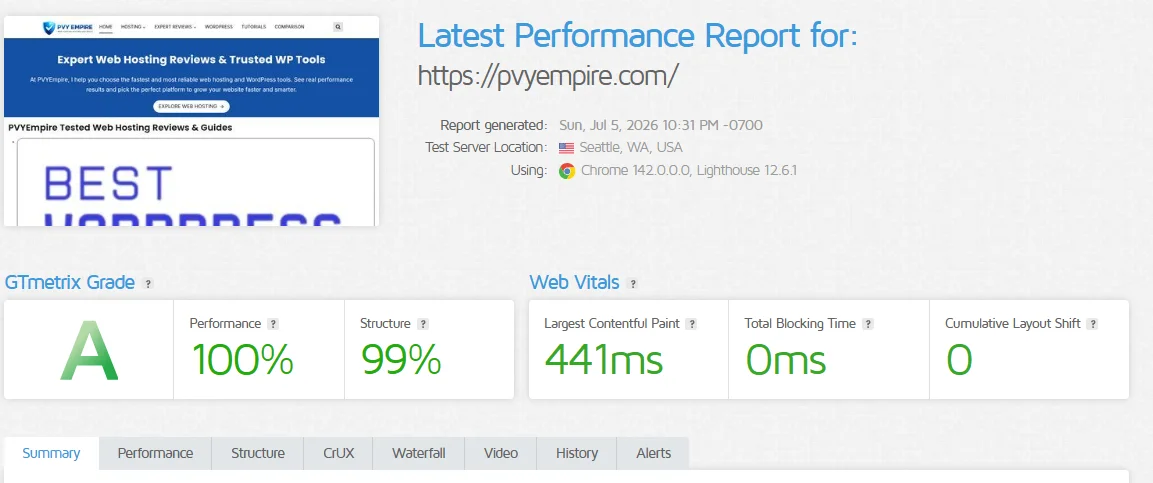
GTmetrix goes a bit deeper with waterfall charts that show you exactly which files are slowing your page down. You can see load order, file sizes, and how long each request takes. It’s especially useful when you’re trying to pinpoint a single slow plugin or a bloated script that’s dragging everything else down with it.
Pingdom Website Speed Test
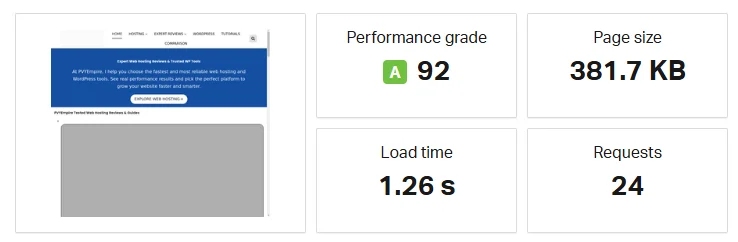
Pingdom lets you test from multiple server locations around the world, which is handy if your visitors are spread across different regions.
It also tracks performance history over time, so you can see trends rather than just a single snapshot. If your audience is global, this tool gives you a more realistic picture of what real visitors experience.
Things to Do Before Optimizing Your WordPress Site
Jumping straight into optimization without prep work is how sites break. A little caution upfront saves you a lot of stress later, especially if a plugin conflict or a bad setting takes your site offline.
Three quick steps will protect you: back everything up, make sure your software is current, and record your starting numbers. None of these takes long, but skipping them is one of the most common mistakes beginners make.
Back Up Your Website
Always create a full backup before touching your site’s code, plugins, or theme files. Plugins like UpdraftPlus or your hosting provider’s built-in backup tool can do this in a couple of clicks.
If something goes wrong mid-optimization, a recent backup means you can restore your site in minutes instead of losing hours of work.
Update WordPress, Themes, and Plugins
Outdated software isn’t just a security risk; it can also slow you down or cause conflicts once you start optimizing. Head to your dashboard and update WordPress core, your theme, and all your plugins before you begin.
This also gives you a cleaner baseline, since old versions sometimes have known performance bugs that newer releases have already fixed.
Benchmark Your Current Speed
Run your site through GTmetrix or PageSpeed Insights and save the results somewhere, whether that’s a screenshot or a spreadsheet.
This becomes your “before” picture. Without it, you won’t have a clear way to measure whether your changes actually helped, and you might end up chasing improvements you can’t actually confirm.
How to Speed Up Your WordPress Site Step by Step
This is the core how-to speed up a WordPress site step-by-step guide. You don’t have to do all 23 steps at once — start with hosting, caching, and images, since those three alone often produce the biggest jump in speed.
Work through the rest at your own pace. Some steps take two minutes; others might take an afternoon. Either way, retest your site every few steps so you can see your progress and know which changes actually moved the needle.
1. Choose Fast and Reliable WordPress Hosting
Your hosting is the foundation everything else sits on, and no plugin can fully compensate for a slow server.
Managed WordPress hosting from providers like Kinsta or WP Engine typically delivers around 68% faster response times than budget shared hosting. If your Time to First Byte is consistently high, your hosting is usually the first place to look.
2. Use a Lightweight Theme
Heavy, feature-packed themes load a ton of CSS and JavaScript you’ll never actually use. Lightweight options like Astra or GeneratePress strip that bloat away while still giving you full design flexibility through page builders.
Switching themes is one of the fastest ways to shave real weight off every page on your site.
3. Install a Caching Plugin
Caching stores a ready-made version of your page so WordPress doesn’t have to rebuild it from scratch for every visitor. Tools like WP Rocket, W3 Total Cache, or WP Super Cache handle this automatically once installed. One important note:
if you’re on managed hosting that already includes server-level caching, adding a second caching plugin can actually cause conflicts instead of helping.
4. Optimize and Compress Images
Images often make up more than half of a page’s total weight, so this step delivers a huge return for the effort involved. Plugins like Smush or ShortPixel compress files automatically and convert them to next-gen formats like WebP or AVIF.
Smaller image files mean faster loading, especially on mobile connections where bandwidth is often limited.
5. Enable Lazy Loading
Lazy loading delays offscreen images and videos from loading until a visitor actually scrolls down to them. This means your visible content loads first, which speeds up the perceived load time significantly.
Most modern WordPress installs support this natively, though a plugin gives you finer control if you need it — just avoid lazy-loading anything above the fold, since that can actually hurt your Largest Contentful Paint score.
6. Use a Content Delivery Network (CDN)
A CDN, like Cloudflare, stores copies of your site on servers scattered around the world. When someone visits, they get served content from the server closest to them instead of your single origin server.
This cuts down travel time dramatically, which is especially valuable if your visitors aren’t all clustered near your hosting location.
7. Minify CSS, JavaScript, and HTML
Minification strips out unnecessary spaces, comments, and characters from your code files without changing how they function.
Smaller files download faster, and most caching plugins, including Autoptimize and Perfmatters, include this feature built right in. It’s a small change individually, but combined with other steps, it adds up to meaningful savings.
8. Remove Unused Plugins and Themes
Every installed plugin adds some overhead, even the deactivated ones sitting in your files. Go through your plugin list and delete anything you’re not actively using, not just deactivate it.
The same goes for extra themes cluttering your installation — keeping only what you actually need reduces both attack surface and unnecessary load.
9. Clean and Optimize Your Database
Over time, your database fills up with junk: spam comments, expired transients, and old post revisions sitting in tables like wp_options and wp_postmeta. This bloat slows down every single query your site runs.
Plugins like WP-Optimize can clean this up automatically, or you can run cleanup commands manually through WP-CLI if you’re comfortable with it.
10. Upgrade to the Latest PHP Version
PHP is the language WordPress runs on, and newer versions process requests significantly faster than older ones. Running PHP 8.0 or 8.1+ instead of an outdated version like 7.2 can noticeably improve your server response time.
Most hosts let you switch PHP versions from your control panel in just a couple of clicks, so this is an easy fix with real impact.
11. Enable GZIP or Brotli Compression
Both GZIP and Brotli compress your files before sending them to a visitor’s browser, which then unpacks them on arrival. Brotli generally compresses more efficiently than GZIP, though both dramatically cut down transfer size.
Many hosts enable one of these by default, but it’s worth double-checking through GTmetrix to confirm it’s actually active on your site.
12. Reduce HTTP Requests
Every image, script, and stylesheet on your page requires a separate request to your server. Fewer requests generally mean faster loading, so combining files where you can and removing unnecessary elements helps.
Check your GTmetrix waterfall chart to spot pages making dozens of unnecessary requests you could easily trim down.
13. Remove Render-Blocking CSS and JavaScript
Render-blocking resources force the browser to pause and download certain files before it can display anything at all. Deferring non-critical JavaScript and inlining critical CSS lets your page start rendering sooner.
This directly improves both your First Contentful Paint and your overall PageSpeed score, so it’s worth prioritizing.
14. Optimize Your Homepage
Your homepage usually gets the most traffic, so it deserves special attention beyond your site-wide settings. Trim down widgets, sliders, and embedded content that aren’t pulling their weight in terms of conversions or engagement.
A leaner, faster homepage sets the tone for how visitors perceive your entire site.
15. Limit Post Revisions
WordPress saves a new revision every time you update a post, and these pile up in your database indefinitely by default. You can cap this by adding a simple line to your wp-config.php file, like define(‘WP_POST_REVISIONS’, 5);.
Fewer stored revisions mean a leaner database and slightly faster queries across your site.
16. Control the WordPress Heartbeat API
The Heartbeat API powers features like auto-save and real-time notifications in your dashboard, but it pings your server every 15 to 60 seconds by default. On busy sites, this adds up to real server load over time.
Plugins like Perfmatters let you throttle or disable it selectively, which is particularly useful on the admin dashboard where it runs most aggressively.
17. Disable Pingbacks and Trackbacks
Pingbacks and trackbacks were designed to notify you when other sites link to yours, but they’re also a common target for spam and unnecessary server requests.
You can turn them off under Settings > Discussion in your WordPress dashboard. It’s a small setting, but disabling it removes a source of background load most sites don’t actually need.
18. Optimize Comments
A post with thousands of comments can slow down page rendering, especially if you’re not paginating them. Go to Settings > Discussion and enable comment pagination to break long comment threads into pages.
This keeps individual page loads lighter while still preserving the full comment history for engaged readers.
19. Disable Emojis and Unused Features
WordPress loads a separate script just to support emoji rendering in older browsers, even if you never use emojis. Disabling it, along with other unused core features like embeds you don’t need, trims a little extra weight from every page.
It’s a minor tweak, but it costs nothing to implement and adds up alongside your other changes.
20. Reduce Redirects
Every redirect adds an extra round trip between the browser and your server before the final page loads.
Audit your redirects periodically and remove any unnecessary chains, especially ones left over from old URL changes or plugin migrations. Fewer hops between click and page load means a faster experience for every single visitor.
21. Optimize Fonts and Third-Party Scripts
Custom web fonts and third-party scripts, like chat widgets or analytics tools, can quietly become some of the heaviest assets on your page.
Limit yourself to two font weights where possible, and load third-party scripts asynchronously so they don’t block rendering. Audit these regularly, since it’s easy to accumulate scripts over time without realizing their combined impact.
22. Monitor Slow Plugins
Not all plugins are created equal, and some quietly hog server resources without any obvious symptoms.
Query Monitor is a free plugin that shows you exactly which plugins are generating the most database queries and slowing down your page generation. Running this periodically helps you catch problem plugins before they become a real drag on performance.
23. Optimize WooCommerce (If Applicable)
WooCommerce stores add extra complexity, since product pages, carts, and checkout flows all put additional strain on your database.
Disable cart fragments if you’re not using them, since they trigger unnecessary AJAX calls on every page load. Optimizing product images and using a caching plugin built for WooCommerce compatibility also goes a long way toward faster checkout speeds.
Best WordPress Speed Optimization Plugins
You don’t need every plugin on this list, but a well-chosen handful covers most of what you need without conflicting with each other.
| Plugin | Best For |
| WP Rocket | All-in-one caching, minification, and lazy loading |
| NitroPack | Automated, beginner-friendly performance boost |
| W3 Total Cache | Advanced users who want granular control |
| Smush | Image compression and next-gen formats |
| Autoptimize | CSS, JS, and HTML minification |
| Perfmatters | Heartbeat control and script management |
| Query Monitor | Diagnosing slow plugins and queries |
Stick to one caching plugin, one image plugin, and one minification tool at a time. Running multiple tools that do the same job usually causes more conflicts than benefits.
Common Mistakes That Slow Down WordPress
Even well-intentioned site owners fall into a few predictable traps. Installing a caching plugin on top of a host that already caches server-side is one of the most common, since the two can quietly fight each other instead of working together.
Uploading full-resolution images straight from a camera or phone without compressing them first is another frequent culprit, often adding megabytes of unnecessary weight per page.
Beyond that, many people install plugins and simply forget about them, letting unused, outdated tools sit active in the background for years. Skipping regular testing is another quiet mistake, since without benchmarks, you can’t actually tell whether your site is improving or slowly getting worse.
And sticking with an old PHP version because “it’s working fine” ignores real, measurable performance gains sitting right there for the taking.
WordPress Speed Optimization Checklist
- Choose managed or high-quality hosting
- Install one caching plugin
- Compress and convert images to WebP or AVIF
- Enable lazy loading (except above the fold)
- Set up a CDN
- Minify CSS, JS, and HTML
- Remove unused plugins and themes
- Clean your database monthly
- Upgrade to PHP 8.0+
- Enable GZIP or Brotli compression
- Limit post revisions
- Retest your speed after every major change
Aim for a performance budget of under 2.5 seconds for Largest Contentful Paint and a total page weight under 1.5MB. Revisit this checklist monthly, or any time you add a new plugin or theme.
Final Thoughts
Speeding up a WordPress site isn’t about one magic fix; it’s about stacking small, consistent improvements on top of each other. Start with hosting, caching, and image compression, since those three changes alone often deliver the biggest visible jump.
From there, work through the rest of this checklist at your own pace, testing along the way so you actually know what’s working.
A fast site isn’t just good for your visitors; it’s good for your rankings, your conversions, and your bottom line. Revisit your performance numbers monthly, keep your plugins lean, and treat speed as an ongoing habit rather than a one-time project.
How to Speed Up WordPress Site Step by Step -FAQs
How can I speed up my WordPress site for free?
You can improve speed at no cost by using a free caching plugin like WP Super Cache, compressing images with Smush, and switching to a lightweight theme like GeneratePress.
What is a good PageSpeed score?
Google recommends aiming for a score of 90 or above, with a load time under 2 seconds considered ideal for most sites.
Which caching plugin is best?
WP Rocket is widely considered the easiest and most effective paid option, while WP Super Cache is a solid free alternative for beginners.
Does hosting affect WordPress speed?
Yes, hosting directly determines your Time to First Byte, and managed WordPress hosting typically delivers noticeably faster response times than budget shared hosting.
How often should I optimize my website?
Test and review your site’s speed monthly, or immediately after installing a new plugin, changing your theme, or seeing a traffic spike.
Do WordPress plugins slow down a website?
Yes, each plugin adds server processing time and extra database queries, so it’s worth removing anything you’re not actively using.
Does image size affect WordPress speed?
Yes, images typically account for 40% to 67% of a page’s total weight, making compression one of the highest-impact changes you can make.
Related Posts
- WordPress Speed Optimization: Complete Guide
- How to Reduce TTFB: 12 Proven Ways to Improve Server Response Time
- 14 Best WordPress Cache Plugins to Speed Up Your Website
- Cloudflare Setup Guide: How to Set Up Your Website Step by Step
- How to Set Up QUIC Cloud for WordPress (Step-by-Step Guide)
- How to Improve Core Web Vitals: Complete Guide
- WooCommerce Checkout Slow? Advanced Fixes That Work
- LiteSpeed Cache for WordPress (Complete Guide)
- How to Fix Hostinger Slow WordPress Sites?
- How to Fix Bluehost Slow WordPress Websites?

Alex Bryant is the founder of PvyEmpire.com and a WordPress specialist with over 4 years of hands-on experience in web hosting, performance optimization, and website management. He has extensively tested top hosting providers by setting up real websites and monitoring their speed, uptime, and reliability.
At PvyEmpire.com, Alex publishes honest, data-driven reviews, detailed guides, and verified coupons & deals. His goal is to help website owners choose the right hosting, improve performance, and grow their online presence with confidence—based on real testing, not promotions.