How to Activate Your Bluehost WordPress Free SSL in 2 Minutes
You clicked into your WordPress dashboard, and there it was — that little “Not Secure” warning sitting right next to your site’s address. Maybe a visitor mentioned it, or maybe you spotted it yourself while checking your own homepage.
Either way, it’s the kind of thing that makes you second-guess whether your site looks trustworthy at all. The good news is that fixing it usually doesn’t cost anything, because your Bluehost WordPress Free SSL certificate is likely already included on your hosting plan — it just needs to be confirmed or switched on.
Below, you’ll find the exact steps to check your SSL status, activate it if it isn’t already running, and force your site to load over HTTPS everywhere.
You’ll need access to your Bluehost account login and about five to ten minutes, most of which is just waiting for the certificate to finish installing in the background. Stick around, because there’s also a quick fix for the most common reason SSL shows as “Not Secure” even after you’ve turned it on.
What Is Bluehost WordPress Free SSL?
An SSL certificate encrypts the connection between your visitor’s browser and your web server, which is what turns “http://” into “https://” and puts a padlock icon in the address bar.
Bluehost’s free version runs on Let’s Encrypt, an open, nonprofit certificate authority that issues domain-validated SSL certificates at no cost.
That encryption protects sensitive data — passwords, payment details, personal information — as it travels between your site and its visitors, and search engines factor it into how they treat your site.
On most Bluehost hosting plans, this certificate installs itself automatically the moment you set up a domain or install WordPress.
It’s managed through a cPanel feature called AutoSSL, which handles both the first installation and the renewals, so you’re not stuck manually reissuing a certificate every few months.
How to Activate Bluehost WordPress Free SSL
In most cases you won’t need to manually turn anything on — Bluehost typically activates SSL automatically when a domain is added or WordPress is installed.
But it’s worth confirming the certificate is actually live, especially if you’re still seeing a “Not Secure” warning. Here’s how to check and, if needed, nudge it along.
Log In to Your Bluehost Portal
- Go to the Bluehost login page and sign in with your account credentials.
- You’ll land on your account dashboard, which Bluehost now calls the Bluehost Portal.
Open Your WordPress Site’s Security Settings
- In the left-hand navigation menu, click Websites.
- Find the site you want to secure and click the Manage Site button next to it.
- Once you’re on the site’s management page, click the Security tab.
This path — Websites → Manage Site → Security — is Bluehost’s official route to your SSL certificates, SiteLock, IP blocking, and WordPress core file checks, all in one place.
Check the Free SSL Certificate Status
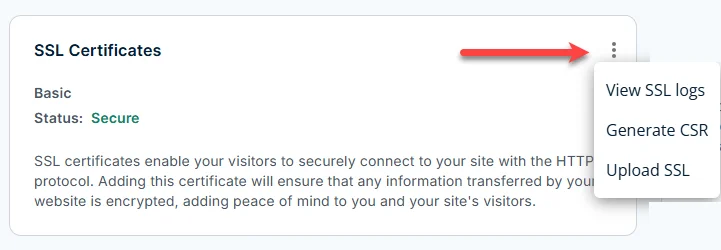
- On the Security tab, locate the SSL Certificates card.
- If the certificate is active, you’ll see a secure status next to your domain. If it isn’t yet, Bluehost is usually still finishing the automatic install — this can take a few hours after a new domain or WordPress install.
- Click the three-dot (ellipsis) icon on the SSL Certificates card if you need more control. This opens options including View SSL Logs, Generate CSR, and Upload SSL for manually installing a different certificate.
A quick editorial note: some older Bluehost accounts still run on a legacy interface with a manual Free SSL on/off toggle in the Security section.
If your dashboard shows a toggle instead of the layout above, switch it on and give it a few hours to install — the underlying Let’s Encrypt certificate and AutoSSL process work the same way either way.
Common error: If the SSL Certificates card shows “Not Secure” more than 24 hours after setup, don’t keep clicking around the Security tab — the fix usually lives in cPanel’s AutoSSL settings, covered in the troubleshooting section below.
How to Check If Your Bluehost SSL Is Working
Once you believe the certificate is active, confirm it the simple way: open your site in a browser and look at the address bar.
- Type your domain into the browser using
https://at the front. - Look for a padlock icon to the left of the address. Click it to view certificate details, including the issuer (it should say Let’s Encrypt) and the expiration date.
- If the browser instead shows a warning or an unlocked padlock, the certificate either hasn’t finished installing or your site still has some pages loading over plain HTTP.
How to Force WordPress to Use HTTPS
Having an active SSL certificate doesn’t automatically mean every page on your site loads securely — WordPress can still serve some content, images, or links over HTTP unless you tell it not to. The most reliable fix at the server level is editing your site’s .htaccess file.
- In the Bluehost Portal, go to Websites → Manage → Files & Access tab, then click Manage on the File Manager tile.
- Click Settings in the upper right corner of File Manager and enable Show Hidden Files (dotfiles), then save.
- Locate the
.htaccessfile in your site’s root directory, right-click it, and choose Edit. - Add the following lines to the top of the file:
RewriteEngine On
RewriteCond %{HTTPS} off
RewriteRule ^(.*)$ https://%{HTTP_HOST}%{REQUEST_URI} [L,R=301]
- Save the file, then reload your site using the plain
http://version of your URL to confirm it redirects automatically tohttps://.
This exact code is Bluehost’s own documented method for forcing HTTPS across an entire site. Make sure RewriteEngine On doesn’t appear twice further down in the file, since a duplicate line can break the redirect.
Common error: After adding this code, some sites show a “too many redirects” error. This almost always means WordPress’s own Site Address (URL) and WordPress Address (URL) settings, under Settings → General in your WordPress dashboard, are still set to http:// instead of https://. Update both fields and clear your browser cache before testing again.
Bluehost Free SSL Not Working? Try These Fixes
If your certificate still won’t show as secure after activation, work through these in order rather than jumping straight to a plugin or a support ticket.
Check Your Domain and DNS Settings
Let’s Encrypt needs to verify that you actually own the domain before it issues a certificate, and it does this by checking your domain’s DNS records.
If your domain’s A record doesn’t point to your Bluehost hosting IP yet — for example, right after a domain transfer — the SSL validation will fail even though everything looks fine in your Bluehost Portal.
Check your DNS settings first if the certificate has been stuck in a pending state for more than a day.
Run AutoSSL if the Certificate Shows Not Secure
- Log in to cPanel (accessible through your Bluehost Portal under advanced hosting tools).
- In the Security section, click SSL/TLS Status.
- Find your domain in the list. If it’s excluded, select it and click Include x domain(s) during AutoSSL.
- Wait for the next AutoSSL cycle, or check View SSL logs to see the most recent attempt and any errors.
This matches Bluehost’s own AutoSSL process, which lets you include or exclude a domain directly from the SSL/TLS Status screen in cPanel.
Common error: A domain that was manually excluded from AutoSSL in the past will stay excluded even after you fix the underlying issue — you have to re-include it yourself; it won’t happen automatically.
Check for HTTPS or Mixed Content Issues
Even with a valid certificate, your browser can still flag a page as insecure if it loads even one image, script, or stylesheet over plain HTTP.
This is called mixed content. Open your browser’s developer console (right-click the page → Inspect → Console tab) and reload the page — any mixed content warnings will list the exact insecure file so you can update the link.
Is Bluehost Free SSL Really Free?
Yes — the Free SSL Certificate included with Bluehost hosting runs on Let’s Encrypt, which doesn’t charge for issuing or renewing standard domain-validated certificates, and Bluehost doesn’t add a markup for including it with your plan.
It covers the core job of encrypting traffic and enabling HTTPS, which is what most personal sites, blogs, and small business sites need.
Where it falls short is for sites handling higher volumes of sensitive data, multiple domains under one certificate, or businesses that want extended validation branding (the kind that used to show a green company name in the address bar).
For those cases, Bluehost also sells paid SSL certificate upgrades through its Renewal Center, which add features like broader warranty coverage.
For most blogs and small WordPress sites, though, the free tier is the practical, sufficient option — and with more than 299 million SSL certificates in use globally as of early, according to BuiltWith research cited by Bluehost, a huge share of the web is already running on exactly this kind of setup.
Conclusion
Getting HTTPS running on a Bluehost WordPress site usually comes down to three things: confirming the free Let’s Encrypt certificate is actually active, forcing your site to load over HTTPS everywhere instead of just on some pages, and knowing where to look — DNS, AutoSSL, or mixed content — if something’s still showing “Not Secure.”
None of it requires buying anything extra for a typical blog or small business site, and once it’s set up, Bluehost’s AutoSSL keeps renewing the certificate in the background without you having to think about it again.
Frequently Asked Questions
What Is an SSL Certificate?
It’s a small file installed on your web server that encrypts the connection between your site and its visitors, enabling the https:// protocol and the padlock icon in the browser’s address bar.
Why Do I Need an SSL Certificate?
Without one, browsers like Chrome label your site “Not Secure,” which can scare off visitors and erodes trust — and it can also affect how search engines assess your site.
Is Let’s Encrypt Really Free?
Yes. Let’s Encrypt is a nonprofit certificate authority, and Bluehost passes that no-cost certificate through to your hosting account without an added fee.
How Long Does Bluehost SSL Activation Take?
Usually a few hours after a domain or WordPress install, though it can occasionally take up to 24 hours for AutoSSL to complete validation.
Why Is My Bluehost SSL Not Working?
The most common causes are a DNS record that isn’t pointing to Bluehost yet, a domain excluded from AutoSSL in cPanel, or mixed content on the page itself. Work through those three before contacting support.
Does Bluehost Free SSL Automatically Enable HTTPS?
It installs the certificate automatically in most cases, but forcing every page to load over HTTPS still typically requires either the .htaccess redirect shown above or updating your WordPress Site Address and Home URL settings.
Sources
- Bluehost Help Center, “Bluehost Portal Websites Security Tab”
- Bluehost Help Center, “What Is AutoSSL? How Does AutoSSL Work?”
- Bluehost Help Center, “How to Force SSL on All Pages in .htaccess File”
- Bluehost Blog, “How to Get an SSL Certificate (Free or Paid) for WordPress

Alex Bryant is the founder of PvyEmpire.com and a WordPress specialist with over 4 years of hands-on experience in web hosting, performance optimization, and website management. He has extensively tested top hosting providers by setting up real websites and monitoring their speed, uptime, and reliability.
At PvyEmpire.com, Alex publishes honest, data-driven reviews, detailed guides, and verified coupons & deals. His goal is to help website owners choose the right hosting, improve performance, and grow their online presence with confidence—based on real testing, not promotions.