Bluehost Coming Soon Page | Under Construction Website
You’ve just spun up a new Bluehost account, and instead of your homepage, visitors are staring at a blank placeholder with a “launching soon” message.
That’s not a mistake — it’s Bluehost’s default setup, designed to keep your site hidden while you build it behind the scenes. The Bluehost coming soon page shows up automatically on many new installs, and figuring out how to work with it (or get rid of it) is one of the first things new site owners run into.
In this guide, you’ll learn what that page actually does, how to customize it so it doesn’t look like a dead end to early visitors, and the exact steps to switch it off once your site’s ready for the world.
We’ll also cover a few situations where the page refuses to disappear even after you’ve hit “launch” — and what usually causes that.

Disclosure: This article may contain affiliate links. If you sign up for Bluehost or another product through one of these links, we may earn a commission at no extra cost to you. This doesn’t affect our editorial content, and we only recommend products based on genuine research and analysis.
What Is a Bluehost Coming Soon Page?
A Bluehost coming soon page is a temporary placeholder that shows up in place of your real website while you’re still building it.
According to Bluehost’s own help documentation, it’s essentially a simple one-page site — sometimes called an “under construction” page — that tells visitors your full site is on the way, while optionally sharing contact details, business hours, or a launch announcement.

The point of the page is twofold. First, it keeps an unfinished website — half-built pages, missing content, broken layouts — away from public view and search engines.
Second, done right, it turns “nothing to see here” into a small marketing moment, giving you a chance to collect emails or build anticipation before you actually launch.
How to Enable the Bluehost Coming Soon Page
If you’re starting a redesign, migrating a site, or just want visitors kept out while you work, you can turn the coming soon page on manually.
There are two main ways to do it, depending on whether you’d rather work from the Bluehost account portal or from inside WordPress.
Enable Coming Soon in the Bluehost Portal
- Log in to your Bluehost account portal.
- Click Websites in the left-hand menu, then select Manage Site next to the site you want to update.
- Look for the Coming Soon setting — depending on your dashboard version, this sits under the Advanced tab or directly in the site’s Settings (Bluehost help center).
- Switch the toggle On.
The change applies immediately, so double-check you’re ready before flipping it on if your site is already live — this will hide it from visitors right away.
Enable Coming Soon from the WordPress Dashboard
If your site runs on WordPress, you may also find a matching toggle inside your WordPress admin area — typically under a Bluehost menu item in the sidebar, then Settings. This mirrors the portal setting, so switching it on there does the same thing.
One caveat worth flagging: older Bluehost accounts that still run legacy setup plugins (some installs used a Mojo Marketplace-driven plugin in the past) may see a slightly different menu path. If you don’t see a Coming Soon option where you expect it, the portal method above is the more reliable route.
How to Customize the Bluehost Coming Soon Page
Bluehost’s built-in toggle gives you a working placeholder page, but it’s fairly basic out of the box.
If you want it to say more than “we’re coming soon,” you’ve got two paths: light editing through the built-in settings, or swapping in a dedicated tool for full control.
Edit the Coming Soon Message and Page Content
The default toggle mainly controls whether the page shows or not, rather than offering deep content editing.
For anything beyond basic text — a countdown, a launch date, custom images — most site owners skip ahead to a temporary HTML page or a coming soon plugin, both covered below. If you just need a quick, no-frills placeholder, the built-in option does the job without extra setup.
Add Your Branding and Design
Even a temporary page is worth a few minutes of attention, since it’s often a visitor’s first impression of your brand.
Match the colors and logo you plan to use on the finished site, keep the message short and clear, and avoid generic stock templates if you can help it — a page that looks intentional builds more trust than one that looks like a default error screen.
How to Create a Custom Under Construction Page on Bluehost
If the built-in toggle feels too limited, you have two solid alternatives: build your own simple HTML page, or install a plugin that gives you a proper design editor.
Create a Temporary HTML Page with File Manager
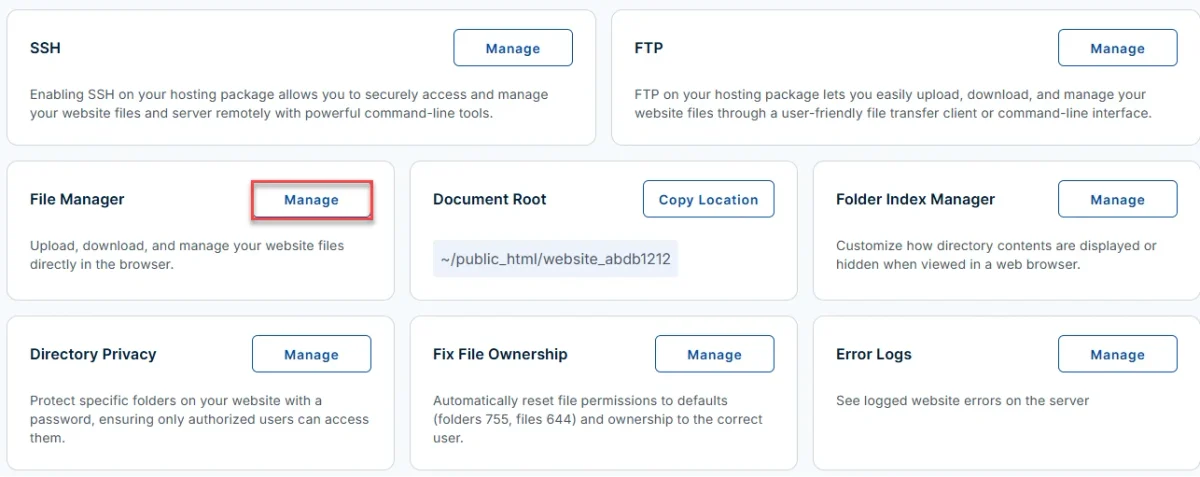
Bluehost’s File Manager lets you build a custom placeholder from scratch. Per Bluehost’s help article on temporary pages, the process looks like this:
- Log in to your Bluehost Portal.
- Click Websites, then Manage Site next to the relevant site.
- Go to Files & Access, then click Manage under File Manager.
- Click + File, then Create New File, and name it
index.html. - Right-click the new file and choose Edit to open the code editor.
- Add your HTML content — headline, message, contact info, images — and save.
- Preview the page to confirm it looks right.
Once your real site is finished, simply delete or replace this file to bring your live pages back.
Use a WordPress Coming Soon or Maintenance Plugin
If you’d rather not touch code, a WordPress plugin is the more common route. Tools like SeedProd offer a drag-and-drop editor specifically built for coming soon and maintenance pages, letting you add countdown timers, email opt-in forms, and custom layouts without writing any HTML.
The WordPress.org plugin directory also has several free coming soon and maintenance mode plugins if you want to compare options before committing to one.
How to Remove the Bluehost Coming Soon Page
Once your site’s ready for visitors, turning off the coming soon page follows basically the reverse of enabling it.
Disable Coming Soon in the Bluehost Portal
- Log in to your Bluehost Portal.
- Go to Websites, then Manage Site for your site.
- Open the Advanced tab (or Settings, depending on your dashboard) and find the Coming Soon toggle.
- Switch it Off.
Your live site should be visible to visitors as soon as you save the change.
Disable Coming Soon in WordPress
If you enabled the page from inside WordPress, head back to the same Bluehost > Settings area in your admin sidebar and switch the Coming Soon toggle off there instead.
If you built a custom placeholder using the File Manager method above, you’ll need to delete or rename that index.html file for WordPress to take over the homepage again.
Bluehost Coming Soon Page Not Going Away? Try These Fixes
Sometimes you flip the toggle off and the placeholder stubbornly stays put. A few things usually explain this.
Clear Your Browser and WordPress Cache
Cached pages are the most common culprit. Try a hard refresh, open the site in a private/incognito window, and if you’re running a caching plugin (or Bluehost’s built-in caching), clear it manually. This alone resolves the issue for a lot of users.
Check Whether a Plugin Is Enabling Maintenance Mode
If you’ve got a separate coming soon or maintenance plugin installed alongside Bluehost’s own setting, the plugin can override the portal toggle.
Deactivate other plugins one at a time to isolate the cause — a method also recommended in WordPress.org’s own troubleshooting guidance for exactly this kind of conflict. related: Bluehost Hosting Review
Older accounts should also double-check for any leftover Jetpack or legacy setup plugins, which have been known to interfere with this setting.
Confirm That Your Website Is Published
Occasionally the issue isn’t the coming soon setting at all — it’s that the site itself is still set to private, or WordPress’s own visibility setting (under Settings > Reading) is blocking search engines and treating the site as unfinished. Check both places before assuming the coming soon toggle is to blame.
What Should a Bluehost Coming Soon Page Include?
Whether you use the built-in toggle, a custom HTML page, or a plugin, a few basics make a coming soon page actually useful instead of just a blank wall.
Launch Date or Announcement
Even a rough timeframe (“launching this spring”) gives visitors a reason to check back, rather than leaving them guessing.
Contact Information or Email Signup
An email address, social link, or signup form turns a placeholder into a small lead-generation tool — visitors who land early can still connect with you.
Clear Branding and Call to Action
Your logo, brand colors, and a short, clear message help the page feel like part of your brand rather than a generic hosting error page.
Conclusion
A coming soon page isn’t something to stress over — it’s a normal part of setting up a new Bluehost site, and switching it on, customizing it, or turning it off again all comes down to a single toggle in your Bluehost Portal (or a matching one in WordPress).
If you want more than the basic placeholder, a quick HTML page or a plugin like SeedProd gives you room to add branding, a launch date, or an email signup.
And if the page won’t disappear after you’ve flipped the switch, it’s almost always caching or a conflicting plugin — not a broken setting. Once you’ve confirmed your site is live and search-visible, you’re done.
Frequently Asked Questions
Why is my Bluehost website still showing a coming soon page?
It’s usually browser or plugin caching, a separate maintenance-mode plugin overriding the setting, or the WordPress site visibility setting still marked private. Work through the troubleshooting steps above in order.
Can I use a WordPress plugin to create a coming soon page on Bluehost?
Yes. Plugins like SeedProd give you a full page builder for coming soon and maintenance pages, with more design control than Bluehost’s built-in toggle.
Is the Bluehost coming soon page automatic, or do I have to turn it on?
Many new WordPress installs on Bluehost show it by default, but you can also turn it on or off manually at any time from the Websites section of your Bluehost Portal.
Will Google index my site while the coming soon page is active?
Typically not much, since there’s little unique content for it to crawl. If you want to be certain, check that your page (or your WordPress site visibility setting) isn’t accidentally blocking search engines even after launch.
Can visitors find my site on search engines while it’s in coming soon mode?
It’s unlikely to rank meaningfully, since a placeholder page usually has minimal content and no real internal linking.
Does the coming soon page affect my SEO once I launch?
Not if you remove it properly. The main risk is leaving it active too long, or forgetting to check your site’s search-visibility settings after you switch it off.
Can I skip the coming soon page entirely on a new Bluehost site?
Yes — check the Coming Soon toggle under Websites > Manage Site right after setup. If it’s off, your real site will be visible from the start.
Sources: Bluehost Help Center — Create a Temporary Page · Bluehost Help Center — Websites Advanced Tab · WPBeginner — Coming Soon Pages with SeedProd · WordPress.org Support

Alex Bryant is the founder of PvyEmpire.com and a WordPress specialist with over 4 years of hands-on experience in web hosting, performance optimization, and website management. He has extensively tested top hosting providers by setting up real websites and monitoring their speed, uptime, and reliability.
At PvyEmpire.com, Alex publishes honest, data-driven reviews, detailed guides, and verified coupons & deals. His goal is to help website owners choose the right hosting, improve performance, and grow their online presence with confidence—based on real testing, not promotions.