Cloudways Increase PHP Memory Limit Easily
If you’ve been dealing with WordPress errors, slow performance, or plugin crashes, you may need to increase the PHP memory limit in Cloudways.
Many website owners face this issue while updating plugins, importing large files, or handling more traffic, and it can quickly become frustrating if you’re not sure what’s causing it.
The good news is that Cloudways Increase PHP Memory Limit is much easier than it sounds. In this guide, you’ll learn the exact steps to change the memory limit, why it matters for your website, and how to avoid common mistakes so your site runs smoothly again.
Cloudways Increase PHP Memory Limit
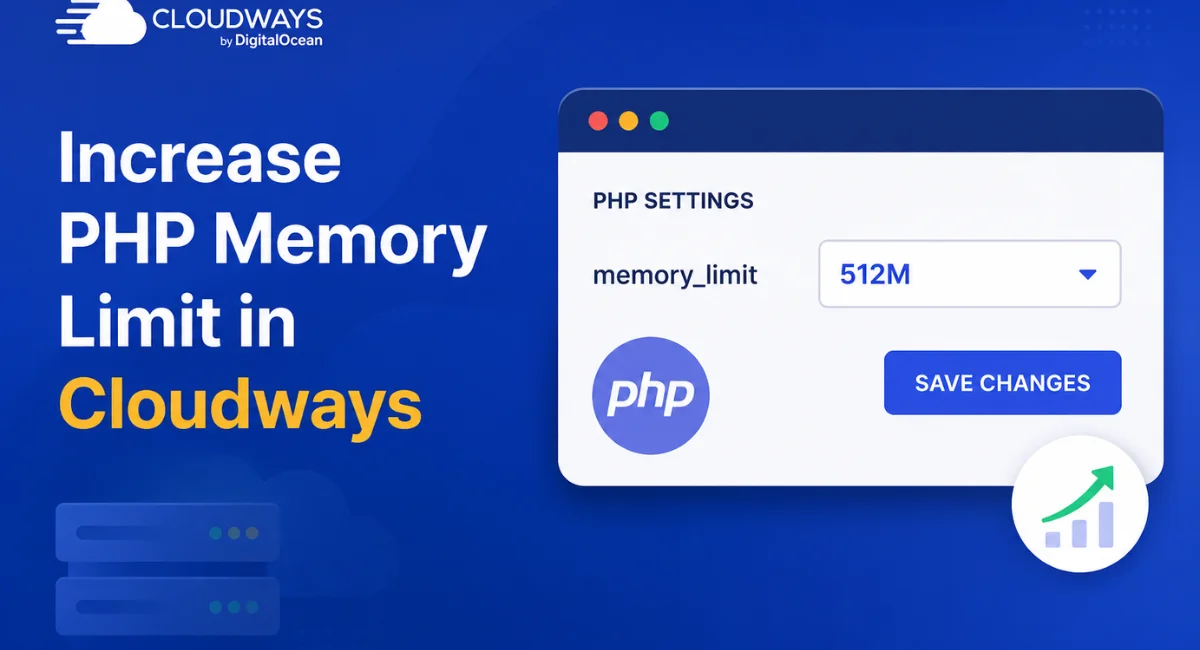
The fastest way to increase PHP memory limit is through the Cloudways dashboard — no need to SSH into your server or manually edit files. Head to your application settings, find the PHP settings section, and update the memory_limit value. Cloudways applies the change instantly without requiring a server restart.
This is one of the biggest advantages of using a managed cloud hosting platform like Cloudways. Unlike shared hosts, where you’re limited to what’s allowed in .htaccess or wp-config.php, Cloudways gives you direct access to PHP configuration through a clean interface. You stay in control without needing to be a server admin.
What is the PHP Memory Limit?
The PHP memory limit is the maximum amount of RAM a single PHP script is allowed to use. Think of it as a budget — every script your site runs gets a certain amount of memory to work with, and if it needs more than that budget allows, PHP throws an error and stops execution. This is exactly what causes the ‘allowed memory size exhausted’ message.
By default, most hosting environments set this to 128MB or 256MB. That’s fine for simple brochure sites, but not for WordPress sites running heavy plugins like WooCommerce, Elementor, or WPML.
PHP memory usage can spike significantly when you’re processing large orders, rendering complex pages, or running resource-intensive background tasks.
Why Is There a Memory Limit?
Servers have finite RAM. If every PHP script could consume as much memory as it wanted, a single runaway script could eat up all available resources and crash the entire server, taking every other site on it down with it.
The PHP memory limit acts as a safety net. It protects server stability and ensures resources are shared fairly across all running processes.
This is especially important on shared hosting, where dozens or even hundreds of sites share the same physical machine. Even on a managed cloud server like Cloudways, limits exist to prevent one application from monopolizing RAM usage.
However, since you control your Cloudways server, you can raise these limits to whatever your server’s RAM can actually support.
Never Hit PHP Memory Limits Again
The key to avoiding memory errors isn’t just raising the limit once — it’s understanding why you’re hitting it and fixing the root cause. Start by checking which plugins are consuming the most memory.
Tools like Query Monitor can show you exactly how much memory each plugin or theme uses on each page load. You might find that one poorly coded plugin is eating up 80MB by itself.
Also, consider optimizing your PHP-FPM settings and PHP workers to handle traffic more efficiently. Sometimes memory errors aren’t about the per-script limit at all — they’re about too many concurrent PHP processes overwhelming the server.
Combine a sensible memory limit with good caching (like Redis or Varnish) and you’ll rarely, if ever, see a memory error again.
How Does PHP Memory Limit Relate to Performance?
There’s a common misconception that a higher PHP memory limit automatically means better performance. That’s not quite right. Memory limit is a ceiling — it only matters when scripts approach or exceed it. Setting it to 1GB on a server with 2GB of RAM doesn’t magically speed up your site.
In fact, if scripts regularly consume that much memory, your server memory optimization needs attention, not just a bigger ceiling.
That said, setting the limit too low definitely hurts performance. When scripts hit the ceiling, they fail — and failed scripts mean slow pages, broken features, and poor user experience.
The goal is to set a limit high enough that your scripts never bump into it under normal conditions while leaving enough headroom for traffic spikes. Good server memory optimization means balancing both sides of that equation.
How to Increase the PHP Memory Limit
There are three main methods to increase the PHP memory limit, and which one you use depends on your hosting setup and access level. Here’s a quick breakdown:
| Method | Where to Apply | Best For |
| Cloudways Dashboard | Application Settings → PHP Settings | Cloudways users (easiest) |
| PHP.ini file | Server-level config file | VPS or dedicated server users |
| wp-config.php | WordPress root directory | WordPress-specific override |
| .htaccess | Root directory (Apache only) | Fallback for shared hosting |
If you’re on Cloudways, the dashboard method is by far the easiest — skip the other methods entirely.
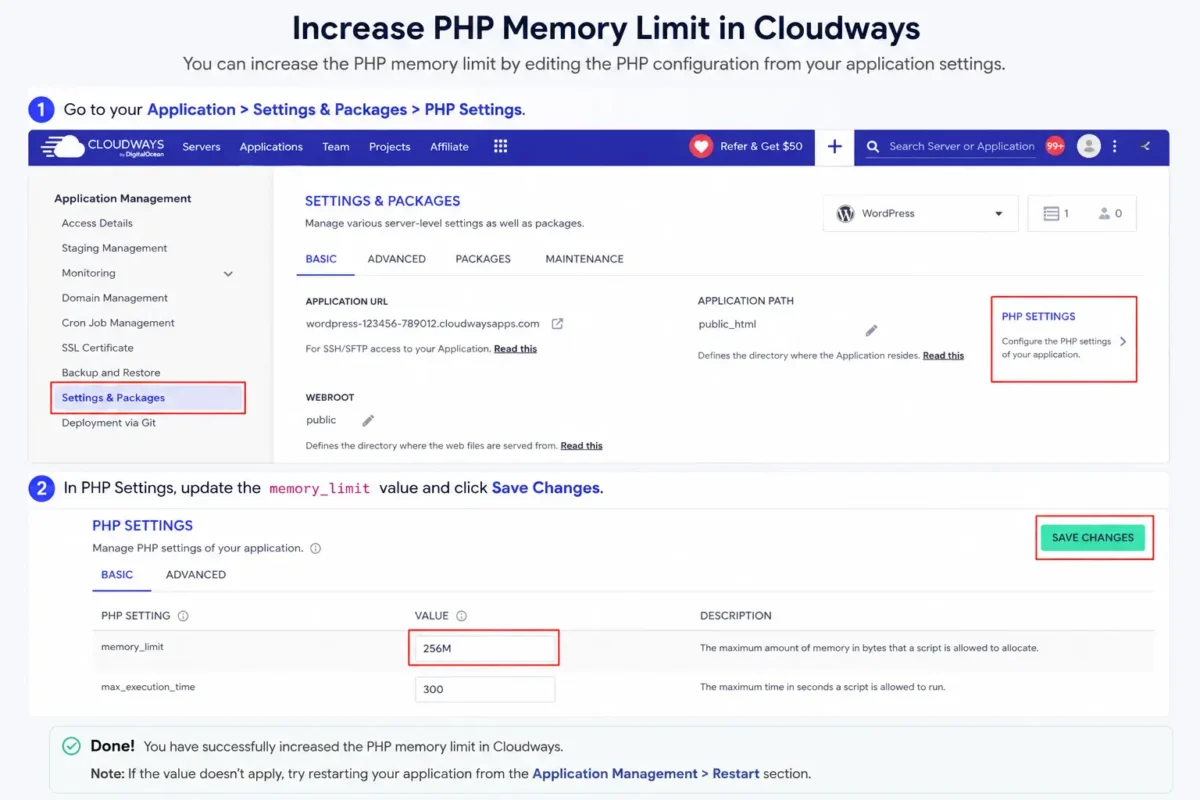
Log in to your Cloudways account, click on your application, go to Application Management, and then PHP Settings. Change the memory_limit field to your desired value (e.g., 512M) and hit Save. That’s it.
If you need a WordPress-level override instead, you can add define(‘WP_MEMORY_LIMIT’, ‘512M’); to your wp-config.php file. Just know that WordPress can only go up to whatever the server-level PHP.ini allows.
The Cloudways dashboard sets the server-level limit, so it takes precedence and removes this restriction entirely.
The PHP Memory Limit with Cloudways
Cloudways stands out among managed hosting providers because it exposes PHP configuration settings directly in its dashboard. Most managed hosts lock these settings behind support tickets and slow back-and-forth communication.
With Cloudways, you change the PHP memory limit in under a minute — without touching a single config file or waiting for support.
When it comes to the PHP memory limit Cloudways setup, the platform also lets you configure other important PHP values alongside memory, like max_execution_time, upload_max_filesize, and post_max_size.
This is especially helpful for WooCommerce stores where large product imports or bulk order processing can time out or fail if these values aren’t aligned with your memory limit settings.
PHP Memory Limit for a High-Traffic E-commerce Site
For a WooCommerce store handling hundreds of daily transactions, a minimum of 512MB is recommended. High-traffic ecommerce sites load complex product pages, run payment gateway scripts, handle cart sessions, and process inventory updates — often all at once.
Setting your PHP memory limit for an e-commerce website to 512MB gives enough headroom for these operations while keeping things stable. If you’re running additional plugins like advanced product filters, booking systems, or affiliate tools, consider going up to 768MB or 1GB.
PHP Memory Limit for a High-Traffic LMS Site
Learning management systems like LearnDash or LifterLMS are memory-hungry by nature. They handle video streaming metadata, quiz logic, student progress tracking, and course content rendering simultaneously. For a high-traffic LMS site, 512MB is the floor — not the ceiling.
Many LMS operators find that 768MB to 1GB keeps things running smoothly, especially when students are submitting assignments or taking quizzes during peak hours. Keep an eye on your PHP memory usage through Cloudways server monitoring tools to fine-tune this over time.
PHP Memory Limit for a High-Traffic Multisite
WordPress multisite networks are uniquely demanding because multiple sites share the same PHP process environment. Each sub-site adds its own set of plugins and themes to memory, which stacks up fast. For a multisite with more than five active sub-sites, start at 512MB and scale up based on monitoring.
If you’re running a large network — say, 20+ sites — 1GB or more may be necessary. The PHP memory limit for multisite setups is not one-size-fits-all, so test, monitor, and adjust based on actual usage data.
PHP That Never Bottlenecks
Raising the memory limit is only one part of the equation. To truly future-proof your site’s PHP performance, pair your memory settings with a solid caching strategy.
Full-page caching tools like Breeze (Cloudways’ built-in cache plugin) or Redis object caching can dramatically reduce how often PHP scripts run in the first place. Fewer PHP executions mean less memory pressure overall.
Also, keep your plugins and themes updated. Outdated code is often the biggest culprit behind excessive PHP memory usage — developers regularly optimize memory efficiency in newer releases.
Monitor your server’s RAM usage in the Cloudways dashboard regularly and set up alerts so you know before a memory spike causes real problems. With the right setup, your PHP application resources should scale gracefully no matter how much traffic comes your way.
Related
- Cloudways Review
- Cloudways Autonomous Review
- Cloudways vs Hostinger: Which Hosting Is Truly Faster
- Closte Review
- HostGator Review
- 20 PHP Hosting Providers for Fast Website Performance
- WPX Hosting Review
- WEB HOSTING
- Top 7 cPanel Hosting Providers for Small Businesses
Conclusion
Managing PHP memory doesn’t have to be complicated — especially on Cloudways. Whether you’re fixing a memory error for the first time or proactively tuning your server for growth, the process is straightforward.
Increase the PHP memory limit in Cloudways through the dashboard, pick the right value for your site type, and back it up with good caching and monitoring habits.
Every website is different. A simple blog needs far less memory than a WooCommerce store or a multisite network. Use the guidelines in this article as a starting point, then adjust based on real data from your server.
Cloudways makes that easy — and that’s exactly why it’s one of the best platforms for serious WordPress hosting.
FAQs
What is the recommended PHP memory limit for WordPress?
For most WordPress sites, 256MB is a solid starting point. Heavier setups like WooCommerce or LMS platforms should use 512MB or higher.
How do I increase the PHP memory limit in Cloudways without SSH?
You can do it entirely from the Cloudways dashboard. Go to Application Management → PHP Settings and update the memory_limit field directly — no SSH needed.
What happens when PHP hits the memory limit?
PHP throws a fatal error and stops the script. On WordPress, this usually shows a white screen or the ‘Allowed memory size exhausted’ message.
Can I set the PHP memory limit to unlimited?
Technically, yes — PHP accepts -1 as an unlimited value. However, this is risky on production servers. A runaway script could consume all available RAM and crash your server.
Does increasing the PHP memory limit slow down my website?
No, raising the limit doesn’t slow things down. Scripts only use what they need — a higher limit simply gives them room to run without failing. It won’t consume extra RAM unless a script actually needs it.
How do I check the current PHP memory limit in Cloudways?
You can check it from the Cloudways dashboard under PHP Settings. Alternatively, create a phpinfo.php file on your server — it will display all current PHP configuration values, including memory_limit.
What is the difference between WP_MEMORY_LIMIT and PHP memory limit?
WP_MEMORY_LIMIT is a WordPress-specific setting defined in wp-config.php. The PHP memory limit is set at the server level. WordPress can’t exceed the server-level PHP limit, so always set the server limit first.

Alex Bryant is the founder of PvyEmpire.com and a WordPress specialist with over 4 years of hands-on experience in web hosting, performance optimization, and website management. He has extensively tested top hosting providers by setting up real websites and monitoring their speed, uptime, and reliability.
At PvyEmpire.com, Alex publishes honest, data-driven reviews, detailed guides, and verified coupons & deals. His goal is to help website owners choose the right hosting, improve performance, and grow their online presence with confidence—based on real testing, not promotions.