How to Fix Hostinger Slow WordPress Sites?
You finally launched your website, everything looks great — and then someone tells you it’s taking forever to load.
If you’ve been Googling “Hostinger slow,” you’re probably feeling that mix of frustration and confusion, wondering if you picked the wrong host or if something’s broken on your end. Trust me, you’re not alone in this.
In this post, we’ll walk through the most common reasons your Hostinger site might be running slow and, more importantly, what you can actually do to fix it.
Whether it’s a simple setting you missed or something worth escalating to support, you’ll leave here with a clear next step.
1. Activate Hostinger Cache Manager
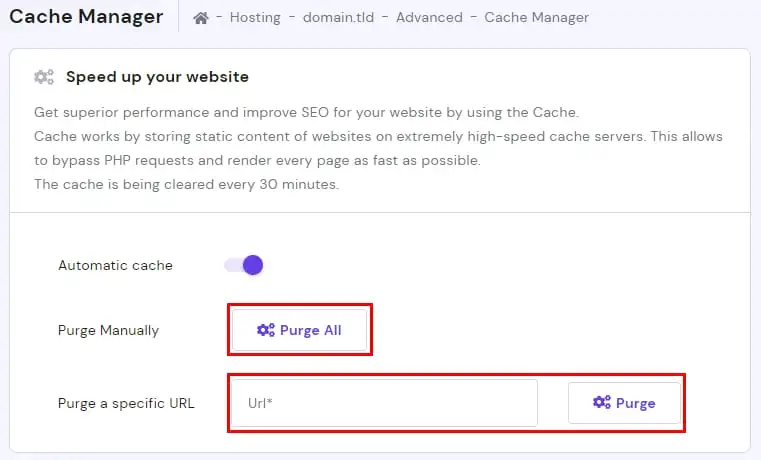
One of the first things you should check when your site feels sluggish is whether caching is actually turned on. Hostinger has a built-in cache manager inside hPanel, and a lot of users skip right past it during setup.
Full page caching means your server doesn’t have to rebuild every page from scratch for each visitor — it just serves a saved version instead. That alone can cut your load time significantly.
To activate it, log into your hPanel, go to the WordPress section, and look for the Cache Manager option. Turn on both the server-level cache and the object cache if they’re available on your plan.
A Hostinger slow site often comes down to this one overlooked setting. It takes less than two minutes, and the difference can be dramatic, especially on shared hosting where server resources are limited.
2. Test Hostinger LiteSpeed Cache Settings
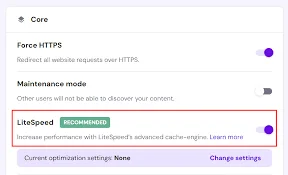
If you’re on Hostinger’s WordPress hosting, you’re running on a LiteSpeed server — and that’s actually a big advantage.
LiteSpeed Cache is one of the most powerful caching plugins available, and it’s built specifically to work with this server type. However, just having the plugin installed isn’t enough. The default settings are conservative, and you’ll need to tune them to see real speed gains.
Start by enabling full-page cache, then turn on CSS and JS minification, image lazy loading, and QUIC. cloud CDN integration. The QUIC.cloud CDN setup is worth taking seriously because it works natively with LiteSpeed and helps reduce your TTFB (Time to First Byte) noticeably.
If your GTmetrix waterfall shows slow initial response times, this combo usually fixes it fast. Don’t just install the plugin and walk away — spend fifteen minutes inside the settings, and you’ll feel the difference.
3. Remove Unwanted & Slow Load Plugins
Here’s something most blog posts won’t tell you directly: your plugins are often the biggest culprit behind a slow Hostinger website.
Every plugin you install adds weight — extra database queries, additional CSS files, more JavaScript loading in the background. Some plugins are efficient. Many aren’t.
Start by running a plugin performance test using a tool like Query Monitor or P3 Profiler. These show you exactly which plugins are eating up load time. If a plugin adds half a second to your load time but you only use it occasionally, it’s not worth keeping.
The Perfmatters plugin is great for disabling unused scripts on a per-page basis without deleting anything entirely. Audit your plugin list ruthlessly — if it isn’t actively helping your site, it’s probably slowing it down.
4. Remove Unused CSS & JS
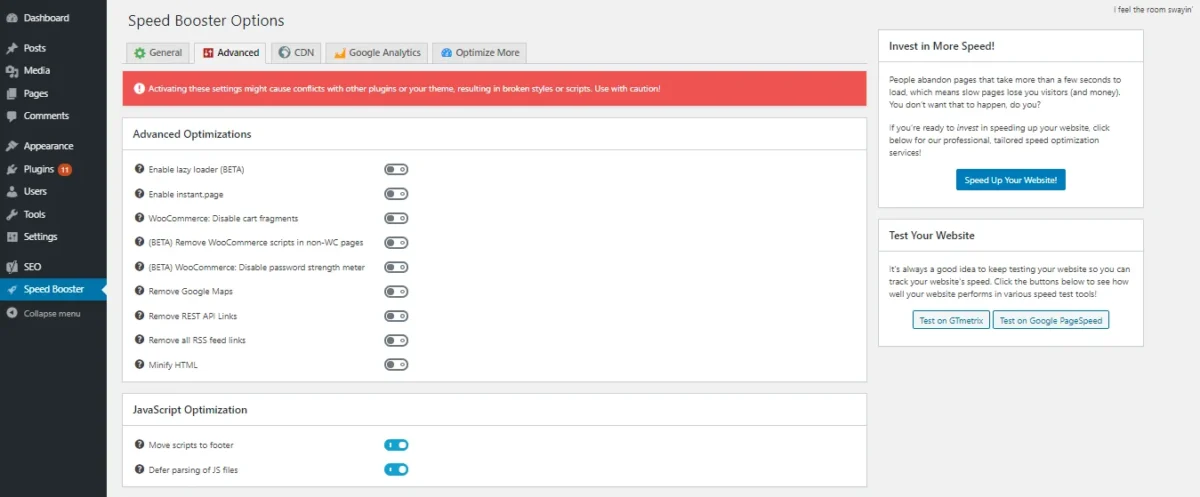
Every theme and plugin loads its own stylesheets and scripts, even on pages where they’re completely irrelevant. A WooCommerce cart script loading on your About page, for example, serves no purpose but still adds to your page weight.
Removing unused CSS and optimizing JavaScript is one of the highest-impact fixes for Core Web Vitals issues, especially for the Largest Contentful Paint metric.
You can handle this with LiteSpeed Cache’s CSS/JS manager, or use a dedicated tool like Asset CleanUp. Go through your pages one by one and disable scripts that don’t belong there.
It sounds tedious, but the payoff is real — cleaner pages, faster rendering, and a noticeably better Google PageSpeed score. If you’re using Elementor, check its performance settings too because it tends to load extra assets that aren’t always needed.
5. Delay JavaScript Execution
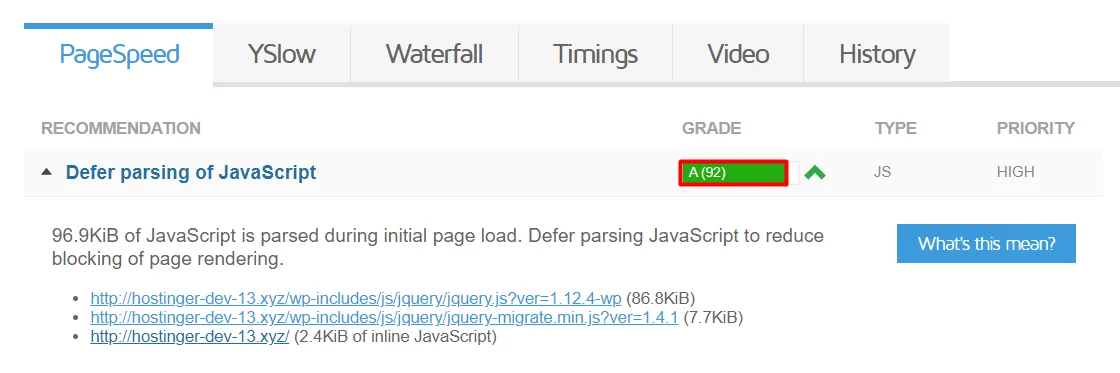
JavaScript is one of the main reasons pages feel slow, even when everything else is optimized. When a browser loads your page, it stops to process every JavaScript file it encounters before continuing.
That pause is called render-blocking, and it directly hurts your user experience and your PageSpeed Insights score.
The fix is to defer JavaScript — meaning you tell the browser to load the page content first and handle the scripts afterward. LiteSpeed Cache has a built-in option for this under its Page Optimization tab.
You can also use Perfmatters or WP Rocket to delay JavaScript execution until user interaction. Be careful, though — deferring the wrong scripts can break functionality, so test each change on a staging environment before pushing it live.
Done right, this alone can shave a full second off your load time.
6. Improve Site Speed with NitroPack
If you want a one-stop solution that handles almost everything automatically, NitroPack is worth a serious look. It combines caching, image optimization, CSS and JS minification, CDN delivery, and lazy loading into a single plugin.
It’s not free, but for sites where speed is critical — like eCommerce or high-traffic blogs — it pays for itself quickly.
NitroPack connects to its own CDN and applies aggressive optimization the moment you activate it. In most tests, it delivers significant improvements to GTmetrix scores and Core Web Vitals without requiring manual configuration.
That said, it can conflict with other caching tools, so disable LiteSpeed Cache or any other caching plugin before installing it. If you’ve tried everything else and your Hostinger site is still dragging, NitroPack is often the thing that finally pushes your score into the green.
7. Move for Better, Faster Host
Sometimes the honest answer is that no amount of optimization will fully fix a slow foundation.
Shared hosting, by nature, puts you on a server alongside hundreds of other websites — and when those neighbors spike in traffic, your site pays the price. If you’ve done everything right and your site still crawls, it might be time to move.
Cloudways is one of the most recommended upgrades from Hostinger, offering cloud-based infrastructure on DigitalOcean, AWS, or Google Cloud with much better performance benchmarks. Rocket.net is another strong option built entirely on Cloudflare’s enterprise network — blazing fast out of the box.
A2 Hosting and GreenGeeks are solid mid-range alternatives with LiteSpeed servers and better resource allocation than entry-level shared plans. Moving hosts feels daunting, but most managed WordPress hosting providers offer free migration, so it’s less painful than it sounds.
8. Enable Brotli + OPcache
Brotli compression is like gzip, but smarter — it compresses your files more efficiently before sending them to the browser, which means faster transfer times, especially on text-heavy pages.
Hostinger‘s LiteSpeed servers support Brotli natively, and enabling it is straightforward from inside hPanel or through your LiteSpeed Cache plugin settings.
OPcache is equally important. It stores compiled PHP bytecode in memory, so your server doesn’t have to recompile PHP files on every request. Think of it like having a shortcut for every task your server repeats constantly.
Combined with PHP 8 optimization — which Hostinger supports — you get a noticeably faster server response time. Check your hPanel PHP settings, switch to PHP 8.1 or higher if you haven’t already, and confirm OPcache is active.
These are backend tweaks that most users ignore, but they make a genuine difference.
9. Enable Hotlink Protection
Hotlinking is when another website directly links to your images or files, using your server’s bandwidth to display their content. It’s essentially someone stealing your resources without you knowing.
Over time, this quietly drains your bandwidth, spikes your server load, and contributes to a slower website loading speed for your actual visitors.
Hostinger makes it easy to block this. Go to hPanel, find the Hotlink Protection option under the Advanced section, and enable it. You can whitelist your own domain and any trusted sources.
It’s a simple toggle, but it protects your server from unnecessary requests that add zero value. If you’ve never checked this, there’s a real chance someone out there is quietly eating your resources right now.
10. Disable XML-RPC
XML-RPC is an old WordPress feature that allows remote communication with your site. It was useful years ago for mobile apps and third-party integrations, but most modern setups don’t need it at all.
The problem is that it remains active by default, and it’s a constant target for brute-force attacks. Those repeated requests hit your server and slow down your backend WordPress performance.
Disabling XML-RPC is one of the quickest security and speed wins available. You can do it with the Perfmatters plugin using a single toggle. Alternatively, add a rule to your .htaccess file to block all requests to xmlrpc.php entirely.
Unless you’re using an app that specifically requires it — like certain older Jetpack features — there’s no reason to leave it running. Turning it off reduces unnecessary server load and tightens your site’s security.
11. Schedule Cron Jobs
WordPress runs background tasks — like checking for updates, sending emails, and clearing old data — using something called WP-Cron. By default, WP-Cron fires every time someone visits your site, which adds overhead to every page load. On a busy site, this gets expensive fast.
The smarter approach is to disable the default WP-Cron and replace it with a real server-side cron job scheduled through hPanel. This way, background tasks run at fixed intervals — say, every hour — instead of piggybacking on user visits.
You can set this up in Hostinger’s hPanel under the Cron Jobs section. It takes about five minutes and immediately reduces the processing load on each page request.
Tools like Redis cache or Memcached WordPress can further streamline how WordPress handles repeated database calls alongside this change.
12. Avoid Slow Plugins
Not all plugins are created equal. Some are lean, well-coded, and add minimal overhead. Others are bloated, outdated, or simply poorly optimized for performance.
Using the wrong plugins on a Hostinger shared plan is one of the fastest ways to tank your speed scores.
As a general rule, avoid page builders with heavy JavaScript footprints unless you actively need them. If you’re using Elementor, stick to the latest version and use the GeneratePress theme underneath it — it’s one of the lightest themes available and pairs well with any page builder.
For sliders, contact forms, and social sharing widgets, always check if there’s a lightweight alternative before installing the popular option.
WP Rocket is a widely trusted performance plugin, but on Hostinger’s LiteSpeed servers, the native LiteSpeed Cache plugin often outperforms it — and it’s free. Choose your plugins the way you’d choose tools: only bring what you’ll actually use.
Fast WordPress Hosting Alternatives to Hostinger
| Host | Best For | Key Feature | |
| 1 | Cloudways | Developers & growing sites | Cloud infrastructure on DigitalOcean, AWS & Google Cloud with flexible scaling |
| 2 | SiteGround | Beginners & small businesses | Google Cloud-powered with built-in caching and excellent support |
| 3 | ChemiCloud | Value-focused users | LiteSpeed servers with free site migration and daily backups |
| 4 | A2 Hosting | Speed on a budget | Turbo servers with up to 20x faster page loads than standard hosting |
| 5 | ScalaHosting | VPS users wanting control | Managed VPS with proprietary SPanel and SShield security |
| 6 | Bluehost | WordPress beginners | Official WordPress-recommended host with easy one-click setup |
| 7 | DreamHost | Privacy-focused users | 100% uptime guarantee with unlimited bandwidth and free SSL |
| 8 | GreenGeeks | Eco-conscious site owners | LiteSpeed + free CDN with 300% renewable energy match |
| 9 | Kinsta | High-traffic WordPress sites | Premium managed WordPress on Google Cloud with C2 machines |
| 10 | Rocket.net | Speed-first WordPress sites | Built entirely on Cloudflare’s enterprise network for ultra-fast delivery |
| 11 | WP Engine | Enterprise WordPress | Dedicated WordPress platform with EverCache technology and Genesis framework |
| 12 | Templ | Agency & multi-site users | GridPane-powered managed WordPress with staging and clone features |
| 13 | Namecheap | Budget-conscious beginners | Affordable shared hosting with free domain and solid uptime |
| 14 | FastComet | Global audience sites | SSD cloud hosting across 11 worldwide data centers with free migration |
| 15 | InMotion Hosting | Business websites | NVMe SSD storage with free backups and strong US-based support |
| 16 | HostArmada | Performance on shared plans | Cloud SSD hosting with LiteSpeed and free daily backups |
| 17 | IONOS | European businesses | Affordable cloud hosting with strong EU data center presence |
| 18 | Liquid Web | Mission-critical sites | Fully managed VPS and dedicated servers with heroic support |
| 19 | Kamatera | Custom cloud setups | Highly scalable cloud VPS with 13 global data centers and pay-as-you-go pricing |
| 20 | Nexcess | WooCommerce & Magento | Managed eCommerce hosting with auto-scaling and built-in performance testing |
Quick Picks by Use Case:
- Best Overall Speed → Rocket.net / Kinsta
- Best Budget Option → A2 Hosting / ChemiCloud
- Best for eCommerce → Nexcess / Liquid Web
- Best Cloud Flexibility → Cloudways / Kamatera
- Best Eco-Friendly → GreenGeeks
Each of these offers better raw performance than Hostinger’s shared plans. Cloudways, in particular, is popular among WordPress users who want cloud speed without the complexity of managing a VPS themselves.
Kinsta sits at the premium end, but if your site generates revenue, the investment in properly managed WordPress hosting makes sense. Don’t stay on a slow host out of loyalty — your visitors won’t wait.
Related
- How to Fix Bluehost Slow WordPress Websites?
- 14 Best WordPress Hosting for Agencies Compared
- Cloudways Increase PHP Memory Limit Easily
- Hostinger vs HostGator
- Hostinger vs SiteGround
- Cloudways vs Hostinger
- Hostinger Review
- Hostinger vs Bluehost
- 10 Best Blog Hosting Providers: A Deep Dive
- 17 Nonprofit Hosting Providers for Charity Sites
- Top 7 cPanel Hosting Providers for Small Businesses
- Top 10 HIPAA-Compliant Hosting Providers
- What Are the 36 Different Types of Web Hosting?
- HostGator Review
- 20 PHP Hosting Providers for Fast Website Performance
Conclusion
Fixing a slow Hostinger WordPress site isn’t about finding one magic solution — it’s about stacking small improvements until the difference becomes undeniable.
Start with the basics: activate the cache manager, configure LiteSpeed Cache properly, clean up your plugins, and enable Brotli compression. These steps alone put you ahead of the majority of WordPress sites running on shared hosting.
If you’ve gone through this WordPress speed optimization checklist and still aren’t hitting your targets, that’s a signal your site has outgrown its current environment. Upgrading your host isn’t failure — it’s growth.
Either way, you now have a clear roadmap. Pick the first fix that applies to you and start there. Speed is never one big leap. It’s a series of smart, deliberate steps.
FAQs
Why is my Hostinger website slow even after optimization?
Your server plan may be the limiting factor. Shared hosting has resource caps and if your site has grown, upgrading to a cloud or managed WordPress host often solves what plugins can’t.
What is the best cache plugin for Hostinger WordPress?
LiteSpeed Cache is the best choice for Hostinger because it’s built specifically for LiteSpeed servers and integrates directly with QUIC.cloud CDN for maximum performance.
How do I reduce TTFB on Hostinger?
Enable LiteSpeed Cache with full-page caching, activate QUIC.cloud CDN, switch to PHP 8.1+, and enable OPcache. These four changes directly reduce server response time.
Is NitroPack worth it on Hostinger?
Yes, especially if you want hands-off optimization. NitroPack handles caching, CDN, image optimization, and code minification automatically and typically delivers strong Core Web Vitals results.
How do I fix Core Web Vitals on my Hostinger site?
Focus on reducing Largest Contentful Paint by optimizing images with WebP format, enabling lazy loading, deferring JavaScript, and using a CDN. LiteSpeed Cache covers most of this natively.
Should I disable XML-RPC on Hostinger?
Yes. Unless a specific app requires it, disabling XML-RPC reduces unnecessary server requests, blocks a common attack vector, and slightly improves backend response speed
What is the fastest WordPress hosting alternative to Hostinger?
Rocket.net (built on Cloudflare’s enterprise network) and Kinsta (powered by Google Cloud) are consistently ranked among the fastest WordPress hosting providers in independent benchmarks.

Alex Bryant is the founder of PvyEmpire.com and a WordPress specialist with over 4 years of hands-on experience in web hosting, performance optimization, and website management. He has extensively tested top hosting providers by setting up real websites and monitoring their speed, uptime, and reliability.
At PvyEmpire.com, Alex publishes honest, data-driven reviews, detailed guides, and verified coupons & deals. His goal is to help website owners choose the right hosting, improve performance, and grow their online presence with confidence—based on real testing, not promotions.