WooCommerce Checkout Slow? Advanced Fixes That Work
Few things hurt an online store more than a checkout page that feels sluggish. If your WooCommerce checkout slow, customers may be ready to buy, but the page takes several seconds to load, update totals, or process payments. Every extra second increases the chance that someone closes the tab and buys elsewhere.
If your store feels slow during checkout, you’re not alone. Many WooCommerce stores suffer from performance problems caused by hosting limitations, database bloat, heavy plugins, slow payment gateways, and poorly optimized themes.
The good news is that most of these issues can be identified and fixed with a systematic approach. In this guide, you’ll learn what causes a WooCommerce checkout to be slow and the most effective ways to improve its performance.
Why Is Your WooCommerce Checkout Slow?
The checkout page is one of the most dynamic parts of a WooCommerce store. Unlike product pages, it constantly updates totals, validates fields, calculates shipping, applies coupons, and communicates with payment gateways. That makes it naturally heavier than a standard page.
When those processes become inefficient, customers experience delays, spinning loaders, and long wait times before placing an order. In many cases, the problem isn’t WooCommerce itself. It’s the combination of server resources, plugins, database queries, and external API requests.
Common causes of a slow WooCommerce checkout
Several issues commonly contribute to WooCommerce Checkout Slow behavior. Shared hosting often struggles with high traffic, while outdated PHP versions can execute requests much more slowly. Heavy page builders, excessive plugins, and poorly coded custom functions can also add significant overhead.
Another major culprit is the database. Large wp_postmeta tables, expired transients, and inefficient queries can slow checkout calculations. Payment gateways such as Stripe and PayPal may also introduce latency if API responses are delayed.
How slow checkout affects conversions and revenue
A slow checkout doesn’t just frustrate users—it directly impacts revenue. Studies consistently show that longer load times increase cart abandonment rates. A customer who waits 8–10 seconds for a checkout page may simply give up.
Mobile shoppers are especially sensitive to delays. Improving checkout speed often leads to better conversion rates, higher completed orders, and a smoother overall shopping experience. Even a small reduction in checkout time can produce noticeable revenue gains.
How to Identify What’s Slowing Down Your WooCommerce Checkout
Before making changes, you need to find the bottleneck. Guessing usually leads to wasted time. Instead, test the checkout process from multiple angles: front-end performance, database activity, server resources, and plugin behavior.
A combination of performance tools and server monitoring provides a much clearer picture of what’s happening behind the scenes.
Test checkout speed with PageSpeed Insights
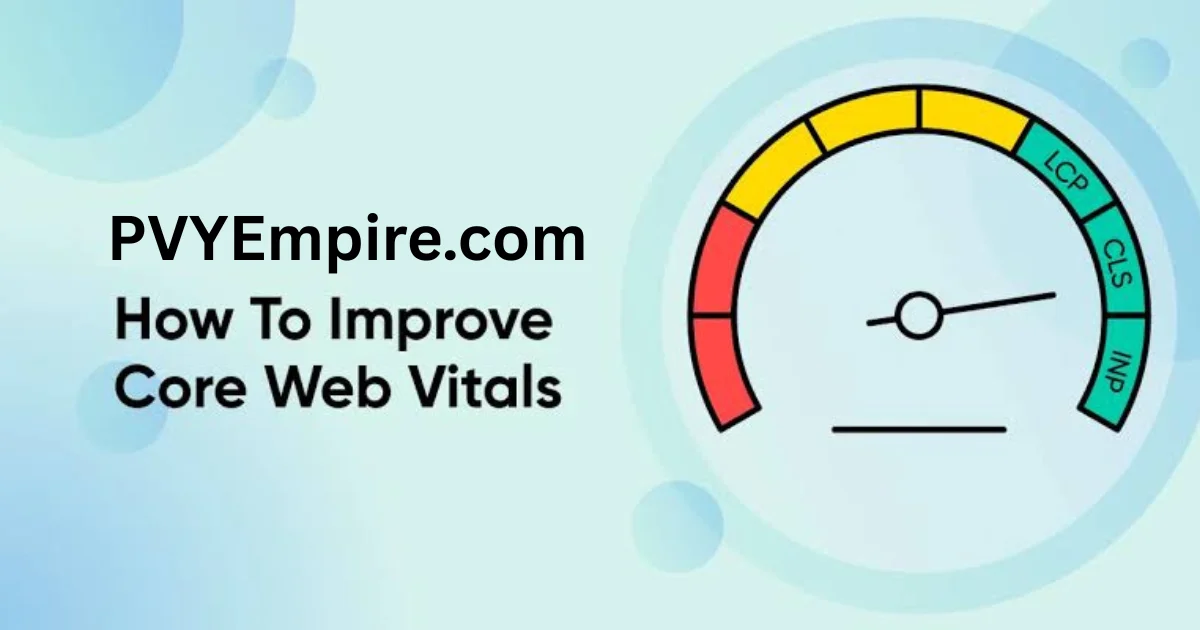
Google PageSpeed Insights gives you a quick overview of Core Web Vitals, including Largest Contentful Paint (LCP), Interaction to Next Paint (INP), and Cumulative Layout Shift (CLS). While checkout pages are dynamic, the report still helps identify render-blocking resources, large images, and excessive JavaScript.
Pay special attention to Time to First Byte (TTFB). A high TTFB often indicates server or database issues rather than front-end problems.
Analyze requests using GTmetrix
GTmetrix provides a waterfall view of every request made during checkout. This makes it easier to spot slow scripts, third-party requests, and delayed API calls.
For example, you might discover that a chat widget, analytics script, or payment gateway request is taking several seconds to complete. Those insights are difficult to see without a waterfall report.
Debug slow database queries
Query Monitor is one of the best tools for identifying slow database queries in WordPress and WooCommerce. It shows which plugins, themes, or custom functions generate expensive queries during checkout.
If you see repeated queries taking hundreds of milliseconds each, you may need database optimization, indexing improvements, or plugin replacements.
Monitor PHP workers and server resources
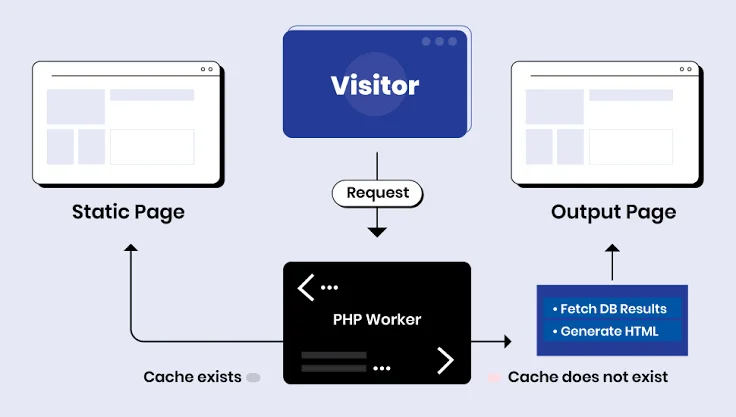
Checkout requests require PHP processing. If all PHP workers are busy, new requests must wait in a queue. This often causes random slowdowns during busy periods.
Check CPU usage, memory usage, and PHP worker limits in your hosting dashboard. Managed WooCommerce hosts usually provide these metrics directly.
1. Upgrade to High-Performance WooCommerce Hosting
Hosting is often the biggest performance factor. A well-optimized WooCommerce store can still feel slow on underpowered shared hosting. Dynamic checkout pages need fast CPUs, sufficient memory, and efficient caching.
For growing stores, moving to managed WooCommerce hosting is frequently the fastest way to improve performance. Better infrastructure reduces server response times and handles traffic spikes more gracefully.
Choose LiteSpeed or NGINX hosting
Modern WooCommerce stores generally perform best on LiteSpeed Enterprise or NGINX. Both are typically faster than traditional Apache setups for high-traffic ecommerce sites.
LiteSpeed has a particular advantage because it integrates tightly with LiteSpeed Cache, enabling powerful server-level caching and optimization features.
Upgrade PHP and MySQL versions
Running an old PHP version is like driving a sports car with the handbrake on. PHP 8.x can deliver substantial performance improvements compared to older releases.
Similarly, updating MySQL or MariaDB can improve query execution speed, especially for stores with large order tables.
Increase PHP workers and memory limits
WooCommerce checkout requests are resource-intensive. If your hosting plan only allows a few PHP workers, customers may experience delays during busy periods.
Increasing PHP workers and raising the PHP memory limit can help the server process more concurrent checkout requests without queuing.
2. Configure Server-Level Caching and Object Cache
A strong caching strategy can dramatically reduce server load and improve checkout performance. However, WooCommerce requires careful cache configuration because the cart and checkout pages contain dynamic content.
Caching these pages incorrectly can cause pricing errors, empty carts, or failed orders.
The goal is to cache what can be cached while allowing dynamic WooCommerce pages to work normally. Combining server-level caching with a persistent object cache gives your store the best balance between speed and reliability.
Enable Redis or Memcached
Unlike page caching, object caching stores the results of database queries in memory. When WooCommerce needs the same information again, it can retrieve it from Redis or Memcached instead of querying the database repeatedly. This reduces server load and speeds up checkout requests.
Redis is the preferred option for many WooCommerce stores because it supports persistent object caching and works well with large product catalogs. If Redis isn’t available on your hosting plan, Memcached is also a solid choice that improves response times for many database-heavy operations.
Configure LiteSpeed Cache correctly
LiteSpeed Cache offers much more than page caching. It includes browser caching, CSS and JavaScript optimization, image optimization, and integration with QUIC.cloud. When configured correctly, it can improve overall WooCommerce performance without affecting checkout functionality.
Avoid enabling every optimization feature at once. Test each setting in a staging environment before applying it to your live store. Small adjustments make it easier to identify which feature improves performance and which one introduces compatibility issues.
Exclude cart and checkout pages from page cache
WooCommerce relies on dynamic sessions during the shopping process. Cart contents, shipping calculations, and payment information change for every visitor. If these pages are cached, customers may see outdated information or encounter checkout errors.
Always exclude the Cart, Checkout, and My Account pages from page caching. Most caching plugins, including LiteSpeed Cache and WP Rocket, provide built-in WooCommerce exclusions that simplify this configuration.
3. Optimize WooCommerce Database Performance
As your store grows, the database stores thousands of orders, customer records, sessions, revisions, and temporary data. Over time, unnecessary information accumulates and slows database queries, especially during checkout.
Regular database maintenance helps WooCommerce respond faster while reducing server workload. Even stores with powerful hosting benefit from routine cleanup and optimization.
Clean expired transients
Transients are temporary records that WordPress and WooCommerce use to store cached information. Although many expire automatically, some remain in the database long after they are needed.
Cleaning expired transients reduces unnecessary database entries and can improve query performance. Plugins such as Advanced Database Cleaner make this task simple, but experienced administrators can also remove expired transients using database tools or WP-CLI.
Optimize WooCommerce sessions
WooCommerce creates session data for every visitor to remember cart contents and checkout details. If these sessions aren’t cleaned regularly, the session table grows larger than necessary and increases database overhead.
Enable automatic session cleanup and verify that old sessions are removed as expected. Stores with heavy traffic should monitor session tables frequently because they can expand quickly during busy sales periods.
Remove post revisions and orphaned data
Every product update, page edit, and setting change creates revisions inside the WordPress database. Plugins may also leave orphaned metadata after being removed.
Deleting unnecessary revisions and orphaned records reduces database size and improves query efficiency. Before making changes, create a complete backup so you can restore the database if needed.
4. Reduce Checkout Page Requests
Every file loaded during checkout adds another request to the browser. Stylesheets, JavaScript files, fonts, tracking scripts, and third-party integrations all contribute to the total loading time.
Reducing unnecessary requests allows browsers to render the checkout page faster. The result is a smoother experience, particularly for mobile users with slower internet connections.
Remove unnecessary scripts
Many plugins load their JavaScript and CSS files across the entire website, even on pages where they aren’t required. This increases page weight and delays rendering.
Review your installed plugins and disable unnecessary assets on checkout pages whenever possible. Asset management plugins or custom code can prevent unused scripts from loading where they aren’t needed.
Delay non-critical JavaScript
Not every script needs to load immediately. Marketing tools, chat widgets, social sharing buttons, and analytics scripts can often wait until after the main content becomes interactive.
Delaying non-critical JavaScript reduces blocking resources and improves Core Web Vitals. Test your checkout thoroughly after enabling this feature to ensure payment gateways and validation scripts continue working correctly.
Optimize CSS delivery
Large CSS files can delay page rendering, especially if they contain styles that aren’t used on the checkout page. Removing unused CSS helps browsers display content more quickly.
Many optimization plugins can generate critical CSS while loading the remaining styles asynchronously. This approach improves perceived performance without sacrificing design consistency.
5. Optimize Payment Gateway Performance
The payment gateway is the final step before an order is completed. Even if the rest of your website loads quickly, a slow gateway can make customers feel that checkout is broken.
Monitoring payment response times helps identify delays that originate outside your own server. Sometimes the best solution is choosing a faster gateway or adjusting its configuration.
Compare popular payment gateways
Different gateways process transactions differently. Stripe, PayPal, and WooCommerce Payments all offer reliable services, but their response times may vary depending on customer location, fraud checks, and network conditions.
Choose a gateway that performs well in the regions where most of your customers are located. Regular testing helps you verify that processing times remain consistent as your business grows.
| Payment Gateway | Advantages | Best For |
| Stripe | Fast API, modern features | Global online stores |
| PayPal | Trusted by many customers | International payments |
| WooCommerce Payments | Native WooCommerce integration | Stores using the WooCommerce ecosystem |
Reduce API response delays
Every payment requires communication with external servers. Slow internet connections, DNS issues, or overloaded gateway services can increase transaction time.
Keep your website, SSL certificate, and server software updated. A fast hosting environment with low latency helps payment requests reach the gateway more efficiently.
Enable asynchronous payment processing
Some payment-related tasks don’t need to block the customer’s checkout experience. Asynchronous processing allows certain background operations to complete after the order has been submitted.
When supported by your payment provider or extensions, asynchronous processing can reduce the time customers spend waiting on the confirmation screen while maintaining a secure transaction process.
6. Audit Plugins, Theme, and Custom Code
Even a powerful hosting environment can’t compensate for inefficient plugins or poorly written code.
Every plugin adds functionality, but it can also introduce extra database queries, JavaScript files, CSS, and background processes. Over time, these additions can make your WooCommerce store slower, especially during checkout.
A regular performance audit helps you identify unnecessary extensions and optimize the ones you truly need. Before removing or replacing anything, create a staging environment so you can test changes without affecting your live customers.
Find plugin conflicts
Plugin conflicts are one of the most common reasons for checkout delays. Two plugins may attempt to modify the same WooCommerce process, resulting in duplicate AJAX requests, slow page rendering, or unexpected errors.
Use Query Monitor or a staging site to deactivate plugins one at a time and measure checkout performance after each change. This method makes it much easier to identify the extension responsible for the slowdown without disrupting your live store.
Remove unused WooCommerce extensions
Many store owners install multiple WooCommerce extensions while testing new features. Even if those features are no longer used, the plugins may continue loading scripts, styles, or background tasks.
Review your installed extensions every few months. Remove anything that no longer supports your business goals. Fewer plugins generally mean fewer database queries and a faster checkout process.
Optimize custom functions
Custom code placed in your child theme or custom plugin can also affect performance. Complex loops, repeated database queries, or unoptimized API calls may slow checkout without producing visible errors.
Review custom functions regularly and replace inefficient code with optimized alternatives. If possible, use native WooCommerce hooks and filters instead of creating resource-heavy custom solutions.
7. Simplify the WooCommerce Checkout Experience
A fast checkout isn’t only about server performance. The checkout page should also be easy for customers to complete. Every unnecessary field, validation step, or distraction increases the time required to place an order.
Simplifying the checkout process reduces friction and helps customers complete purchases with confidence. A cleaner experience often improves conversion rates while lowering cart abandonment.
Reduce checkout fields
Ask customers only for the information you genuinely need. Extra fields increase typing time and may trigger additional validation requests that slow the checkout process.
For example, if your business doesn’t require a company name or a second address line, remove those fields. A shorter form feels faster and creates a smoother buying experience.
Enable guest checkout
Many shoppers don’t want to create an account before making a purchase. Requiring registration adds another step that may discourage first-time buyers.
Guest checkout allows customers to complete their purchase quickly while still giving you the option to invite them to create an account after the order is placed.
Use one-page checkout
A one-page checkout combines the cart, customer information, shipping options, and payment section into a single streamlined page. Customers spend less time navigating between multiple screens.
While a one-page checkout isn’t suitable for every store, it works particularly well for businesses with straightforward shipping rules and a limited product range.
Optimize Images and Static Assets
Large images and unoptimized static files can slow every page of your WooCommerce store, including checkout. Although checkout pages typically contain fewer images than product pages, logos, banners, payment icons, and other assets still affect loading speed.
Optimizing these resources improves both desktop and mobile performance while reducing bandwidth usage for your visitors.
Convert images to WebP or AVIF
Modern image formats such as WebP and AVIF provide excellent visual quality with much smaller file sizes than traditional JPEG or PNG images.
Plugins like ShortPixel can automatically convert uploaded images into modern formats, helping pages load faster without requiring manual image editing.
Lazy load non-critical images
Not every image needs to load immediately. Lazy loading delays off-screen images until visitors scroll near them, reducing the amount of data downloaded during the initial page load.
Be careful not to lazy load images that appear above the fold or important checkout elements. Those should remain available immediately for the best user experience.
Use a CDN
A Content Delivery Network stores copies of your website’s static assets on servers located around the world. Visitors download files from the server closest to their location rather than from your primary hosting server.
This reduces latency and improves loading times for customers in different countries. CDNs are especially valuable for international WooCommerce stores with a global audience.
Enable a Content Delivery Network (CDN)
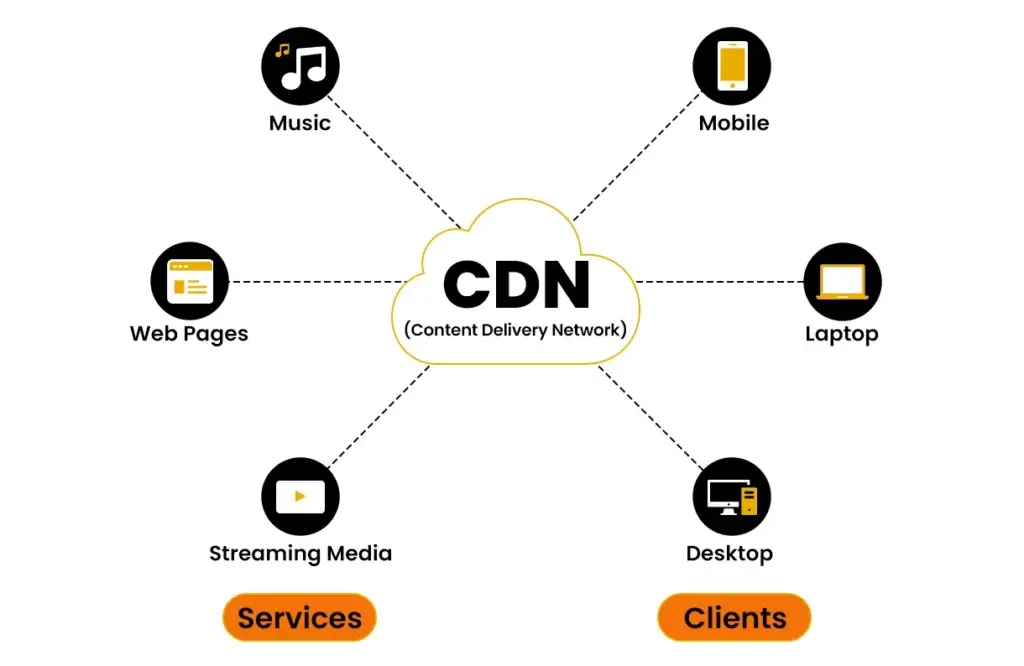
A CDN complements your hosting by delivering images, CSS, JavaScript, and other static resources more efficiently. It doesn’t replace good hosting, but it significantly reduces the distance between your content and your customers.
When combined with proper caching, compression, and HTTP optimization, a CDN helps deliver a consistently fast shopping experience worldwide.
Configure Cloudflare
Cloudflare is one of the most popular CDN providers for WooCommerce stores. It offers global edge locations, DDoS protection, DNS optimization, and performance enhancements through a simple dashboard.
When using Cloudflare, configure caching rules carefully so that dynamic WooCommerce pages such as Cart, Checkout, and My Account bypass page caching.
Configure QUIC.cloud
QUIC.cloud integrates closely with LiteSpeed Cache and provides image optimization, edge caching, and CDN services specifically designed for LiteSpeed-powered websites.
If your hosting uses LiteSpeed Enterprise, QUIC.cloud can further improve asset delivery while maintaining compatibility with WooCommerce’s dynamic functionality.
Optimize HTTP/3 and Brotli compression
Modern protocols such as HTTP/3 reduce connection latency and improve performance on unstable networks. Brotli compression decreases the size of text-based resources before they’re delivered to browsers.
Most quality hosting providers support these technologies by default. Verify that they are enabled because they can reduce page load times with minimal configuration.
Optimize Images and Static Assets
Even after you’ve optimized your server, database, and checkout logic, large media files can still slow down the buying experience. Every unnecessary image request adds more work for the browser, especially on mobile devices and slower connections.
Optimizing static assets helps reduce page weight, improves rendering times, and creates a smoother checkout experience from product pages to the final order confirmation.
Focus on assets that have the biggest impact first. Compress images without sacrificing quality, eliminate unused CSS and JavaScript where possible, and serve optimized files through modern delivery methods.
These improvements reduce HTTP requests, improve browser efficiency, and help optimize checkout page assets while supporting better Core Web Vitals scores.
Convert images to WebP or AVIF
High-resolution product photos often account for the largest portion of page size. Converting JPEG and PNG files to WebP or AVIF significantly reduces file size while maintaining excellent visual quality.
Plugins such as ShortPixel can automate the conversion process, making it easy to optimize product images across your entire catalog without manual work.
Lazy load non-critical images
Not every image needs to load immediately. Lazy loading delays off-screen images until visitors scroll to them, allowing the browser to prioritize essential checkout elements first.
Avoid lazy loading logos, payment icons, or above-the-fold content because those assets should appear instantly to maintain a responsive checkout interface.
Use a CDN
A Content Delivery Network distributes static files across multiple global locations, allowing shoppers to download images, fonts, CSS, and JavaScript from a server closer to them.
This reduces latency, lowers server load, and creates a faster shopping experience for international customers. Combining a CDN with image optimization delivers even greater performance gains during traffic spikes.
Monitor WooCommerce Checkout Performance
Performance optimization isn’t a one-time task. Plugin updates, seasonal traffic, new product launches, and hosting changes can gradually introduce new bottlenecks. Ongoing monitoring helps you identify issues before they affect customers or reduce conversion rates.
Establish a regular testing routine using multiple performance tools instead of relying on a single benchmark. Compare historical results, monitor checkout response times, and investigate unusual spikes in server load. Consistent monitoring helps maintain a fast, reliable checkout process over the long term.
Track Core Web Vitals
Measure metrics such as Largest Contentful Paint (LCP), Interaction to Next Paint (INP), and Cumulative Layout Shift (CLS) using Google PageSpeed Insights or WebPageTest.
These indicators reveal how shoppers actually experience your site and highlight opportunities to optimize Core Web Vitals without guessing where problems exist.
Monitor server response time
Keep an eye on Time to First Byte (TTFB), PHP worker utilization, CPU usage, memory consumption, and database response times.
Sudden increases often indicate inefficient plugins, resource limitations, or unexpected traffic patterns. Identifying these trends early allows you to resolve issues before checkout performance deteriorates.
Enable performance logging
Application monitoring tools such as New Relic and Query Monitor provide detailed insights into slow database queries, PHP execution time, API requests, and plugin performance.
Regular performance logging makes troubleshooting much easier and helps you verify whether recent optimizations are producing measurable improvements.
Real WooCommerce Checkout Optimization Case Study
Performance improvements become much easier to understand when you see how multiple optimizations work together.
The following example represents a typical WooCommerce store experiencing checkout delays caused by server limitations, plugin overhead, and database bloat. While every store is different, the optimization process remains remarkably similar.
Rather than chasing a single “magic fix,” the store owner focused on removing bottlenecks one by one. Each improvement reduced latency a little more until the checkout process became noticeably faster and more reliable.
Initial performance issues
The store suffered from slow checkout pages, inconsistent server response times, and a growing cart abandonment rate.
Performance testing showed high Time to First Byte (TTFB), excessive database queries, and multiple third-party scripts delaying page rendering. The site also ran on outdated PHP and lacked persistent object caching.
Optimization steps
The optimization process started with upgrading to a managed WooCommerce hosting environment running PHP 8.x and a newer MySQL version. Redis object caching, WooCommerce HPOS, LiteSpeed Cache, Cloudflare, and image optimization were then implemented.
Database cleanup removed expired transients and orphaned data, while unnecessary plugins and checkout scripts were eliminated to reduce server load.
Before vs. after results
After completing the optimization, checkout pages loaded significantly faster, and server response became more consistent during peak traffic. Database queries decreased, Core Web Vitals improved, and customers experienced a smoother purchasing journey.
The business also saw fewer abandoned carts and a measurable increase in completed orders because shoppers spent less time waiting for pages to respond.
WooCommerce Checkout Optimization Checklist
Use this checklist whenever you audit your WooCommerce store:
| Optimization Area | Status |
| Upgrade to modern WooCommerce hosting | ☐ |
| Update PHP and MySQL/MariaDB | ☐ |
| Enable WooCommerce HPOS | ☐ |
| Configure Redis or Memcached | ☐ |
| Configure LiteSpeed Cache correctly | ☐ |
| Exclude cart and checkout from page cache | ☐ |
| Clean expired transients | ☐ |
| Optimize WooCommerce sessions | ☐ |
| Remove orphaned database data | ☐ |
| Audit plugins regularly | ☐ |
| Remove unused WooCommerce extensions | ☐ |
| Optimize custom code | ☐ |
| Reduce checkout fields | ☐ |
| Enable guest checkout | ☐ |
| Optimize payment gateway performance | ☐ |
| Convert images to WebP or AVIF | ☐ |
| Lazy load non-critical images | ☐ |
| Configure Cloudflare or QUIC.cloud | ☐ |
| Enable HTTP/3 and Brotli compression | ☐ |
| Monitor Core Web Vitals regularly | ☐ |
| Test checkout after every major update | ☐ |
Common Mistakes That Slow WooCommerce Checkout
Many store owners install caching plugins, upgrade hosting, or compress images but still experience checkout delays because deeper performance issues remain.
Problems such as excessive plugin usage, inefficient database queries, overloaded servers, and poorly configured cache rules often create hidden bottlenecks that become more noticeable as traffic increases.
Another common mistake is making several performance changes at once without measuring the results.
Testing each optimization individually helps you identify what actually improves performance and prevents new issues from going unnoticed. Regular maintenance, database housekeeping, performance monitoring, and staged testing are just as important as the initial optimization itself.
Conclusion
A fast checkout isn’t simply about achieving better benchmark scores. It’s about giving customers a smooth, frustration-free buying experience that encourages them to complete their purchase instead of abandoning their cart.
Every improvement—from better hosting and server-level caching to database optimization, lightweight themes, efficient payment gateways, and ongoing monitoring—contributes to a faster and more reliable WooCommerce store.
If your checkout feels sluggish today, don’t try to fix everything at once. Start by identifying the biggest bottleneck, measure the impact of each optimization, and continue refining your store over time.
Small, well-planned improvements compound into significant gains in speed, customer satisfaction, and long-term revenue.
FAQs
Why is my WooCommerce checkout so slow?
The most common causes include slow hosting, excessive plugins, inefficient database queries, third-party payment gateway delays, and poor server configuration.
Does Redis improve WooCommerce checkout performance?
Yes. Redis provides persistent object caching, reducing repeated database queries and improving overall checkout responsiveness, especially on busy stores.
Should I cache the WooCommerce checkout page?
No. Cart, checkout, and My Account pages should always be excluded from full-page caching because they contain dynamic customer data.
Which hosting is best for a high-traffic WooCommerce store?
Managed WooCommerce hosting with LiteSpeed or NGINX, modern PHP versions, SSD storage, and scalable server resources generally delivers the best performance.
Will enabling HPOS make WooCommerce faster?
Yes. High-Performance Order Storage improves how WooCommerce stores and retrieves order data, reducing database overhead on larger stores.
Which tools should I use to test WooCommerce performance?
Google PageSpeed Insights, GTmetrix, WebPageTest, Query Monitor, and New Relic are excellent tools for identifying performance bottlenecks.
How often should I perform WooCommerce performance optimization?
Review your site’s performance after major updates and perform a complete optimization audit every few months to keep the checkout experience fast and reliable.
Related Posts
- How to Fix Hostinger Slow WordPress Sites?
- 20 PHP Hosting Providers for Fast Website Performance
- WordPress Speed Optimization: Complete Guide
- How to Speed Up WordPress Site Step by Step
- How to Reduce TTFB: 12 Proven Ways to Improve Server Response Time
- 14 Best WordPress Cache Plugins to Speed Up Your Website
- Cloudflare Setup Guide: How to Set Up Your Website Step by Step
- How to Set Up QUIC Cloud for WordPress (Step-by-Step Guide)
- How to Improve Core Web Vitals: Complete Guide
- LiteSpeed Cache for WordPress (Complete Guide)
- How to Fix Bluehost Slow WordPress Websites?
- How to Fix Hostinger Slow WordPress Sites?

Alex Bryant is the founder of PvyEmpire.com and a WordPress specialist with over 4 years of hands-on experience in web hosting, performance optimization, and website management. He has extensively tested top hosting providers by setting up real websites and monitoring their speed, uptime, and reliability.
At PvyEmpire.com, Alex publishes honest, data-driven reviews, detailed guides, and verified coupons & deals. His goal is to help website owners choose the right hosting, improve performance, and grow their online presence with confidence—based on real testing, not promotions.