How connect to hostinger database remotely (Step-by-Step Guide)
Ever stared at your Hostinger dashboard at 1 AM, wondering why your local app just won’t talk to your database? You’re not alone.
Most people trying to connect to Hostinger database remotely hit the same wall: cryptic error messages, blocked ports, and zero clue where to even start. It’s frustrating, especially when you just want to test a query or pull some data without logging into hPanel every single time.
Good news — it’s actually a lot simpler than it looks once you know the right steps.
This guide walks you through exactly how to set up remote access, avoid the common pitfalls, and get your database connection working smoothly, whether you’re using MySQL Workbench, phpMyAdmin, or your own script. By the end, you’ll have a solid, working setup and one less thing to stress about.
What You Need Before Connecting to a Hostinger Database Remotely
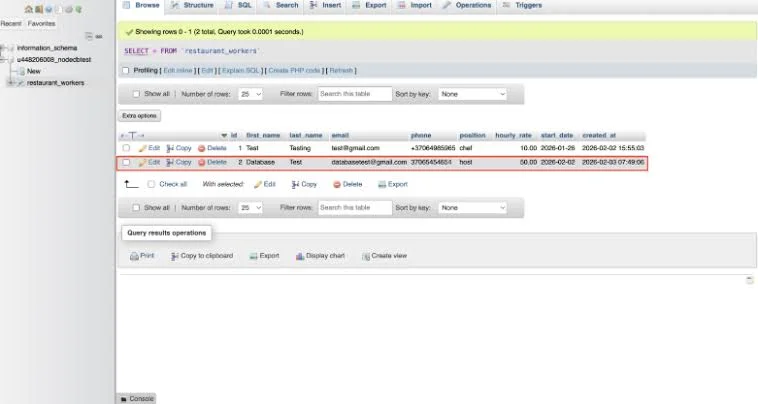
Before you touch any settings, it helps to know what you’re working with. You’ll need access to your Hostinger hPanel, a MySQL database already created on your hosting plan, and a stable internet connection. Skipping this step is where most people get stuck later, so it’s worth a quick check first.
Also, keep in mind that not every Hostinger plan supports remote MySQL access the same way. Shared hosting works fine for most cases, but if you’re on a VPS, you’ll have a bit more control over server-level settings. Either way, gathering your details upfront saves you from backtracking halfway through.
Check Your Hosting Plan and Database Details
Log into hPanel and head to the Databases section to see which MySQL databases exist under your account. Note down the exact database name since you’ll need it later. If you’re on shared hosting, remote access options might look slightly different than on a VPS. Take a minute here; it really does pay off.
Get Your Database Host, Username, Password, and Port
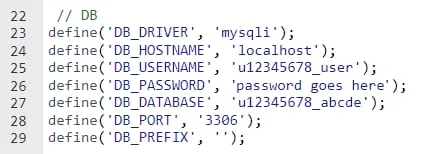
Your database hostname, username, and password all live inside hPanel’s database management screen. Write these down somewhere safe, and don’t share them carelessly. By default, MySQL uses port 3306, so you’ll want that handy too. Double-checking these now prevents annoying typos later.
How to Enable Remote MySQL Access in Hostinger
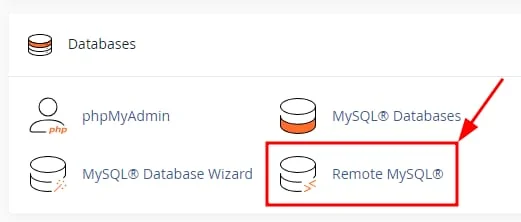
By default, Hostinger blocks outside connections to your database for security reasons, and that’s actually a good thing. However, you can open things up safely once you know which settings control remote access. This section walks you through exactly where to look.
The process mostly happens inside hPanel’s Remote MySQL tool, where you’ll whitelist specific IP addresses. It’s a quick process, but it’s one people often overlook, which leads to confusing “connection refused” errors down the line.
Allow Your IP Address in hPanel
Inside hPanel, go to Databases > Remote MySQL and add your current IP address to the allowed list. You can also use “%” as a wildcard for testing, though that’s not ideal for production. Save your changes, and give it a minute to take effect. This step alone fixes most access problems.
Configure Remote MySQL Access Settings
Sometimes you’ll need to adjust the bind-address setting inside my.cnf if you’re managing a VPS, since it controls which IPs mysqld will actually listen to. Shared hosting users usually don’t need to touch this directly. If you’re unsure, Hostinger’s support team can confirm your server’s specific configuration.
How connect to hostinger database remotely
Once remote access is enabled, connecting is honestly the fun part. You’ve got a few solid options here, depending on what you’re comfortable with, whether that’s a visual tool or straight-up command line work. Pick whichever fits your workflow best.
Each method needs the same core details: your database hostname, username, password, and port. Think of these as the four keys that unlock the door, no matter which “door” you’re walking through.
Connect Using MySQL Workbench
Open MySQL Workbench and create a new connection using your Hostinger database hostname, port 3306, and your credentials. Test the connection before saving it. If it succeeds, you’re in and ready to browse tables visually. This is probably the friendliest option for beginners.
Connect Using the MySQL Command Line
If you prefer the terminal, use a command like mysql -h your_hostname -u your_username -p -P 3306, then enter your password when prompted. It’s fast, lightweight, and doesn’t need any extra software. Many developers actually prefer this once they get used to it.
Connect From a PHP or External Application
For apps, you’ll typically use PHP’s mysqli or PDO extension, passing in the same hostname, username, password, and database name. This lets your external application query the database directly, just like a local setup would. Just make sure your app server’s IP is whitelisted too.
How to Fix Hostinger Remote Database Connection Issues
Even with everything set up right, things can still go sideways sometimes. Connection errors are usually caused by one of a handful of common culprits, and thankfully, they’re pretty easy to track down once you know where to look.
Don’t panic if your first attempt fails. In fact, it’s pretty normal. Walking through a short checklist usually solves the problem within minutes.
Check Firewall, Port, and IP Whitelisting
Firewall rules or outdated IP whitelists are the most frequent reason for connection failures. Confirm port 3306 isn’t blocked locally, and double-check that your current IP matches what’s listed in hPanel. IPs change more often than people expect, especially on home networks.
Verify Database Credentials and Hostname
Typos happen to everyone, so recheck your username, password, and database hostname carefully. Copy-pasting instead of retyping helps avoid silly mistakes. If you recently reset your password, make sure you’re using the updated one, not an old saved version.
Best Practices for Secure Remote Database Access
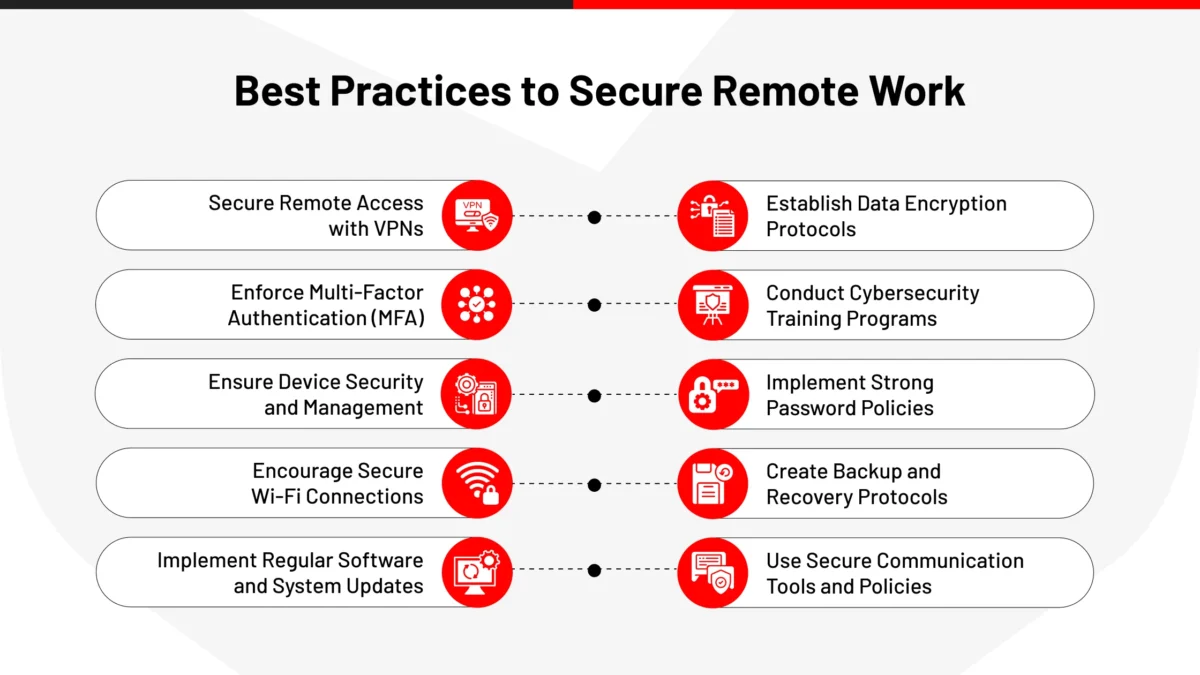
Opening remote access is convenient, but it does introduce some risk if you’re not careful. A little caution here goes a long way toward keeping your data safe without sacrificing usability.
The good news is that securing your setup doesn’t take much extra effort. A few smart habits early on will save you real headaches later.
Restrict Access to Trusted IP Addresses
Avoid using wildcard access for anything beyond quick testing. Instead, whitelist only the specific IPs you actually trust, like your home or office network. This drastically shrinks the chances of unwanted access from strangers.
Use Strong Passwords and Keep Credentials Secure
Weak passwords are still one of the biggest security holes out there, so don’t cut corners here. Use a mix of letters, numbers, and symbols, and avoid reusing passwords across accounts. Store credentials in a password manager rather than a sticky note or plain text file.
Conclusion
Connecting to a Hostinger database remotely isn’t nearly as intimidating as it first seems. Once you’ve whitelisted your IP, grabbed your credentials, and picked a connection method that suits you, the rest falls into place pretty quickly. It’s one of those tasks that feels tricky the first time, then becomes second nature after that.
Just remember to keep security in mind along the way. Restrict access to trusted IPs, use strong passwords, and you’ll have a setup that’s both convenient and safe for the long run.
- Hostinger Review
- Hostinger VPS Review
- Hostinger Cloud Hosting Review
- Hostinger Pricing
- Hostinger PHP Hosting Review
Frequently Asked Questions
Do I need a VPS to enable remote MySQL access on Hostinger?
No, shared hosting plans support Remote MySQL too, though VPS users get a bit more configuration control.
What port does Hostinger use for MySQL connections?
Hostinger uses the standard MySQL port, 3306, unless you’ve configured something custom on a VPS.
Can I use phpMyAdmin instead of MySQL Workbench?
Yes, phpMyAdmin works well for browser-based database management, though it doesn’t require remote connection setup the same way desktop tools do.
Why does my IP address keep changing and breaking my connection?
Many home and mobile networks use dynamic IPs, so it’s worth rechecking your whitelist if your connection suddenly stops working.
Is it safe to use a wildcard IP for remote access?
It’s fine for quick testing, but leaving it enabled long-term isn’t recommended since it opens your database to any IP address.
Can I connect a PHP application hosted elsewhere to my Hostinger database?
Yes, as long as that server’s IP is whitelisted and you’re using the correct hostname, username, and password.
What should I do if MySQL Workbench times out during connection?
Double-check your firewall settings, confirm the port isn’t blocked, and verify your IP is still correctly whitelisted in hPanel.
Can I connect to a Hostinger database from my local computer?
Yes, absolutely. Once remote MySQL access is enabled and your IP is whitelisted, tools like MySQL Workbench or the command line will connect just fine from your own machine.
Why is my remote MySQL connection being refused?
This usually points to a firewall block, an outdated IP whitelist, or incorrect credentials. Walking through each of these one by one almost always uncovers the issue.
Which tools can I use to connect to a Hostinger database remotely?
You’ve got plenty of choices here: MySQL Workbench, the command line, phpMyAdmin, or even a custom PHP or Python script. It really comes down to personal preference and your project’s needs.

Alex Bryant is the founder of PvyEmpire.com and a WordPress specialist with over 4 years of hands-on experience in web hosting, performance optimization, and website management. He has extensively tested top hosting providers by setting up real websites and monitoring their speed, uptime, and reliability.
At PvyEmpire.com, Alex publishes honest, data-driven reviews, detailed guides, and verified coupons & deals. His goal is to help website owners choose the right hosting, improve performance, and grow their online presence with confidence—based on real testing, not promotions.