Can I make a element button scrollable on Hostinger? Guide
You’ve spent the last twenty minutes staring at your Hostinger site builder, wondering why your button just won’t cooperate. Maybe it’s spilling off the screen on mobile, or the content inside refuses to scroll no matter what you click.
If you’ve typed “can I make a element button scrollable on Hostinger” into Google out of pure frustration, you’re definitely not alone here.
Good news: this isn’t some rare glitch only developers can fix. In the next few minutes, you’ll get a clear, no-nonsense walkthrough on making buttons and elements scroll properly using Hostinger’s website builder settings.
No coding degree required, just a few practical steps you can apply right now.
Can You Make an Element Button Scrollable on Hostinger?
Short answer: yes. You can absolutely make a element button scrollable on Hostinger, and it’s simpler than most tutorials make it sound. What you’re really doing is creating a scroll-to-section button, a small but mighty tool that jumps visitors down (or up) your page instead of reloading it.
Hostinger’s website builder handles this through anchor links, which act like internal signposts pointing your button toward a specific spot.
Here’s the thing though. Hostinger doesn’t call this feature “scrollable button” anywhere in the dashboard, so a lot of users assume it doesn’t exist. It does. It’s just tucked inside the button’s link settings, waiting for you to connect it to a section anchor. Once you know where to look, the whole process takes less than five minutes.
What Is a Scroll-to-Section Button?
A scroll-to-section button links to a specific part of your own page instead of a new URL. Click it, and the browser glides down (or up) to that section smoothly.
Think of it like a table of contents you can tap, rather than one you just read. It’s a small UX detail that makes long pages feel far less overwhelming.
Does Hostinger Website Builder Support Scroll Buttons?
Yes, Hostinger’s editor supports this natively through its anchor and link field system. You don’t need custom code or a third-party plugin to pull it off.
The hostinger scroll button setup lives inside the standard button element, under its link options.
Anthropic hasn’t reviewed Hostinger’s builder directly, so it’s worth double-checking your specific plan’s editor version, since older Hostinger accounts sometimes show slightly different menus.
When Should You Use a Scroll Button?
Scroll buttons shine on single-page websites, portfolios, and landing pages packed with sections like pricing, FAQs, or contact forms.
If your homepage is long and visitors keep scrolling past your call-to-action, a scroll button pulls them right back to it. It’s also handy for mobile users who’d rather tap than swipe endlessly.
How to Make an Element Button Scrollable on Hostinger
Setting up hostinger scroll to section functionality follows a predictable pattern, and once you’ve done it once, you’ll never forget the steps. It starts with marking your destination, then connecting your button to that exact spot.
The whole flow relies on something called a section ID, which works a lot like a bookmark inside your page.
Below is the process broken into four clear steps. Follow them in order, and you’ll have a working scroll button before your coffee gets cold.
- Add an anchor (Section ID) to your target section
- Add or select the button you want to use
- Link that button to your anchor
- Publish the page and test the click
Step 1: Add an Anchor to the Section
Click on the section you want visitors to land on, then open its settings panel. Look for a field labeled Section ID or Anchor, sometimes hidden under “Advanced” settings.
Type a short, memorable name like “pricing” or “contact,” with no spaces. This creates your hostinger anchor link, the exact spot your button will target.
Step 2: Add or Select Your Button
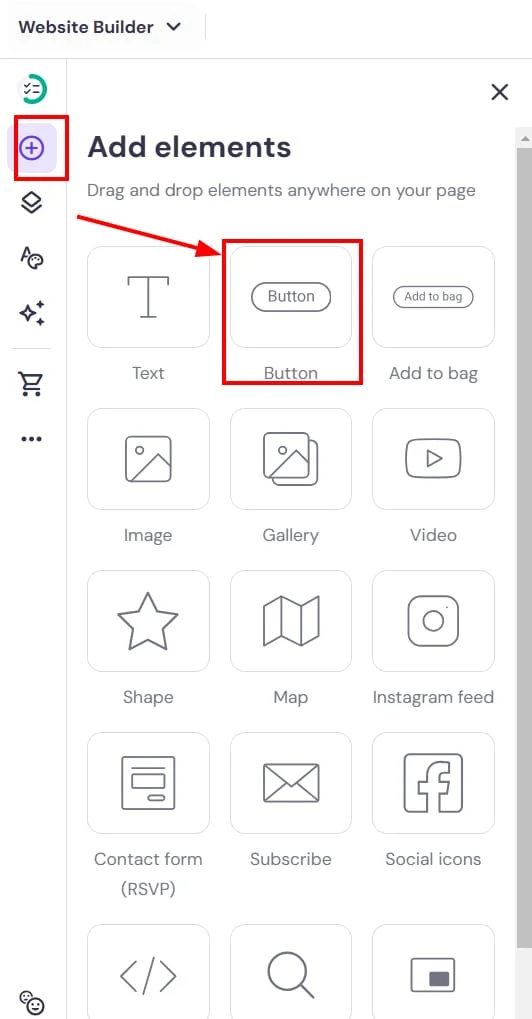
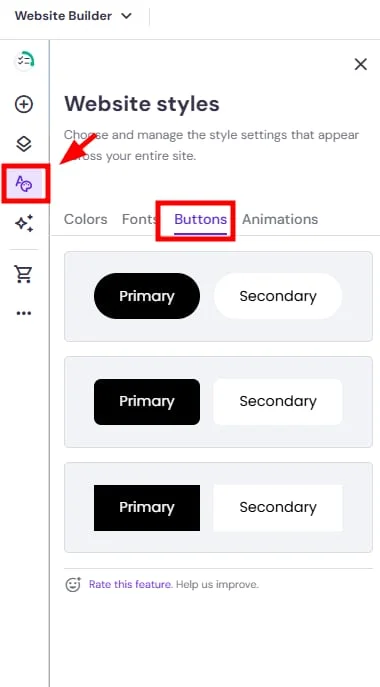
Next, add a Button element from the editor’s Add Element menu, or click an existing one already on your page. Hostinger’s button element is fully customizable, so feel free to adjust size, color, and text before moving on.
Just make sure it’s placed somewhere visible, ideally near the top of your page or inside your navigation bar.
Step 3: Link the Button to the Anchor
Open the button’s settings and find the Link field. Instead of pasting a URL, type a hash symbol followed by your section ID, like #pricing or #contact.
This hash link tells the browser to scroll rather than reload. It’s the exact mechanism behind every hostinger button scroll to section setup you’ll find across the web.
Step 4: Publish and Test the Button
Save your changes and hit Publish, since edits won’t go live until you do. Open the published page in Preview mode, then click your button to confirm it scrolls smoothly.
Test it on both desktop and mobile view too, because scroll behavior sometimes renders differently across devices. If it jumps instantly instead of gliding, don’t panic, we’ll cover that fix shortly.
Why Use Scroll Buttons on Your Hostinger Website?
Scroll buttons aren’t just a nice-to-have, they genuinely change how people move through your site. Long pages without internal navigation feel like a maze, and visitors often bail before finding what they came for.
A well-placed scroll button acts like a shortcut, cutting straight through the clutter toward the content that matters.
There’s also a business case here, not just a design one. Faster, guided navigation tends to keep people engaged longer, which often translates into better conversion rates. For a landing page built around a single call-to-action, that difference can genuinely move the needle.
Improve Navigation
Scroll buttons give visitors a clear path through your content, especially on pages without a traditional menu. Instead of guessing where to scroll, they click and arrive instantly. This matters most on one-page navigation sites, where everything lives on a single, often lengthy, page.
Enhance User Experience
Smooth scrolling feels more polished than an abrupt jump or a full page reload. It signals that your site was built with care, not slapped together in a rush. Visitors notice these small touches, even if they couldn’t tell you exactly why the site feels good to use.
Increase Engagement and Conversions
A scroll button pointing straight to your pricing or contact form removes friction between interest and action. Fewer clicks generally mean fewer drop-offs along the way. If your call-to-action button currently sits buried at the bottom of a long page, this simple fix could genuinely boost results.
Troubleshooting Common Scroll Button Problems
Even a simple setup can hit snags, and scroll buttons are no exception. Most problems trace back to one of four culprits: a missing anchor, a mismatched ID, caching, or mobile rendering quirks. Walking through each one systematically usually solves the issue within minutes.
Don’t assume you’ve broken something major if your button isn’t cooperating. Nine times out of ten, it’s a tiny typo or a cache that needs clearing, not a fundamental flaw in your setup.
Button Doesn’t Scroll
If clicking the button does nothing or reloads the page, check your Link field first. It likely points to a full URL instead of a hash link starting with #. Also confirm the anchor ID actually exists on the target section, since a missing anchor breaks the connection entirely.
Button Scrolls to the Wrong Section
This almost always comes down to an anchor ID mismatch somewhere in your setup. Maybe two sections accidentally share the same ID, confusing the browser about where to land. Open your page editor, review every Section ID, and rename any duplicates to something unique.
Smooth Scrolling Doesn’t Work
If the page jumps instantly instead of gliding, browser cache or LiteSpeed Cache on Hostinger’s hosting side might be serving outdated files. Clear your browser cache, then purge caching through hPanel if you’re using Hostinger’s hosting alongside the builder. A fresh page reload afterward usually resolves the choppy behavior.
Scroll Button Doesn’t Work on Mobile
Mobile navigation sometimes behaves differently thanks to sticky headers overlapping your target section.
If your button scrolls too far or stops short on phones, adjust your scroll offset in the section settings if available. Testing directly on a real device, not just a browser’s mobile preview, catches issues emulators tend to miss.
Best Practices for Scroll Buttons in Hostinger
Getting a scroll button to technically function is one thing, making it genuinely useful is another. A few small habits separate a button that quietly helps visitors from one that just sits there unnoticed. None of these take much extra effort, they just require a bit of intention.
Treat your scroll buttons the same way you’d treat any other piece of website customization, worth revisiting and refining. What works on a short landing page might need tweaking on a longer, more complex layout.
Use Clear Call-to-Action Text
Skip vague labels like “Click Here” in favor of something specific, like “See Pricing” or “Get in Touch.” Clarity beats cleverness every time when it comes to buttons. Visitors should know exactly where they’re headed before they even click.
Place Buttons Above the Fold
Position your most important scroll buttons where visitors see them immediately, without scrolling first. Above-the-fold placement dramatically increases the odds someone actually clicks. Burying a great button at the bottom of the page defeats its entire purpose.
Keep Anchor Names Simple
Short, lowercase, no-space anchor names like “faq” or “features” reduce the chance of typos breaking your links. Avoid special characters or spaces entirely, since they often cause unpredictable behavior. Simple naming also makes troubleshooting far easier down the road.
Test on Desktop and Mobile
Always preview your finished page across both desktop view and mobile view before calling it done. What scrolls perfectly on a laptop screen might behave oddly on a phone. A quick two-minute test now saves a confused visitor later.
- How to Fix Hostinger Slow WordPress Sites?
- Hostinger Review
- Hostinger Website Builder Review
- Hostinger WordPress Hosting Review
- Hostinger Pricing
Conclusion
So, can you make a element button scrollable on Hostinger? Absolutely, and now you’ve got the exact steps to pull it off without touching a single line of code. Between anchors, link fields, and a bit of testing, you’re fully equipped to build smoother, more engaging navigation across your site.
Give it a try on your own page today, and don’t be afraid to experiment with placement and wording. Small tweaks like these often make the biggest difference in how visitors experience your site.
Frequently Asked Questions
Can I create multiple scroll buttons in Hostinger?
Yes, you can add as many scroll buttons as your page needs, each linked to a different anchor.
Can I scroll to another page?
No, hash links only work within the same page. Linking across pages requires a standard URL instead.
Do I need coding to create a scroll button?
Not at all. Hostinger’s no-code website builder handles this entirely through its built-in link and anchor fields.
Can I customize the button design?
Absolutely, you can adjust color, size, shape, and text through the button element’s design settings.
Does a scroll button improve SEO?
Indirectly, yes. Better user experience and lower bounce rates can support your rankings, though it’s not a direct ranking factor.
Why isn’t my button working?
Usually it’s a mismatched anchor ID, a missing hash symbol, or leftover cache. Check those three first.

Alex Bryant is the founder of PvyEmpire.com and a WordPress specialist with over 4 years of hands-on experience in web hosting, performance optimization, and website management. He has extensively tested top hosting providers by setting up real websites and monitoring their speed, uptime, and reliability.
At PvyEmpire.com, Alex publishes honest, data-driven reviews, detailed guides, and verified coupons & deals. His goal is to help website owners choose the right hosting, improve performance, and grow their online presence with confidence—based on real testing, not promotions.