How to change my website address in Hostinger: Fully Guide
So you picked a fresh domain, rebranded your business, or just typed the wrong URL when you first set things up. Now that old address is stuck there, staring back at you every time you log in. It’s a small thing, but it nags at you, doesn’t it? You just want your site to match the name you actually use.
Good news: figuring out how to change my website address in Hostinger isn’t nearly as scary as it sounds. In the next few minutes, you’ll walk through the exact steps, learn what to watch out for, and avoid the little mistakes that trip people up. By the end, your site will point exactly where it should.
Before You Change Your Website Address in Hostinger
Swapping your domain isn’t something you do on a whim. It touches your SEO rankings, your email setup, and every link pointing at your old address. Before you click anything in your hosting dashboard, it helps to understand why you’re making the switch and what could go sideways if you rush it.
A rebrand, a typo fix, or moving off a temporary domain are the usual reasons people search for this. Whatever your case, take a moment to map out what’s connected to your old domain first. That includes email accounts, third-party integrations, and any backlinks pointing your way.
When should you change your website address?
Most people switch when they’ve outgrown their starter name, corrected a branding mistake, or finally moved off Hostinger’s free temporary domain onto a custom domain.
If your business name changed or you bought a shorter, catchier .com domain, that’s also a solid reason. Timing matters less than preparation here.
What to do before changing your domain
Back up everything first. Seriously. Grab a full website backup, note down your current DNS records, and jot down any custom email settings tied to the old domain.
Also check your domain registrar to confirm the new domain name is active and pointed correctly. Skipping this step causes most of the headaches people run into later.
How to Change Your Website Address in Hostinger Website Builder
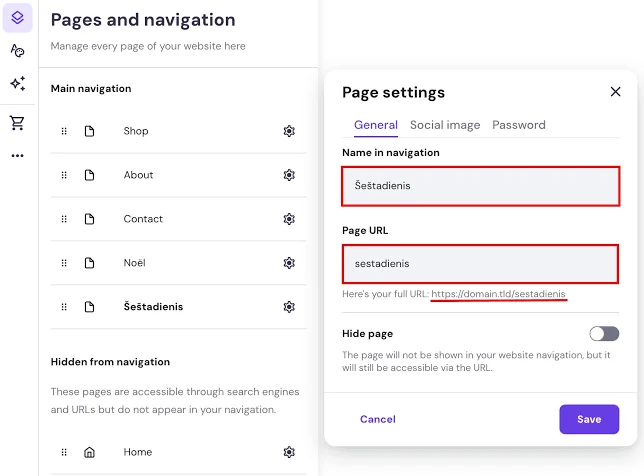
If your site runs on Hostinger’s drag-and-drop builder, the process stays refreshingly simple. You won’t touch code, databases, or configuration files. Everything happens inside the Hostinger Website Builder dashboard, and Hostinger walks you through most of it automatically.
That said, order matters. You’ll need to connect the domain first, then formally set it as your site’s main address. Miss a step, and your builder might still show the old URL in search results or internal links, even after you’ve paid for the new one.
Connect your new domain
Head into your Hostinger hPanel and open the Websites section for your builder site. Click Add Website or the domain settings icon, then paste in your new domain name. Hostinger will run a quick domain checker to confirm it’s pointed at the right nameservers before moving forward.
Make the new domain your primary website address
Once connected, find the Change Domain option inside your site settings. Select the new address and confirm it as primary. This updates your Pages and Navigation structure so every internal Page URL reflects the change instead of quietly keeping the old one.
How to Change Your Website Address in Hostinger WordPress
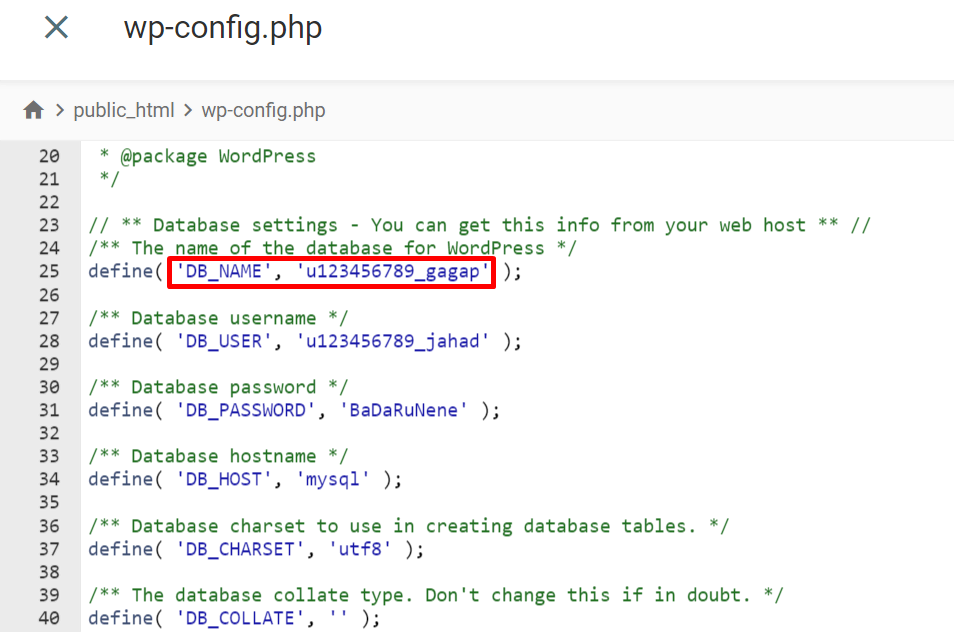
WordPress sites work a bit differently since your WordPress site address lives inside the platform itself, not just your hosting account. You’ll need to update settings in two places: your WordPress dashboard and your Hostinger hPanel. Miss one, and you’ll end up with a mismatched, half-broken setup.
This is the part where most people search “how to change wordpress domain name” and land here. Don’t worry, though. It’s a handful of clicks, not a coding project, unless your DNS propagation or database gets unusually stubborn.
Update the WordPress Address (URL)
Log into your WordPress dashboard and go to Settings, then General Settings. You’ll see two fields: WordPress Address (URL) and Site Address (URL). Update both to your new website address, save, and WordPress will log you out briefly while it applies the change.
Change the domain in Hostinger hPanel
Back in Hostinger hPanel, locate your website under the Websites section and select Change Domain. Point it toward your new domain name, confirm the SSL certificate is set to auto-generate, and give it a few minutes to sync with your WordPress core files.
Set up a 301 redirect from the old domain
Don’t just abandon your old domain. Set up a 301 redirect, a permanent redirect that tells browsers and search engines exactly where to go instead. This single step preserves most of your link equity and keeps visitors from hitting a dead end when they click an outdated link.
Things to Do After Changing Your Website Address
Changing the address isn’t the finish line. A handful of follow-up tasks keep your site running smoothly and stop search engines from getting confused about which URL actually represents you now. Skip these, and you might notice traffic dips or odd errors weeks later.
Think of this stage as tidying up loose ends. It’s not glamorous work, but it’s what separates a clean domain change from a messy one that haunts you for months.
Update DNS and SSL
Double-check your DNS records point correctly at Hostinger’s servers, and confirm your SSL certificate covers the new address. Without this, visitors might see security warnings or your website URL may simply refuse to load for a stretch while everything catches up.
Replace old URLs and clear cache
Run a search and replace across your site content to swap any hardcoded old URLs for the new ones. Tools like Better Search Replace handle this cleanly on WordPress. Afterward, clear your cache, both on the server and in your browser, so you’re not staring at stale pages.
Update Google Search Console and submit a new sitemap
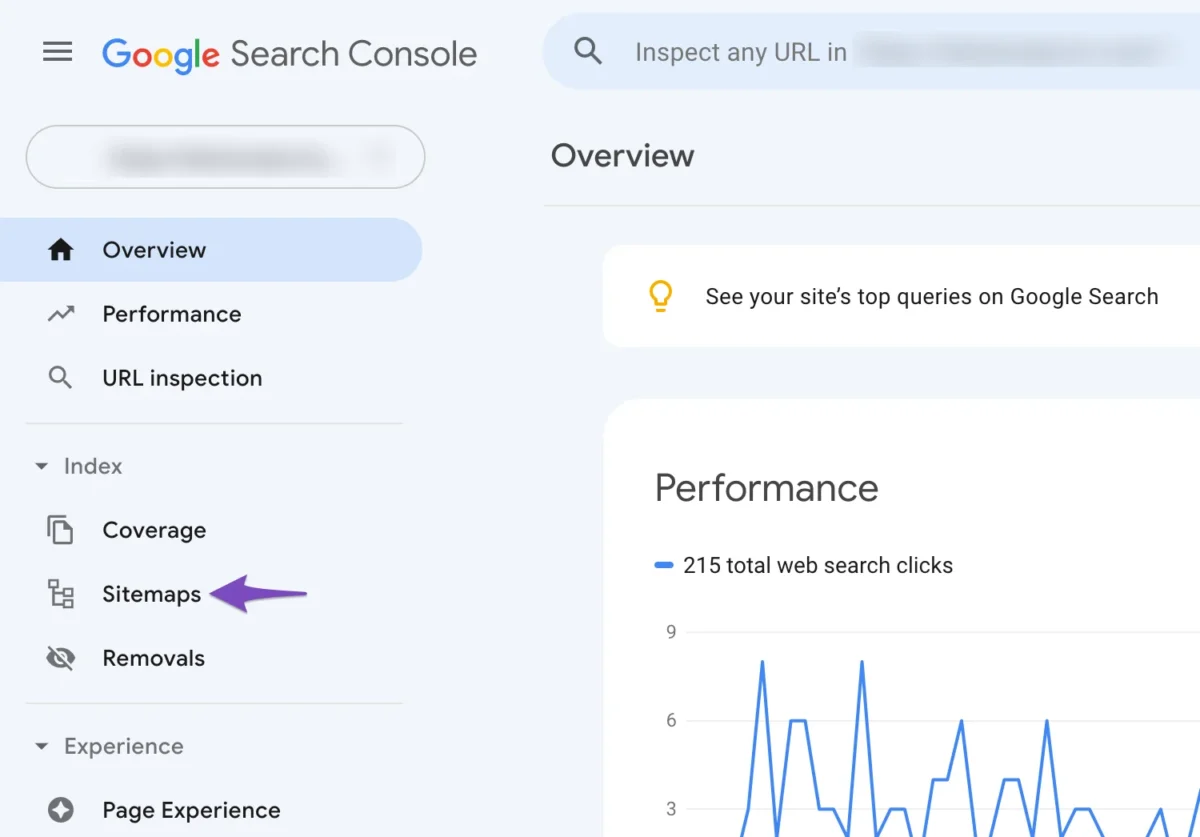
Add your new website address as a property in Google Search Console and submit a fresh sitemap. This nudges search engines to crawl and re-index your site faster, which helps protect your existing SEO rankings and domain authority during the transition.
Common Problems and How to Fix Them
Even a smooth domain change occasionally throws a curveball. Most issues trace back to caching, DNS delays, or a missed setting somewhere in the process. The fixes are usually quick once you know where to look.
Here’s a rundown of the most common snags people run into, along with the fastest way out of each one.
| Problem | Likely Cause | Quick Fix |
| Website not loading | DNS hasn’t propagated yet | Wait 24–48 hours, clear local DNS cache |
| Broken images or mixed content | Old URLs still hardcoded | Run a search and replace, force HTTPS |
| Redirect loop | Conflicting SSL or redirect settings | Check .htaccess and disable duplicate redirects |
| 404 errors | Permalink structure reset | Revisit Permalinks under WordPress settings |
Website not loading after changing the domain
This almost always comes down to DNS propagation, which can take anywhere from a few minutes to two full days. If your site’s still down after 48 hours, double-check your DNS records in hPanel and make sure nothing’s still pointing at the old domain.
Broken links or mixed content warnings
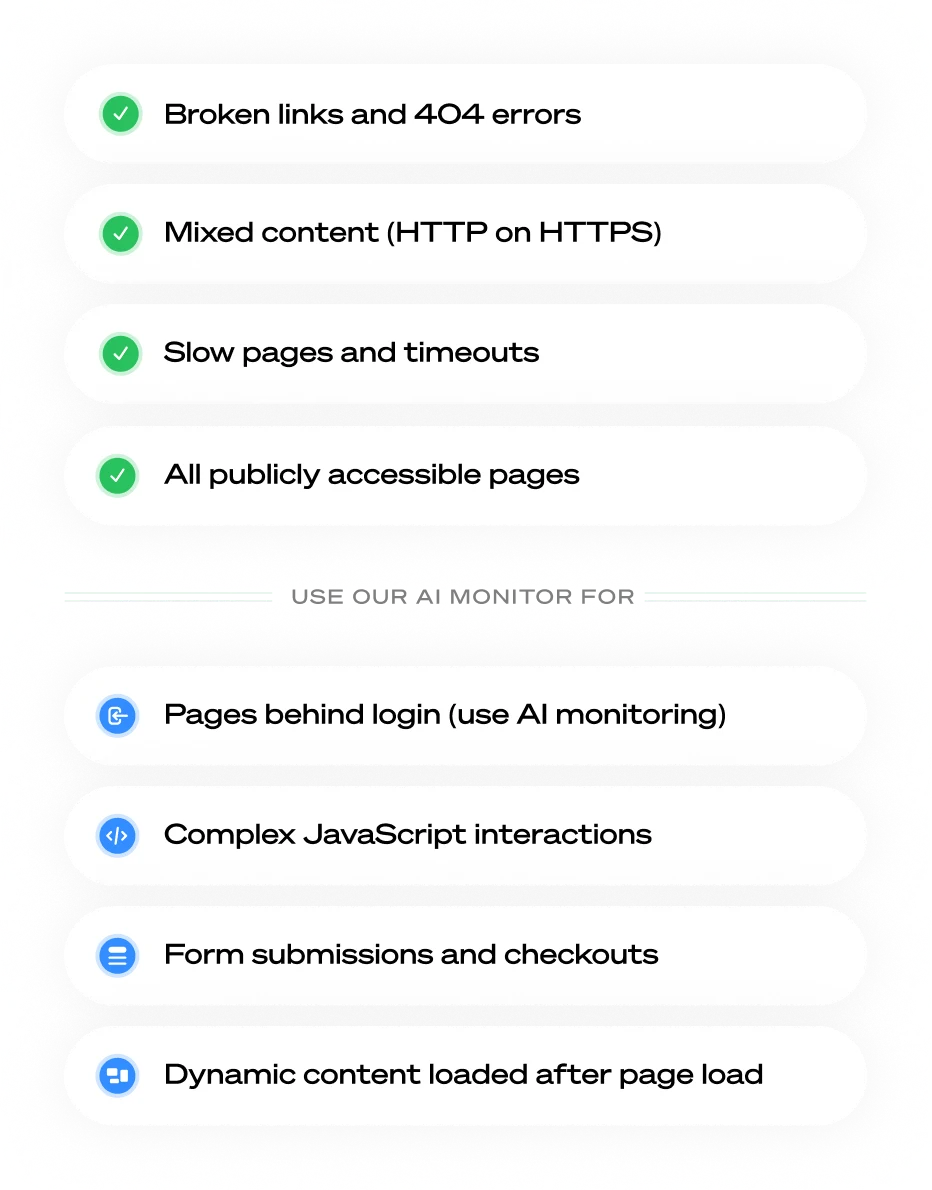
Mixed content warnings pop up when some resources still load over HTTP instead of HTTPS. Usually, this means leftover broken URLs buried in your WordPress database. A search-and-replace tool clears this up in minutes, without needing to touch a single file manually.
Redirect loops or 404 errors
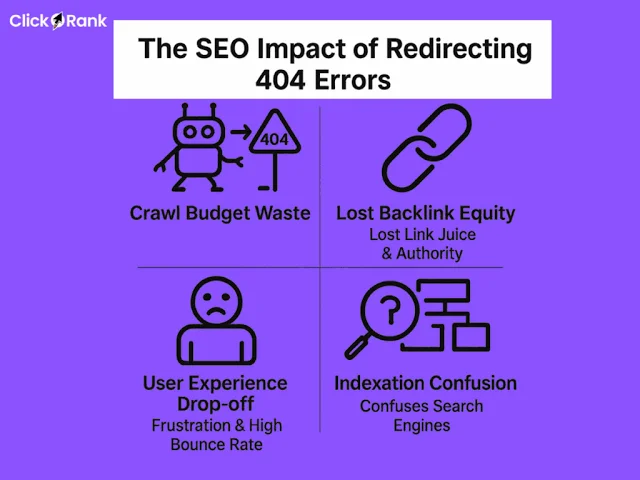
Redirect loops typically stem from conflicting rules in your .htaccess file or overlapping SSL settings. 404 errors, meanwhile, usually mean your permalink structure reset during the switch. Head back into Permalinks under WordPress settings and simply resave to fix it.
Final Throught: How to change my website address in Hostinger
Changing your website’s address in Hostinger really comes down to preparation, patience, and a bit of follow-through. Update the right settings, set up your redirects, and give DNS time to catch up, and you’ll barely notice a hiccup.
Once everything settles, your site will look and feel exactly like it should, no confusing old links, no mismatched URLs, just a clean address that finally matches your brand.
- Hostinger Review
- Hostinger Pricing
- Hostinger WordPress Hosting Review
- Hostinger Website Builder Review
- How to Host a Website on Hostinger
FAQs
Can I change my website address without losing my website?
Yes, your content, files, and design stay intact. Only the address itself changes, as long as you follow the proper steps and set up redirects correctly.
Will changing my domain affect SEO?
There can be a temporary dip while search engines re-index your site. A 301 redirect and updated sitemap in Google Search Console minimize the impact significantly.
How long does a domain change take in Hostinger?
The dashboard changes take minutes, but full DNS propagation can take up to 48 hours. Most sites resolve fully within a day.
Do I need to buy a new domain first?
Yes, you’ll need to register or already own the new domain name through a domain registrar before connecting it inside Hostinger.
Can I change a temporary Hostinger domain to a custom domain?
Absolutely. Just connect your custom domain in hPanel, set it as primary, and update your WordPress Address (URL) if you’re running WordPress.
Can I change the domain name of my WordPress site?
Yes, WordPress supports this natively through General Settings, though you’ll also want to update DNS and redirects on the hosting side.
How do I change the domain name on WordPress?
Go to Settings > General, update both URL fields, then sync the change in your Hostinger hPanel so both platforms match.

Alex Bryant is the founder of PvyEmpire.com and a WordPress specialist with over 4 years of hands-on experience in web hosting, performance optimization, and website management. He has extensively tested top hosting providers by setting up real websites and monitoring their speed, uptime, and reliability.
At PvyEmpire.com, Alex publishes honest, data-driven reviews, detailed guides, and verified coupons & deals. His goal is to help website owners choose the right hosting, improve performance, and grow their online presence with confidence—based on real testing, not promotions.