How to Reduce TTFB (Time to First Byte): 12 Proven Ways to Improve Server Response Time
If your website feels sluggish before a single image or line of text even appears, the culprit is often hidden in the first few milliseconds of the connection. That delay has a name: Time to First Byte, or TTFB for short.
If you’re wondering how to reduce TTFB, the first step is understanding what it is and why it matters. TTFB is the gap between a browser requesting a page and your server sending back the very first byte of data.
A slow TTFB doesn’t just annoy visitors—it slows page loading, hurts your Core Web Vitals, and can quietly chip away at your search rankings.
The good news? You can fix it. This guide explains what TTFB is, why it matters, what causes it to increase, and shares twelve practical ways to reduce it and improve your site’s performance.
What Is Time to First Byte (TTFB)?
TTFB measures the time it takes for a browser to receive the first byte of a response after sending a request to your server.
It covers three stages: DNS lookup, the time your server takes to process the request, and the time it takes for the response to travel back over the network. In plain terms, it’s the “waiting” you feel right before a page starts loading.
Think of it like ordering food at a restaurant. TTFB isn’t how long it takes to eat the meal — it’s how long you wait before the waiter even brings your drink.
A low TTFB means the kitchen (your server) responds quickly. A slow one means you’re sitting there staring at a blank screen, wondering if anything is happening at all.
Why TTFB Matters for Website Speed and SEO
TTFB sets the pace for everything that follows. Every other loading metric, including First Contentful Paint and Largest Contentful Paint, is delayed by however long TTFB takes.
If the server takes two seconds just to respond, the rest of the page can’t even begin rendering until that window closes. That’s why developers treat TTFB as a foundational metric rather than a nice-to-have.
Google has confirmed that server response time factors into how it evaluates page experience, which means a slow TTFB can indirectly hurt your rankings. It also affects real people:
studies on user engagement consistently show that slower response times correlate with higher bounce rates. Visitors don’t wait around for a blank screen — they leave. Improving TTFB isn’t just a technical win; it’s a business one too.
What Is a Good TTFB Score?
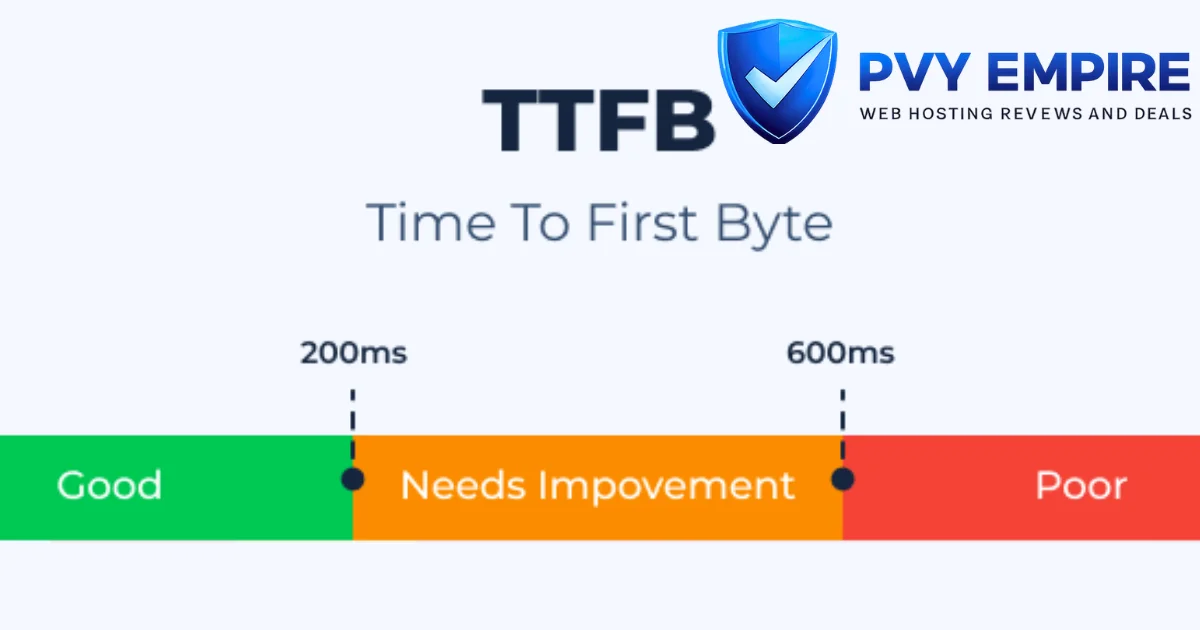
Google’s general guidance suggests aiming for a TTFB under 800 milliseconds, though anything below 200ms is considered excellent.
Sites running on shared hosting often land in the 600ms–1.5s range, while well-optimized setups on VPS or cloud hosting can consistently hit under 300ms. It’s worth noting that TTFB isn’t officially one of the three Core Web Vitals, but it heavily influences all of them.
| TTFB Range | Rating |
| 0–200ms | Excellent |
| 200–500ms | Good |
| 500ms–1s | Needs Improvement |
| 1s+ | Poor |
Keep in mind that TTFB can vary by page. A static homepage might load fast, while a dynamic checkout page pulling from a database could lag behind. Testing multiple pages gives you a more accurate picture than checking just one.
What Causes a High TTFB?
High TTFB rarely comes from a single source. It’s usually a combination of hosting limitations, inefficient code, and network distance all adding up.
Understanding where the delay originates is the first step toward actually fixing it, rather than guessing at solutions that won’t move the needle.
Below are the most common culprits, ranging from infrastructure issues to simple configuration oversights. Some are easy fixes you can make today; others require a hosting upgrade or a deeper look at your codebase.
Slow Web Hosting
Cheap shared hosting plans cram hundreds of websites onto one server, splitting resources thin.
When another site on that server experiences a traffic spike, your response time suffers too, even if your own traffic hasn’t changed. This is one of the most common reasons small business sites struggle with TTFB.
Slow Server Processing
If your server takes too long to generate the HTML for a page, that delay shows up directly in your TTFB. Heavy backend logic, unoptimized scripts, and outdated software versions all add processing overhead before the response is even sent.
Database Queries
Poorly indexed tables or bloated queries force your database to work harder than it should. Every extra second the database spends searching for data is a second added straight to your TTFB, especially on content-heavy or e-commerce sites.
Render-Blocking Redirects
Each redirect adds a full round trip between the browser and server before the actual page can load. A chain of three or four redirects, something surprisingly common after site migrations, can add hundreds of milliseconds without you even noticing.
DNS Lookup Delays
Before your browser can even ask for the page, it has to translate your domain name into an IP address. Slow or overloaded DNS providers add unnecessary lag to this step, delaying everything that comes after it.
No Caching
Without caching, your server rebuilds the same page from scratch for every single visitor. That’s a huge waste of processing power, especially for content that rarely changes, like a blog post or product listing.
Geographic Distance
The farther a visitor is from your server’s physical location, the longer data has to travel. A user in Australia hitting a server in Virginia will almost always see a slower TTFB than someone browsing from next door.
How to Measure TTFB
You can’t fix what you don’t measure, and thankfully, several free tools make checking TTFB straightforward. Testing from multiple tools gives you a clearer picture since lab data and real-world field data don’t always match perfectly.
Run your tests on more than one page and at different times of day. Traffic patterns and server load can shift results, so a single snapshot doesn’t tell the whole story.
Google PageSpeed Insights
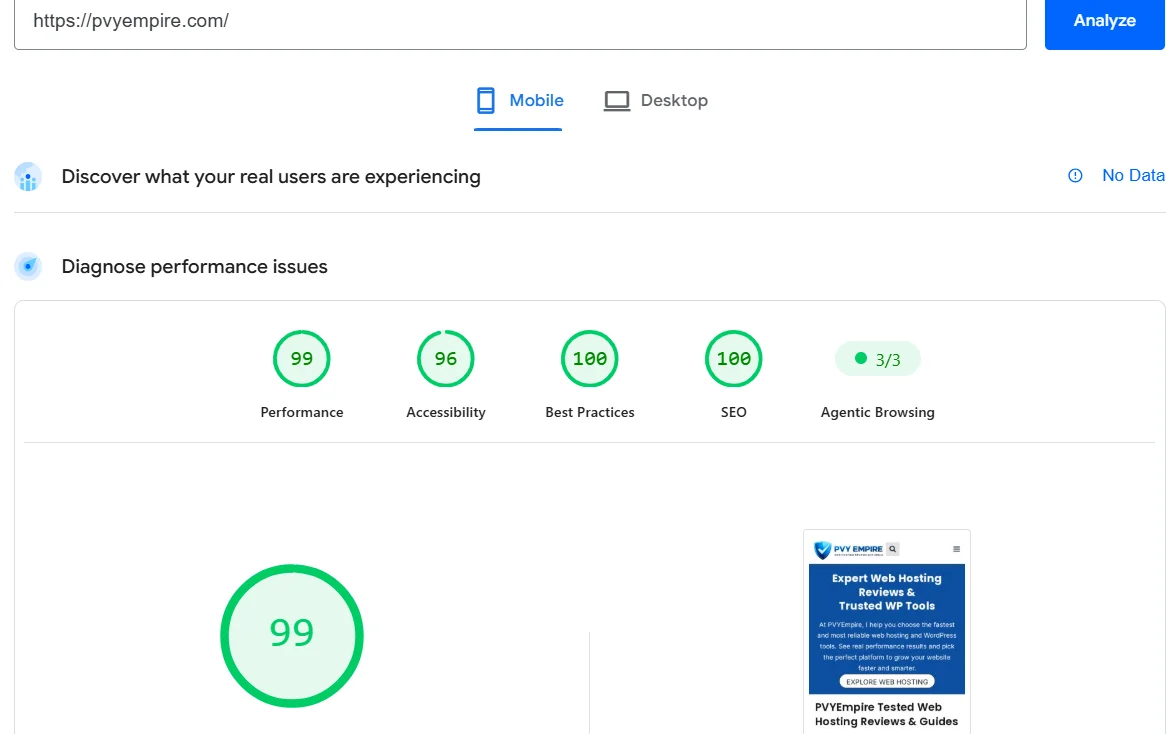
PageSpeed Insights shows both lab data and real-world field data pulled from the Chrome UX Report. Look under the “Diagnostics” section for the “Reduce initial server response time” callout, which flags TTFB issues directly.
GTmetrix
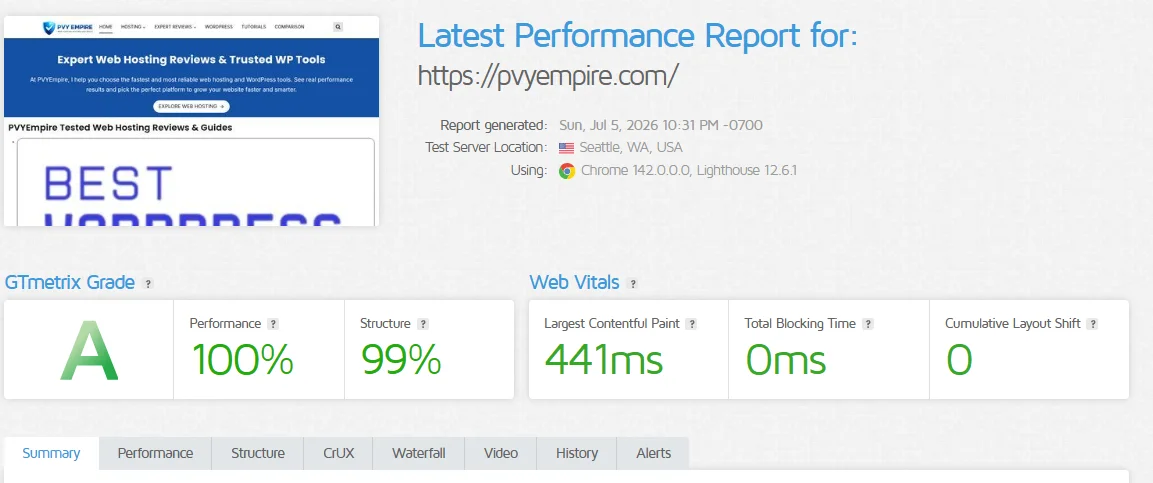
GTmetrix offers a detailed waterfall chart that breaks down exactly how long each stage of the request takes. It’s particularly useful for isolating whether the delay comes from DNS, connection time, or the server itself.
WebPageTest
WebPageTest lets you test from multiple global locations, which is handy for spotting geographic latency issues. Its detailed timeline view separates TTFB from other loading phases with impressive clarity.
Chrome DevTools
Open the Network tab in Chrome DevTools and reload your page. Click on the main document request, and you’ll see a “Waiting for server response” entry — that’s your TTFB, measured in real time on your actual browser.
12 Proven Ways to Reduce TTFB

Now for the part you came here for. How to reduce TTFB comes down to tackling the bottlenecks on your server, your database, and your network path, one at a time. None of these fixes require a computer science degree, though a few do need help from your host or developer.
You don’t need to implement all twelve at once. Start with hosting and caching, since those two alone typically account for the biggest gains, then work through the rest based on what your testing tools flag as problems.
1. Upgrade to Faster Hosting
If you’re on shared hosting and seeing consistently high TTFB, moving to a VPS or managed cloud plan is often the single biggest improvement you can make.
Dedicated resources mean your site isn’t competing with hundreds of others for the same CPU and memory.
2. Use a CDN
A content delivery network stores cached copies of your site on edge servers around the world, so visitors connect to a nearby server instead of your distant origin server. This alone can cut TTFB by a significant margin for geographically spread-out audiences.
3. Enable Full-Page Caching
Full-page caching serves a pre-built version of your page instead of generating it fresh for every visitor. It’s one of the fastest ways to slash server processing time, particularly for content that doesn’t change often.
4. Optimize Database Queries
Audit your slowest queries and add proper indexing where it’s missing. Removing unnecessary joins and cleaning up bloated tables can shave meaningful time off every dynamic page load.
5. Reduce Server Processing Time
Profile your backend code to find where time is actually being spent. Often it’s a handful of inefficient functions or third-party API calls holding everything up, and fixing just those can noticeably improve response time.
6. Use the Latest PHP Version
Newer PHP versions include substantial performance improvements over older releases. If your site still runs on PHP 7.x, upgrading to a current version is a quick, low-risk win worth checking with your host.
7. Optimize WordPress Plugins and Themes
Every active plugin adds overhead, and poorly coded ones can be especially costly. Audit your plugin list, remove anything unused, and choose a lightweight, well-coded theme over a bloated page-builder template.
8. Compress and Cache Dynamic Content
Even pages that change frequently can benefit from short-lived caching, sometimes just a minute or two. Combine this with gzip or Brotli compression to shrink the response size and speed up delivery further.
9. Minimize Redirects
Review your redirect chains and eliminate unnecessary hops. Update internal links to point directly to final URLs instead of routing through outdated ones, and check that HTTPS redirects aren’t adding extra round trips.
10. Enable HTTP/2 or HTTP/3
Newer protocols allow multiple requests over a single connection and reduce the overhead of repeated handshakes. Enabling HTTP/2 or HTTP/3, where TLS negotiation time is also reduced, is usually a simple server-side toggle with real speed payoff.
11. Use Object Caching (Redis/Memcached)
Object caching stores the results of expensive database queries in memory, so repeat requests skip the database entirely. Redis and Memcached are both excellent choices, and most managed hosts support one or the other out of the box.
12. Monitor Server Performance Regularly
TTFB isn’t a set-it-and-forget-it metric. Set up ongoing monitoring so you catch regressions after plugin updates, traffic spikes, or hosting changes before they snowball into bigger problems.
How to Reduce TTFB in WordPress

WordPress sites face some unique TTFB challenges because of how dynamically they generate pages. The fixes above still apply, but a few WordPress-specific steps can make an outsized difference given the platform’s plugin-heavy nature.
Because WordPress relies on PHP and MySQL for nearly every request, small inefficiencies compound quickly across a site with lots of pages or products. Targeting the platform’s specific weak points tends to deliver faster results than generic optimization alone.
Best Caching Plugins
Plugins like WP Rocket, W3 Total Cache, and LiteSpeed Cache handle full-page and object caching without requiring server-level access. They’re often the fastest way for non-technical site owners to see a real TTFB improvement.
Choose Fast Managed WordPress Hosting
Managed WordPress hosts pre-configure server-side caching, use optimized server stacks, and often include a CDN by default. That combination tends to outperform a generic VPS unless you’re comfortable configuring everything yourself.
Optimize WooCommerce TTFB
WooCommerce stores add another layer of database complexity through cart, session, and inventory queries. Excluding cart and checkout pages from full-page caching while still caching everything else strikes the right balance between speed and accuracy.
Common TTFB Optimization Mistakes to Avoid
One of the most common mistakes is assuming a CDN alone fixes everything. A CDN speeds up static asset delivery, but if your origin server is slow, dynamic and uncached requests will still suffer.
Another frequent misstep is stacking too many caching plugins at once, which can cause conflicts instead of compounding benefits.
Site owners also tend to skip regular testing after making changes, missing regressions caused by new plugins or theme updates.
And don’t overlook the basics: an outdated PHP version or an overloaded shared hosting plan will undermine even the best caching setup. Fix the foundation first, then layer optimizations on top.
Conclusion
At the end of the day, reducing TTFB is about removing friction between a visitor’s click and your server’s response.
Whether that means upgrading hosting, adding a CDN, or cleaning up database queries, every improvement compounds.
Test regularly, fix the biggest bottlenecks first, and your site will feel noticeably faster to every visitor who lands on it.
FAQs
Does TTFB affect SEO?
Yes, indirectly. Google factors server response time into page experience signals, and slow TTFB delays other metrics tied to ranking, like Largest Contentful Paint.
Is TTFB a Core Web Vitals metric?
No, TTFB itself isn’t an official Core Web Vitals metric, but it directly influences FCP and LCP, which are.
What is the ideal TTFB?
Under 200 milliseconds is considered excellent, while anything under 800 milliseconds is generally acceptable by Google’s standards.
Does a CDN reduce TTFB?
Yes, especially for visitors far from your origin server, since a CDN serves cached content from a nearby edge location instead.
Can plugins improve TTFB?
Caching plugins can significantly reduce TTFB by serving pre-built pages, but too many active plugins can also slow things down if left unmanaged.
Why does TTFB vary between pages on the same site?
Static pages typically load faster than dynamic ones because dynamic pages often require fresh database queries and backend processing for every visit.
Does TTFB differ between mobile and desktop?
It can, mainly due to network conditions rather than the server itself, since Google’s field data primarily reflects mobile connections and their added latency.
Related Posts
- WordPress Speed Optimization: Complete Guide
- How to Speed Up WordPress Site Step by Step
- 14 Best WordPress Cache Plugins to Speed Up Your Website
- Cloudflare Setup Guide: How to Set Up Your Website Step by Step
- How to Set Up QUIC Cloud for WordPress (Step-by-Step Guide)
- How to Improve Core Web Vitals: Complete Guide
- WooCommerce Checkout Slow? Advanced Fixes That Work
- LiteSpeed Cache for WordPress (Complete Guide)
- How to Fix Hostinger Slow WordPress Sites?
- How to Fix Bluehost Slow WordPress Websites?

Alex Bryant is the founder of PvyEmpire.com and a WordPress specialist with over 4 years of hands-on experience in web hosting, performance optimization, and website management. He has extensively tested top hosting providers by setting up real websites and monitoring their speed, uptime, and reliability.
At PvyEmpire.com, Alex publishes honest, data-driven reviews, detailed guides, and verified coupons & deals. His goal is to help website owners choose the right hosting, improve performance, and grow their online presence with confidence—based on real testing, not promotions.